Page load and scroll triggers
Four triggers answer the page instead of a click. A layer can make an entrance when the page opens, arrive as the visitor scrolls to it, follow the scroll like a parallax, or lean toward the pointer. They're what makes an embed feel built into the website around it.
Where to find it: Add interaction in the Interactions section of the properties panel. See Interactions.
How a page trigger works
Each trigger holds a state: a few of the layer's own settings at other values, such as Opacity 0 and a lower Position Y. Add them with + Property.
Animate sets which way it runs:
- From: the layer starts as the state's values and arrives as you designed it. An entrance.
- To: the layer starts as you designed it and goes to the state's values.
Your design stays the resting look, so the timeline and the export are unchanged.
Play when the page loads
- Select the layer and click Add interaction.
- Pick Page load, or the ready-made Fade in on load, Float or Pulse.
- Set the state, then Duration, Delay and Easing.
- Set Then to Plays once, Loops or Loops back and forth.
Delay staggers entrances: give three cards delays of 0, 0.15 and 0.3 and they arrive one after another.
On a scene further down the page, Page load plays when the scene first comes on screen.
Play as the scene scrolls into view
- Click Add interaction and pick Scroll into view, or the ready-made Fade up on scroll or Blur in on scroll.
- Set Plays when the scene to the moment it should start.
- Set Replays to Every time or Once.
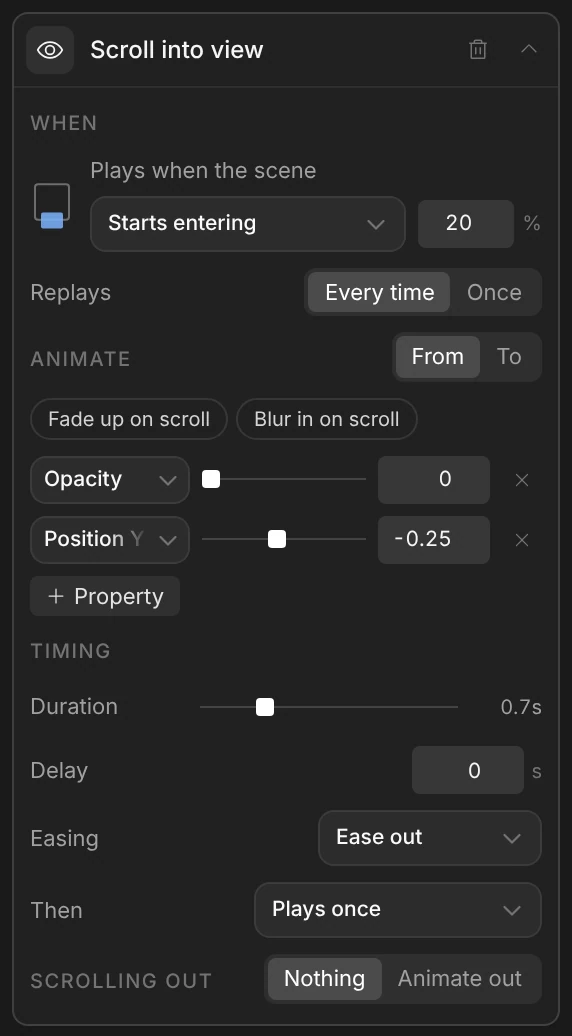
With Every time, scrolling back above the moment takes the layer back, and it plays again on the way down.
Animate out as it leaves
Under Scrolling out, choose Animate out. The layer goes to a second look as the scene leaves the window, at the moment set in Leaves when the scene. The ready-made Fade as it leaves does this.
Choose the scroll moment
A scroll trigger names a moment in the scene's trip up through the visitor's window, and an offset from it.
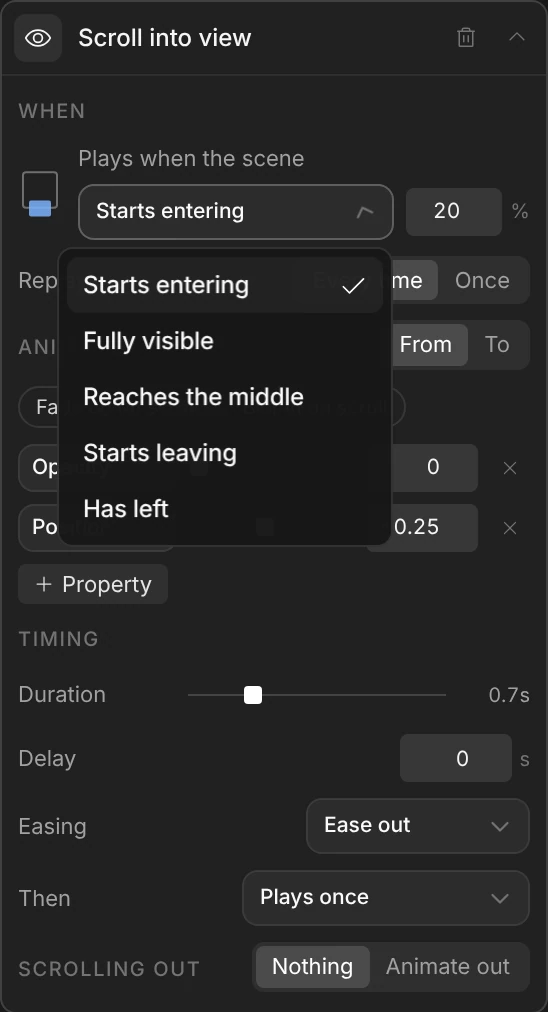
| Moment | When it comes |
|---|---|
| Starts entering | The first edge of the scene comes up from the bottom of the window |
| Fully visible | The whole scene is inside the window |
| Reaches the middle | The scene's middle reaches the middle of the window |
| Starts leaving | The scene's top edge reaches the top of the window |
| Has left | The last edge of the scene has gone off the top |
The number beside it is the offset, as a share of the window's height, from −100% to 100%. Starts entering with 20 waits until the scene is a fifth of the window in. A negative offset comes earlier.
Tip
Starts entering with an offset of 20% to 30% is a good default for a reveal. At 0% it plays while only a sliver of the scene shows, and visitors miss it.
Follow the scroll
While scrolling ties the layer to the scrollbar. It doesn't play; it moves forward as the visitor scrolls down and back as they scroll up.
- Click Add interaction and pick While scrolling, or the ready-made Parallax.
- Under Between, set Starts when the scene and Ends when the scene to the two moments the change runs between.
- Set the state and Animate.
- Raise Smoothing a little to make the layer glide after the scroll. At
0it follows exactly.
For layers that drift at different speeds, give each a different Position Y in its state.
Lean toward the pointer
Mouse move shifts the layer as the pointer moves over the scene. It has two states: Pointer at the right edge and Pointer at the bottom edge. The layer takes the opposite values at the left and top edges, and rests as designed with the pointer in the middle.
The ready-made Tilt toward pointer turns the layer to face the pointer, and Drift from pointer slides it away. Smoothing sets how long it takes to catch up.
On a phone there's no pointer, so the layer rests as designed.
Try them
Click Preview. It opens the piece on a web page you can scroll, with a dashed line at each scroll moment. Short of the line, the cards are still hidden:
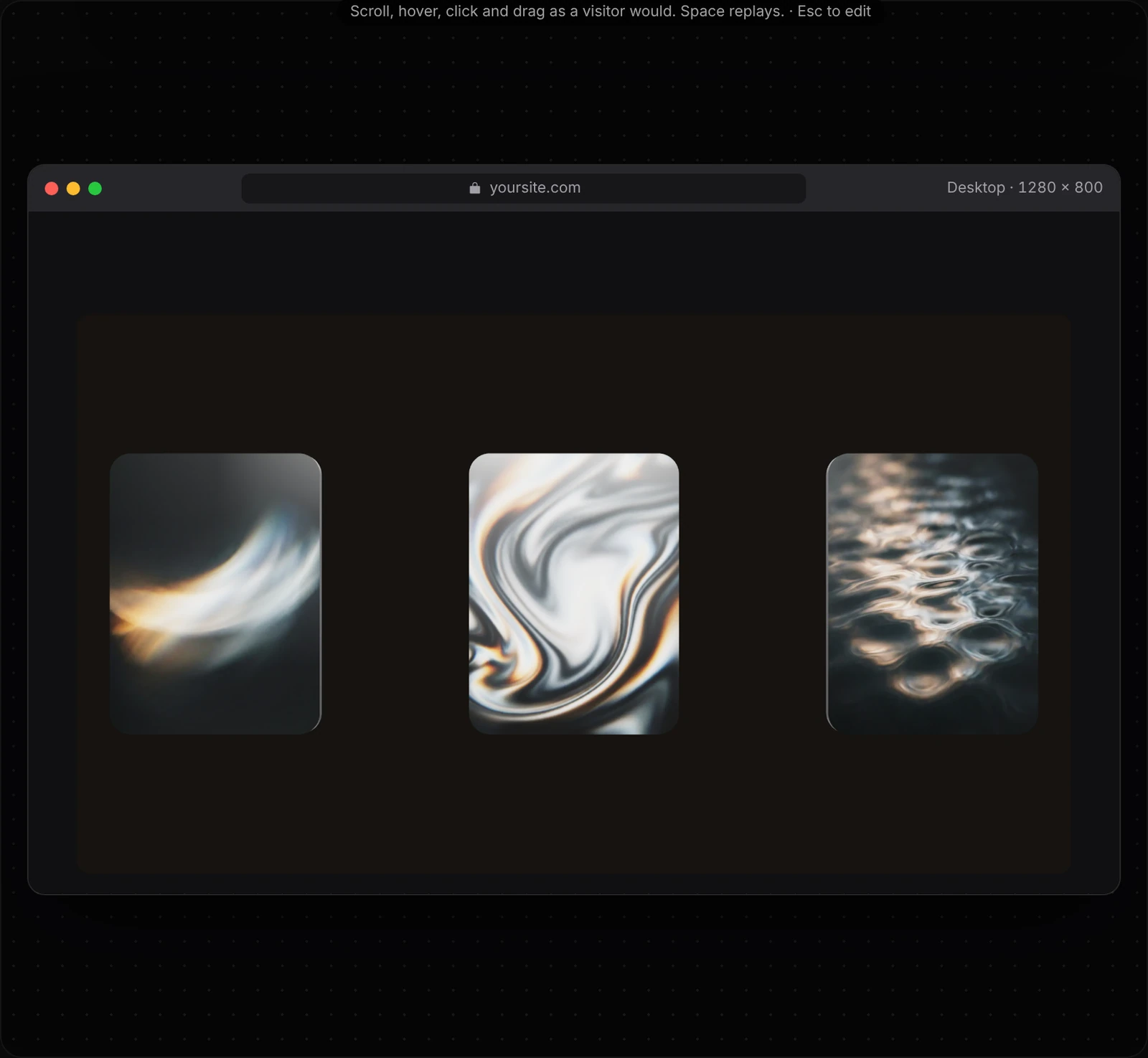
Scroll past it and they arrive, as in the picture at the top of this page. See Preview.
Things to know
- Triggers stack. When two set the same property, the later one in the menu's order wins: a hover on top of a scroll reveal works as you'd expect.
- A visitor who asks their device for reduced motion sees the layer at rest, with no entrances or loops.
- To play the whole timeline on load or on scroll, instead of one layer, see Play the timeline on scroll.
- Exports ignore interactions.