
Starting a project
The home page is where Paraplex opens. It has every way to start, from a blank file to a finished piece you can take apart.
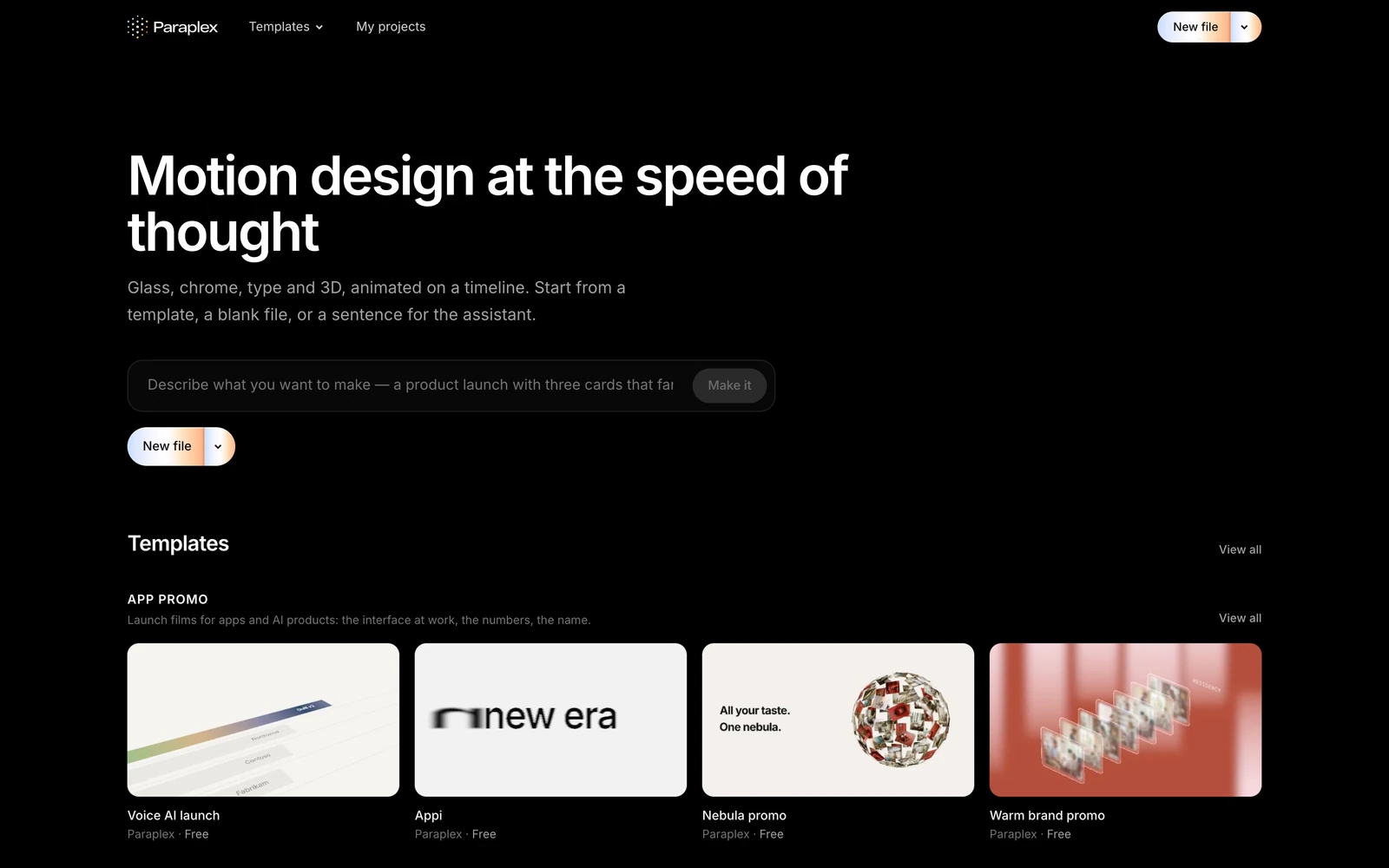
Start with a sentence
Describe what you want, and the assistant builds it.

- Type what you want to make. For example: a product launch with three cards that fan out, then a price that counts up.
- Click Make it.
Paraplex opens a new 1920×1080 file, opens the assistant and sends it your sentence. When the assistant is done, you see what it made and choose Apply to keep it or Discard to drop it.
You can use this signed out, within a free allowance. Signing in gives you a monthly allowance of credits. See Start with a sentence for tips on what to write.
Start with a blank file
Click New file for a blank Widescreen file. For another shape, click the arrow beside it:
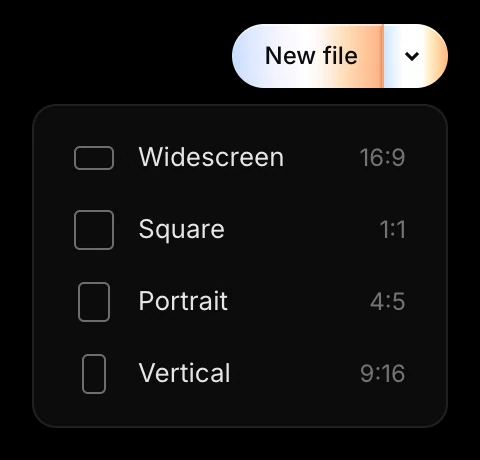
| Choice | Size | Good for |
|---|---|---|
| Widescreen 16:9 | 1920×1080 | YouTube, presentations, website heroes |
| Square 1:1 | 1080×1080 | Feed posts |
| Portrait 4:5 | 1080×1350 | Instagram and LinkedIn posts |
| Vertical 9:16 | 1080×1920 | Reels, TikTok, Shorts, Stories |
You get an empty scene with every setting at its default. You can change the size later. See Canvas size and setup.
Start from a template
A template is a finished animation that you make your own. It's the fastest way to something good.
The home page shows the templates by category: App promo, Brand promo, Starter templates and more. Click View all beside a category, or Templates at the top of the page, to see every one. To find one by name or by what it shows, type in Search templates at the top of the page (⌘ K).
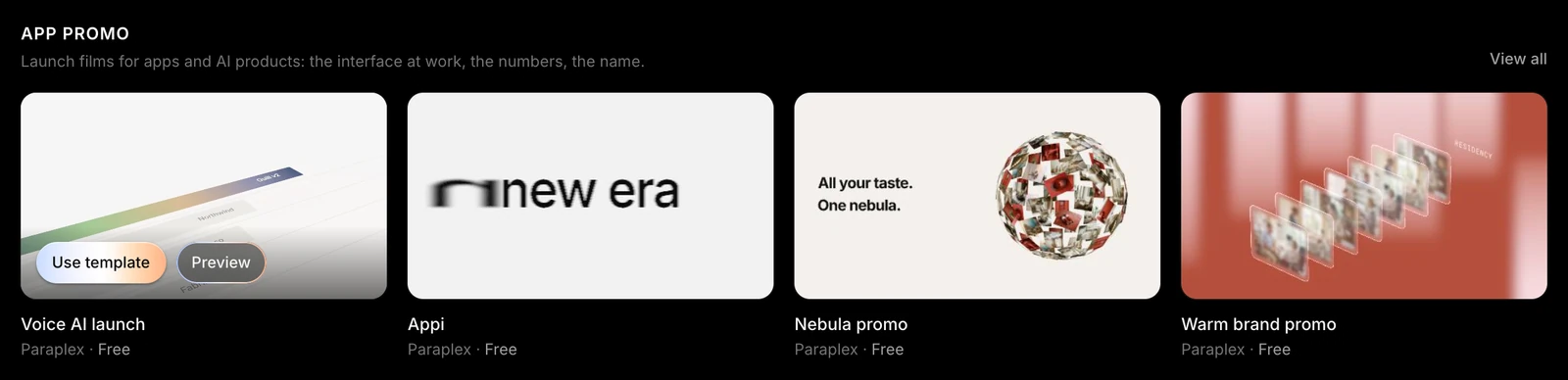
- Hover a card and click Use template to open it in the editor.
- Click Preview for a quick look at it, large. Use ← and → to step through its category, and Esc to close.
- Click the card itself to open the template's own page, with its details and more like it.
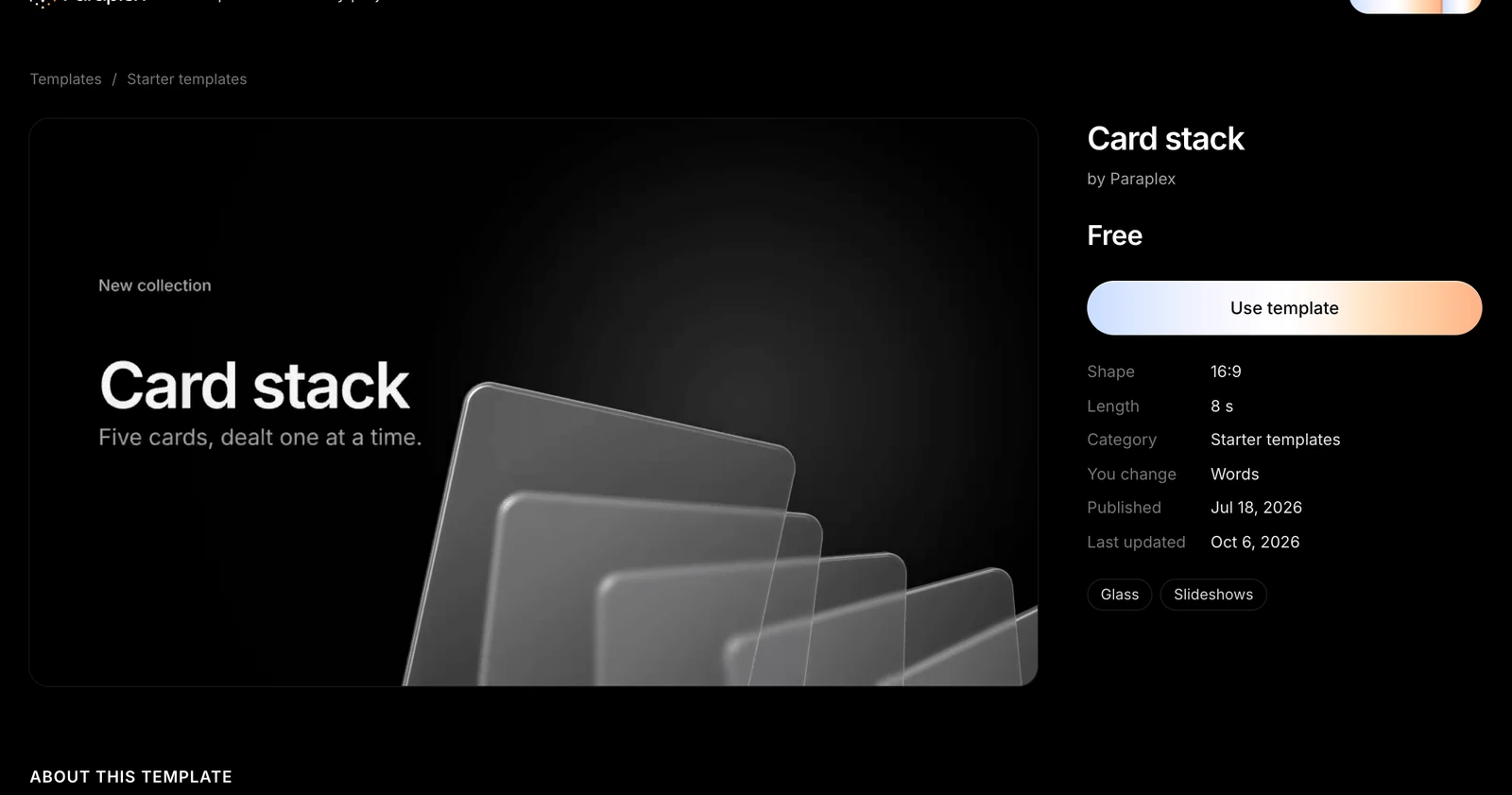
On a touch screen, Use template and Preview sit under each card.
You can also apply a template from inside the editor, from Menu › Templates. See Templates and the Templates catalog.
Open a project you've made
Recent on the home page shows your latest projects. My projects, at the top of the page, shows them all. Click one to open it.
Your library
The editor keeps the things you reuse in Menu › Library…:
| Section | What's in it |
|---|---|
| Your models | 3D models you've generated, ready to insert. Shown once you've made one. |
| Components | Reusable groups you've saved, ready to insert into any project |
| Design systems | Your brands' colors, fonts and text styles. Save one from the open project, or import design tokens. |
| My templates | Templates you've saved and published yourself. Shown when you're signed in. |
| Community | Pieces other people made in Paraplex and shared. Use as template opens your own copy. Sort by Newest, Most used or Featured. |
What happens to the scene you were working on
Starting something new never throws away your work, and neither does going back to the home page. Paraplex keeps what you change, without asking:
- A template you change becomes a project of yours from your first change, named after it, such as Card stack (Copy).
- A blank file you work on becomes a project called Untitled.
- A project is saved in place when you leave it for another scene or go back to the home page.
- A scene you haven't changed isn't saved.
You'll find it under Recent on the home page and in My projects.
Get back to the home page
In the editor, click the Paraplex button at the left of the top bar, or choose Menu › Home. The scene stays open behind the home page: your browser's back button takes you straight back to it, as you left it.
Every file has its own address. A project's stays the same, so you can bookmark it, and reloading the page keeps you where you are.