
Animate a picture
Animate a picture brings a still to life: light that ripples across water, clouds that drift, a camera that glides forward. Describe the motion, and an AI video model makes a clip from the picture, which lands in your scene as a video layer.

Where to find it: right-click a layer with a picture and choose Animate this picture with AI…, or open Render with AI and choose Animate a picture.
Animate a picture
- Select the layer with the picture, such as a shape you've put a photo on.
Right-click it and choose Animate this picture with AI….

- Describe the motion: what moves, how, and what the camera does.
- Pick a quality and a Length of 5 s or 10 s.
- Click Animate.
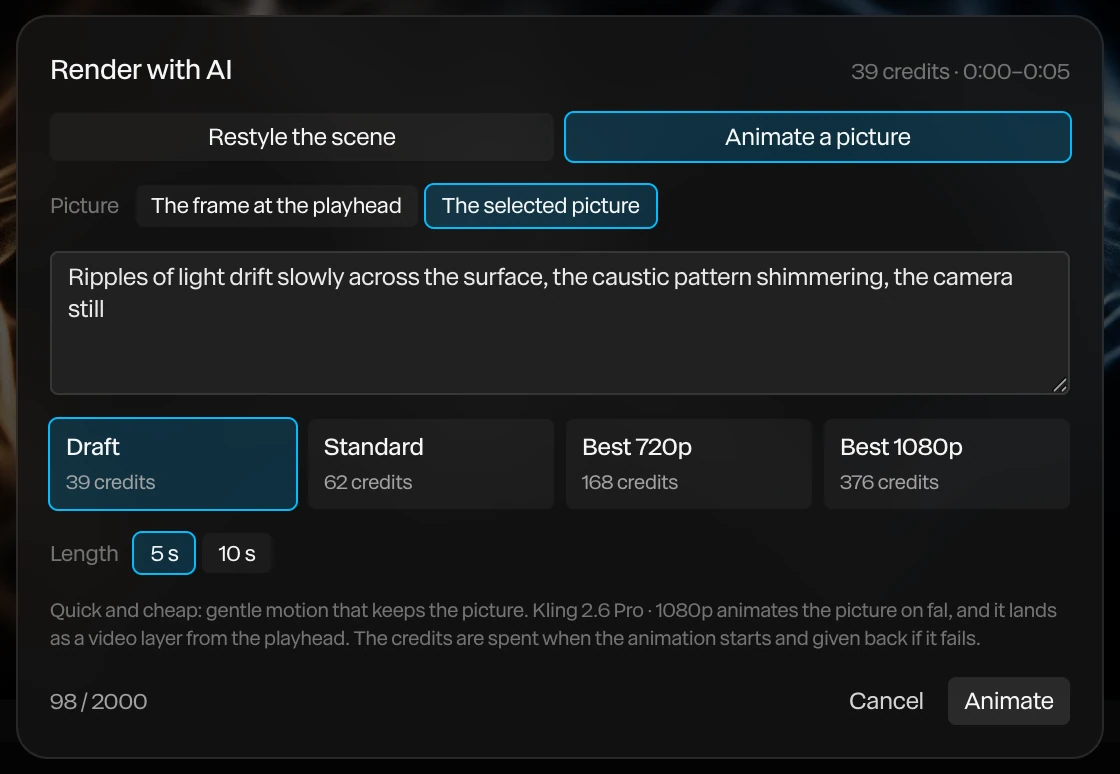
The clip lands as a video layer from the playhead.
To animate what's in your frame instead of one picture, open Render with AI, choose Animate a picture, and set Picture to The frame at the playhead.
Quality
| Quality | What it does |
|---|---|
| Draft | Quick and cheap: gentle motion that keeps the picture |
| Standard | Follows your description closely, with livelier motion |
| Best 720p | The most lifelike motion and light, at 720p |
| Best 1080p | The same, at 1080p |
The dialog shows the cost before you start. See AI credits and keys.
Describe the motion
- Say what moves and how: "ripples of light drift slowly across the surface".
- Say what the camera does, or that it stays still: "the camera glides slowly forward", "the camera still".
- Keep it to one or two movements. A long list of actions makes a busy, unsteady clip.
The credits are spent when the animation starts, and given back if it fails. Your clip carries no sound.