
Camera moves and shake
Camera moves write a whole camera move for you: a push in, a pan, an orbit, a dolly zoom. Shake adds the wobble of a handheld camera, a moving car or an earthquake. Both live on the Scene: click Scene at the top of the Layers panel. See Camera and lens.
Add a camera move
- Select Scene, and put the playhead where the move should start.
- In Camera › Camera move, choose a Move.
- Choose what to Frame: Where it looks (the point the camera looks at now), or any layer.
- Set Seconds and Curve.
- Click Add camera move.
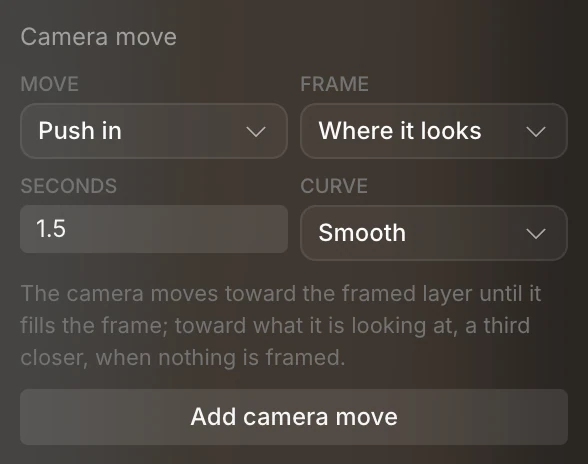
The move starts at the playhead, from wherever the camera is at that moment, and lasts Seconds (1.5 to start with). So a second move picks up where the first one ends. Each move is one step in undo, and its keyframes are ordinary camera keyframes you can edit.
The moves

| Move | What the camera does |
|---|---|
| Push in | Moves toward the framed layer until it fills the frame. With nothing framed, it moves a third closer to the point it looks at. |
| Pull back | Backs away, to half again its distance |
| Pan | Stays put and turns to the framed layer, or to the right |
| Tilt | Stays put and turns up. With a layer framed, it turns to that layer, just like Pan. |
| Orbit | Circles a third of the way around the point it looks at, keeping its height |
| Whip | Snaps quickly to the right, or to the framed layer |
| Dolly zoom | Backs away while zooming in, so the subject stays the same size while the background stretches: the "Vertigo" effect |
| Rack focus | Doesn't move. It pulls focus to the framed layer, and turns on depth of field. |
Note
Orbit always circles the point the camera looks at, whatever you choose under Frame. Whip always uses its own quick curve, whatever you choose under Curve.
Curve offers Smooth (the default), Snappy out, Expo out, Spring, Spring, bouncy and Linear. A spring overshoots a little and settles, like a camera operator catching the shot. See Easing and springs.
Shake the camera
The Shake section, under Camera, makes the camera wobble. The shake turns the camera slightly; it never moves its position. It's the same every time you play or export.
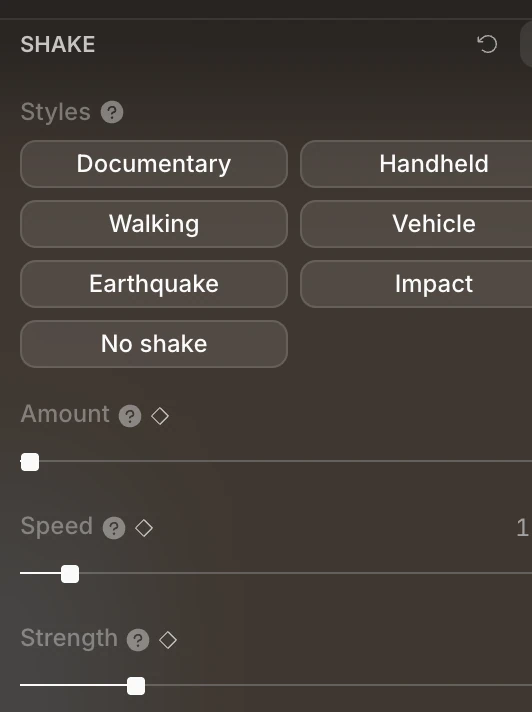
Click a Style to set all three dials at once:
| Style | Feel |
|---|---|
| Documentary | A slow, gentle sway |

| Handheld | A camera held by hand |
| Walking | Someone walking with the camera |
| Vehicle | A fast, small vibration, as from a car |
| Earthquake | Strong, fast shaking |
| Impact | A jolt at the playhead that settles over about half a second, for a hit or a landing |
| No shake | Turns the shake off |
| Dial | What it does |
|---|---|
| Amount | How much shake, from 0 (none) to 1 |
| Speed | How fast it shakes, from 0.1 to 12 times a second. Under 1 drifts, around 2 walks, and 8 or more vibrates. |
| Strength | The widest the camera turns at full Amount, from 0° to 5° |
All three can be keyframed. Keyframe Amount to make the shake build up or die down: its lane in the timeline is called Camera shake.
Tip
Impact adds keyframes at the playhead, so put the playhead on the moment of the hit first. Add several for several hits.