
Saving your work
Paraplex keeps the scene you're working on safe in your browser as you go. From your first change, a scene is a project: you find it again under Recent on the home page and in My projects.
Your open scene is kept as you work
Every change you make is stored in your browser within a second or so. If you reload the page, your scene is where you left it. If you close the tab, open the project again from Recent on the home page.
A template you change becomes a project named after it, such as Card stack (Copy), and a blank file becomes Untitled. Give it a name of your own whenever you like.
Undo history doesn't survive a reload, so you can't undo changes made before it.
Name a project
The quickest way is to name it in the top bar.

- Click Untitled in the top bar.
- Type a name.
- Press Enter, or click anywhere else. Press Esc to cancel.
The project now has that name. To rename it later, click its name in the top bar and type a new one.
You can also use the Menu:
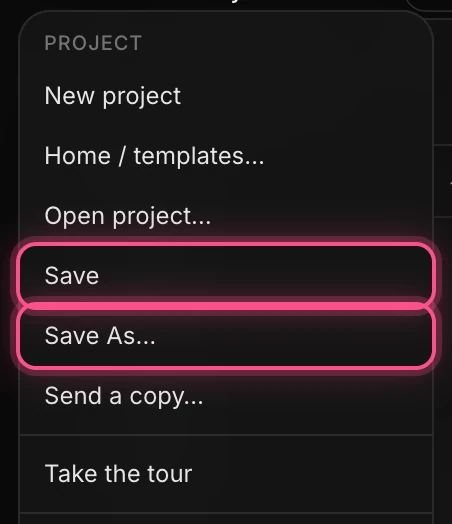
- Save saves the open project. On a scene you haven't changed yet, it asks for a name first.
- Save As… asks for a name. On a project Paraplex named for you, such as Untitled or Card stack (Copy), it gives that project your name. On a project you named, it saves a copy under the new name and switches you to the copy; the original stays as it was.
Important
A project updates when you save it, when you switch to another scene and when you go back to the home page. Paraplex saves it for you then. Your edits are safe in the browser before that, but the version in My projects (and in the cloud, if you're signed in) is the last one saved.
There's no ⌘ S shortcut. In Paraplex, S switches to the Scale gizmo.
Open a project
- On the home page, click it under Recent, or open My projects at the top of the page.
- In the editor, choose Menu › Open project… to open the Projects panel.
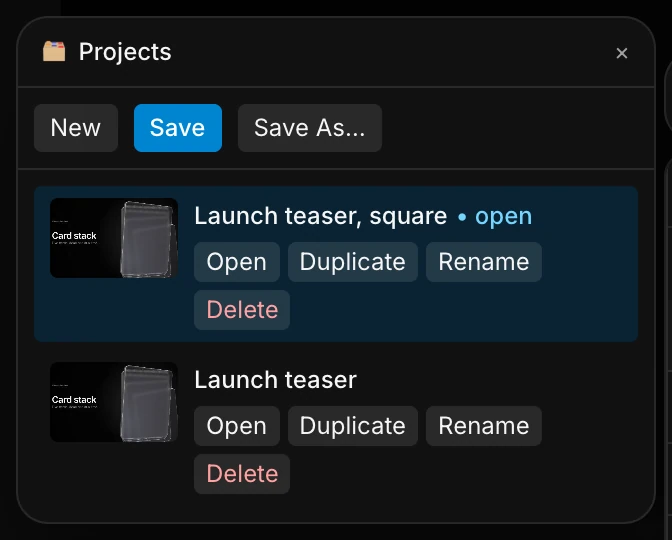
The Projects panel lists every saved project, newest first. The one you have open is marked • open. For each project you can:
- Open it.
- Duplicate it.
- Rename it.
- Delete it. Paraplex asks first.
The panel also has New, Save and Save As… at the top.
Switching scenes saves for you
You never lose work by moving on. When you go back to the home page, open the Projects panel, open a template, start a new file or open another project, Paraplex first saves the scene you had open if you changed it:
- A template you changed is already a project named after it, such as Card stack (Copy), from your first change. It's saved in place.
- A blank file you worked on is already a project called Untitled. It's saved in place.
- A project is saved in place.
- A scene you didn't change isn't saved.
Sign in to keep projects in the cloud
When you're signed out, your projects live only in this browser, on this computer.
Warning
Clearing your browser's data for Paraplex deletes projects that only live in this browser. Sign in to keep a copy in your account.
When you sign in (with Keep projects in the cloud on, which is the default):
- Every saved project follows your account to any browser or computer.
- Projects you saved before signing in upload on their own.
- Each project keeps a History of its recent saves, so you can restore an earlier version.
- Deleted projects go to a Bin, where you can restore them.
- You can Send a copy of a project to someone else.
Your plan sets how many projects you can keep in the cloud. See Cloud sync and revisions and Account and sign-in.