
Text
Text in Paraplex is real text: you type it on the canvas, change it any time, and it stays sharp at any size. It can be flat, like a title on a slide, or solid 3D letters that catch the light.
Add text
- Press T, or click Text in the dock.
- Click on the canvas to start a line, or drag to draw a box.
- Type. The word "Text" is already selected, so your typing replaces it.
- Press Esc when you're done.
- A click makes a line that grows to the right as you type. It only breaks where you press Enter.
- A drag makes a box. Words wrap to its width.
New text is Poppins, 156 px, in white or near-black, whichever stands out against the background.
Important
With a text layer selected, T edits that text instead of adding a new one. Press Esc first, so nothing is selected, then T.
Edit text
- Double-click any text on the canvas. The cursor goes where you clicked.
- Or select the text and press Enter, which selects all of it.
While you type, Enter starts a new line, and the arrow keys, Home and End move the cursor; hold Shift to select. With the mouse, drag to select, double-click a word, or triple-click to select everything. Copy and paste work as usual.
Press Esc, or click somewhere else on the canvas, to finish. Each round of typing is one step for undo.
The text box
A selected text shows its box with eight handles.
- The side handles set how wide the box is. Words wrap to it.
- The top and bottom handles set a height too, so the box keeps a fixed size.
- Drag inside the box to move the text.
Text settings
Select a text layer and Text settings opens over the canvas. It holds everything for the words themselves. Drag its title bar to move it; double-click the title to put it back; click — to shrink it to a bar. It hides while the animation plays.

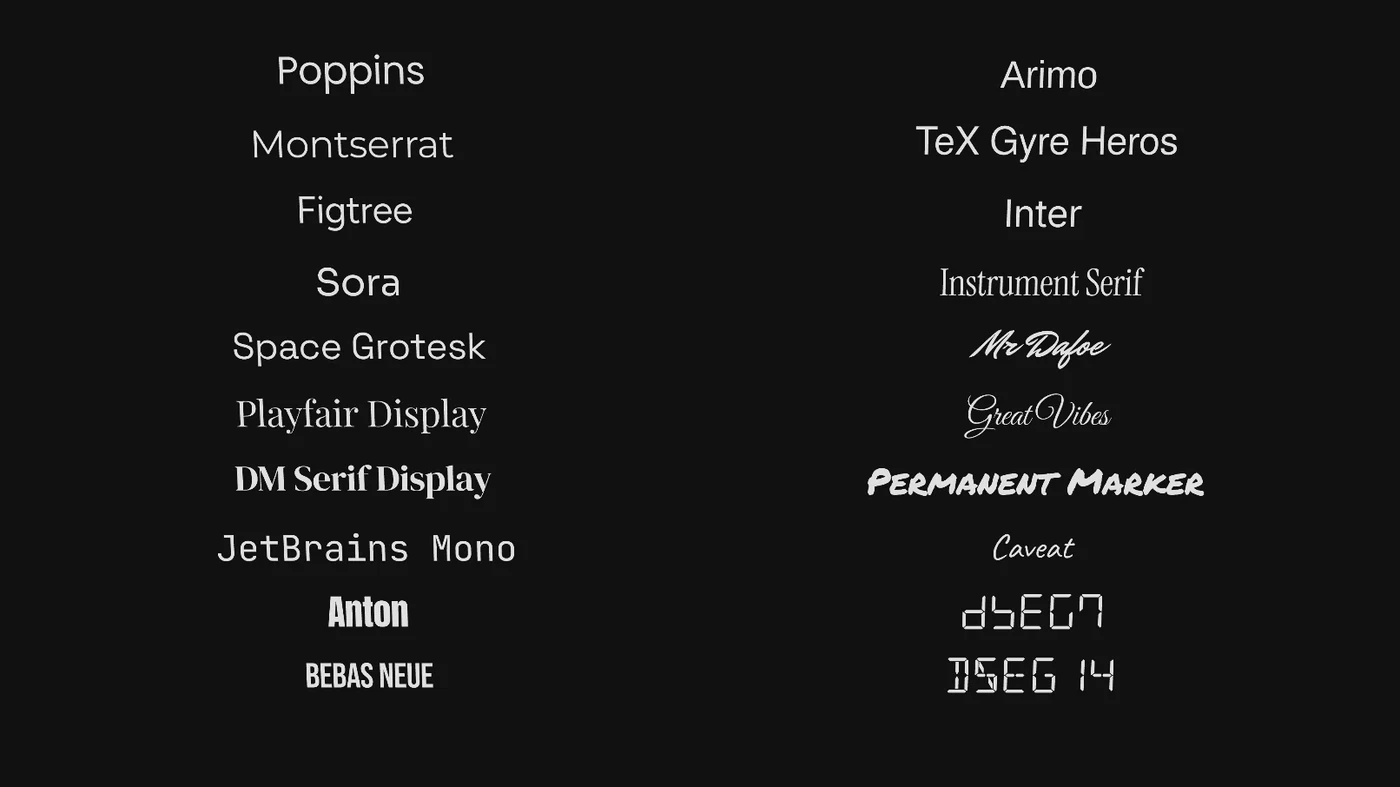
- Font: 20 fonts come built in. See Fonts.
- Size, and its unit. See Size and units.
- Color: the same color as Panel Fill › Color. Click the hex code to type one.
- Align: left, center or right.
- Tracking: the space between letters, in ems. −0.02 tightens a big title; 0.1 opens it up.
- 3D gives the letters depth. See 3D text.
- Animate opens the text animations: letters that rise, type on or scramble. See Text animation.
- More opens the rest:
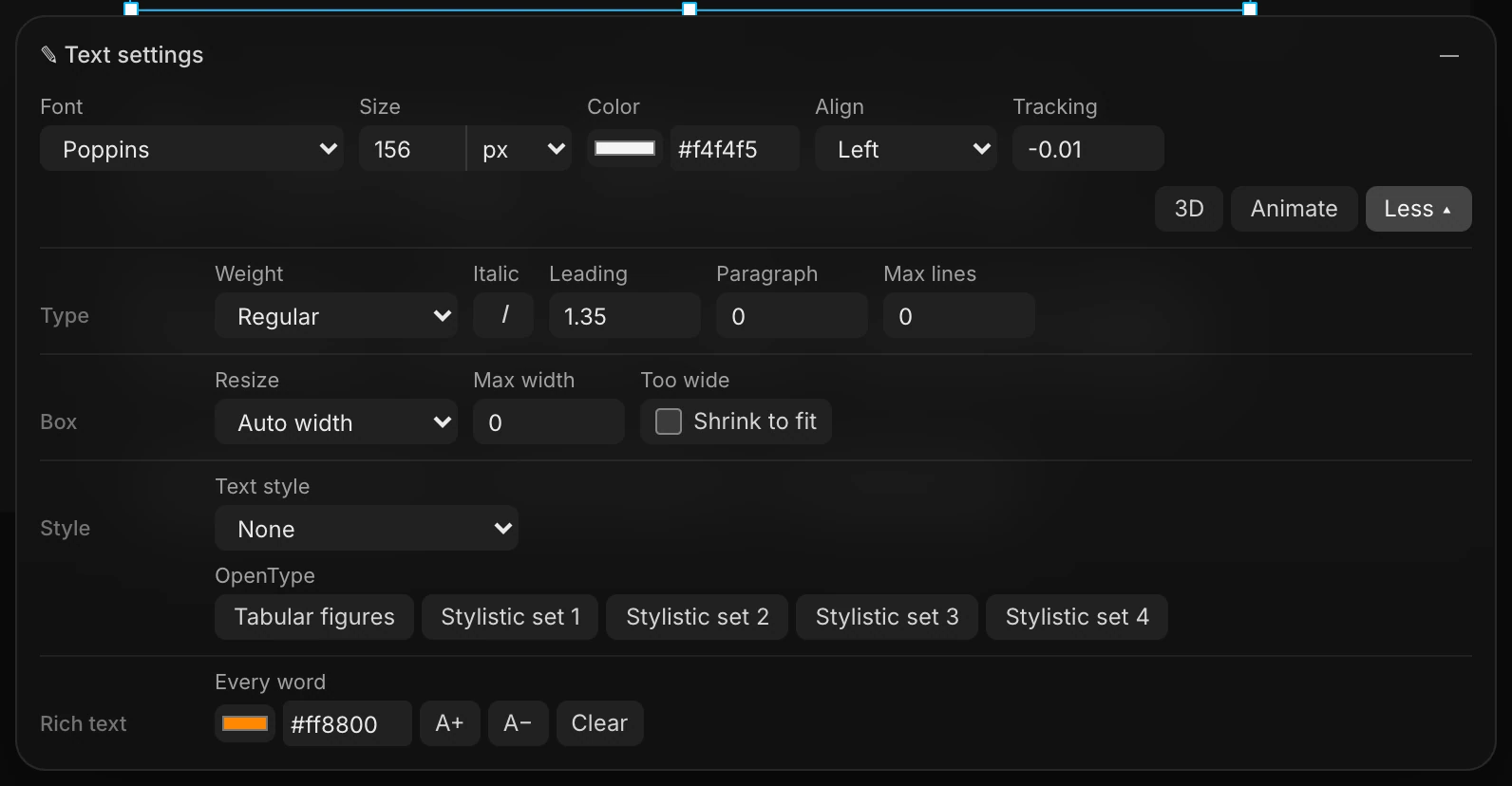
| Row | Settings |
|---|---|
| Type | Weight (only the weights the font has), Italic, Leading (the space between lines), Paragraph (extra space after each paragraph), and Max lines (0 means no limit; otherwise the last line ends in "…") |
| Box | Resize (Auto width, Auto height or Fixed size), Max width, and Shrink to fit, which shrinks the words to fit the box instead of wrapping |
| Style | Text style, a ready-made look. See Text styles. Plus OpenType features |
| Rich text | Color and size for every word, or for the words you select while typing |
OpenType and Rich text are on Text, advanced.
The text box's Resize options
- Auto width: one line that grows as you type (what a click makes).
- Auto height: a fixed width; it grows downward as the words wrap.
- Fixed size: a fixed width and height (what a drag makes). Lines at sets whether the words sit at the top, middle or bottom of the box.
Note
Max width and Height are in scene units, not pixels: a whole 16:9 frame is about 3.2 units wide.
Size and units
Type a size into Size, and pick its unit from the list beside it.
| Unit | Means |
|---|---|
| px | Pixels in the exported frame (the default) |
| pt | Points: 1 pt is 1⅓ px |
| rem, em | 16 px each, as on the web |
| u | Scene units, the 3D scene's own measure |
| vw, vh | A share of the frame's width or height: 5 vw is 5% of the width |
| % | A share of the parent group's height, or the frame's |
You can type the unit with the number: 3rem or 5vw. The field switches to that unit. Sizes in vw, vh and % follow the frame, so the text keeps its share of it when you change the canvas size or make other formats.
The arrow keys nudge the size by one step of the unit (1 px, 0.125 rem); hold Shift for bigger steps.
Fonts
Paraplex comes with 20 fonts, from clean sans serifs to handwriting and digital-clock numbers.
To add your own font:
- Click Menu › Fonts › Upload font (TTF/OTF)… and choose a .ttf or .otf file.
- Select a text layer, then pick the font at the end of the Font list.
The font is saved inside the project, so it travels with it. An uploaded font has one weight, and its italic is a slanted version of the regular.
3D text
Click 3D in Text settings to give the letters real depth. They turn solid and catch the scene's light.

- Depth: how deep the letters go.
- Bevel: rounds the letters' front edges, so light runs along them.
- Material → jumps to Panel Material in the properties panel: Matte, Glossy, Glass, Metal and the rest.
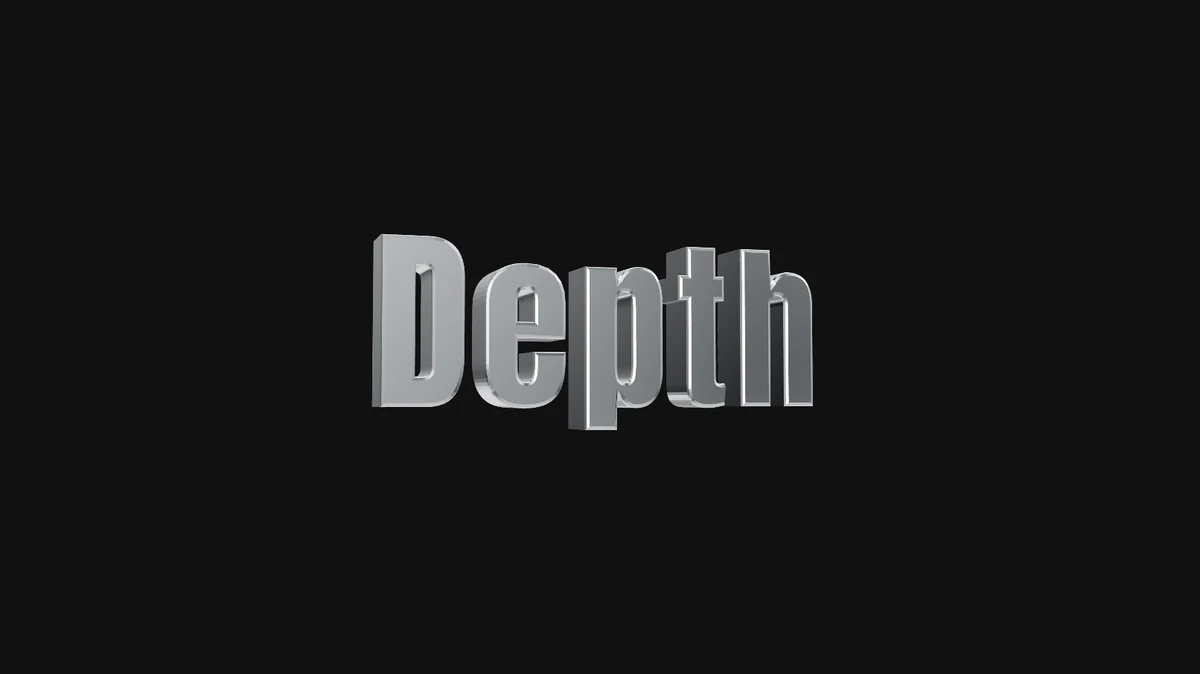
Turn the layer a little (Rotation Y in Transform) to show off the depth. Click 3D again to make it flat.
Text styles
A text style is a ready-made look: neon, chrome, glass, an outline. Choose one in More › Style › Text style. There are 16, including four camera readouts like a date stamp and a viewfinder label.
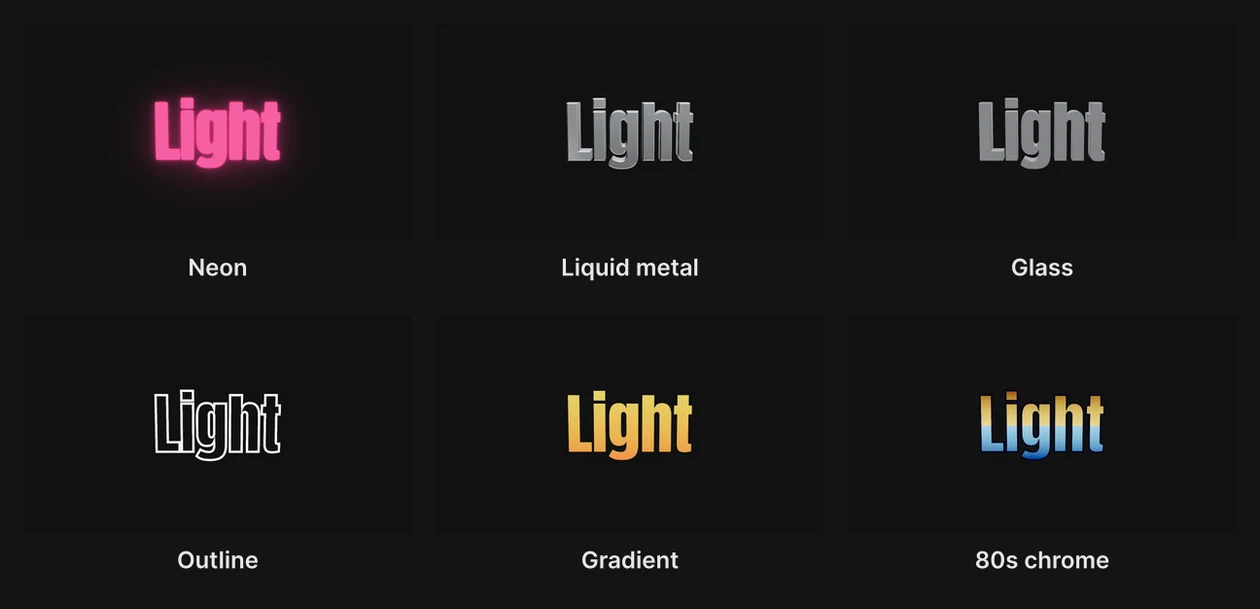
To save a text's look as a style of your own, select the text and open Menu › Text styles. See Text styles.
Where text sits
A text layer's Position is the top of its box, not its middle. When you center a text with Align, the box is what gets centered, so a box taller than its words sits a little high. Set Resize to Auto height, or Lines at to Middle, and it centers as you'd expect.