
Strokes
A stroke is an outline: the border round a card, the edge of a word, or the line itself on a path. Give it a width and a color or gradient, dash it, round its ends, put an arrowhead on it, or paint it with a brush. Animate its trim and the line draws itself.

Where to find it: the Stroke section, with a shape, text or path selected.
Add a stroke
- Select a shape, a text layer or a path.
- In the Stroke section, open Stroke and choose Solid stroke or Gradient stroke.
- Set its Width and Color. A gradient stroke has the same editor as a gradient fill. See Fills and gradients.
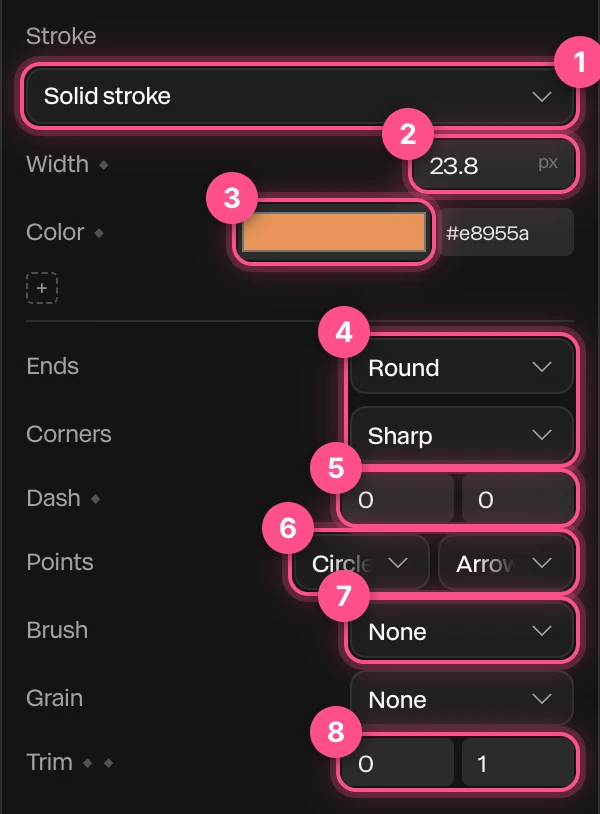
- Stroke: None, Solid stroke or Gradient stroke.
- Width, in pixels.
- Color. Under it are your project's color tokens, as for fills.
- Ends and Corners: how the line ends and how it turns a corner.
- Dash: the length of each dash and the gap between them.
- Points: what the line wears at its start and its end, such as an arrowhead. Open lines only.
- Brush: paints the line with a brush, such as pencil or watercolor. Grain under it lays a texture into the stroke.
- Trim: how much of the line shows, from its start to its end.
A Line from the dock comes with a white stroke. An open path you draw with the pen has no stroke until you add one. See Pen and paths.
Settings
| Setting | What it does |
|---|---|
| Ends | Flat stops the line at its end, Round rounds it off, and Square runs a little past the end, squared off. |
| Corners | Sharp comes to a point, Round rounds the turn, and Bevel cuts it off. |
| Align | Where the line sits on a shape's edge: Inside keeps the shape its size, Center straddles the edge, Outside grows round it. Not on paths, whose line is always centered. |
| Dash | The length of each dash and the gap after it. 0 and 0 is a solid line. Dashes keep their length when the line gets longer. |
| Points | The Start point and End point: None, Triangle, Arrow, Stout arrow, Circle, Square or Pulse dot. |
| Brush | None for a plain line, or Paint, Calligraphy, Ballpoint, Pencil, Watercolor, Charcoal, Marker, Bristle brush, Crayon or Custom stamp. See Brushes and drawing. |
| Trim | Start and End, from 0 to 1: the stretch of the line that shows. |

For a dotted line, set the dash length to 0, give it a gap, and choose Round ends. Each dot is as wide as the stroke.
Draw a line on over time
Animate the trim to make a line look as if it's being drawn:
- Select the line. Put the playhead where the drawing should start.
- In Stroke › Trim, set the second number (the end) to
0, and click the second ◆ beside Trim. - Move the playhead to where the line should be finished.
- Set the end to
1. Paraplex adds the keyframe.
To make a line wipe away instead, animate the first number (the start) from 0 to 1.
Animate a stroke
Width, Color, each part of Trim, and a gradient stroke's colors and Angle all have a ◆. Click it to set a keyframe at the playhead, then change the value at another time. See Animation basics.
Tip
For a light that runs round a card's border, give it an Angular gradient stroke with one bright stop, then keyframe Angle from 0 to 360 with the Linear curve.