
Scene looks and randomize
A scene look is the environment, the grade and the film treatment saved together, so you can try a scene warm, then cold, then grainy, and switch back in one step. Randomize does the same kind of exploring for a single shape: it rolls new settings to react to.
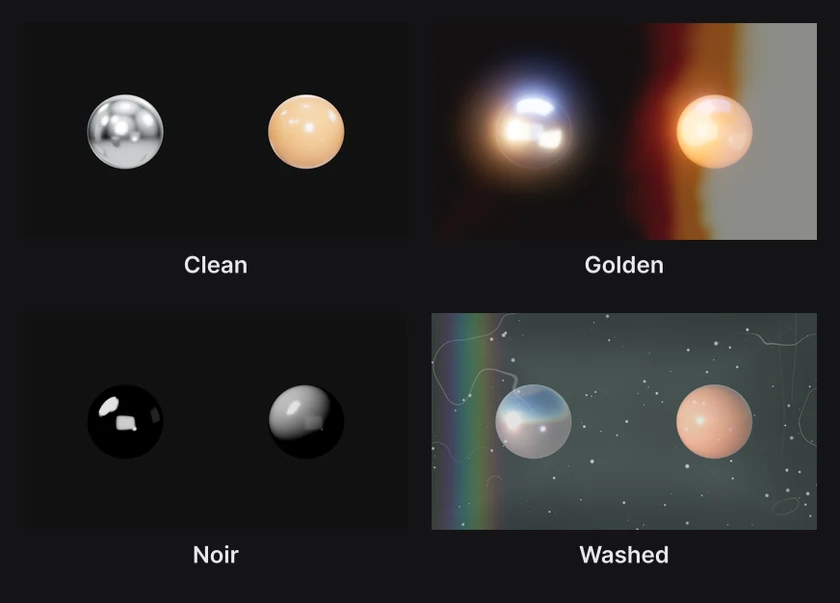
Where to find it: Menu › Scene looks and Menu › Randomize, under Scene.
Save a look
- Set up the scene's environment and filters. See Lighting and environments and Filters and film.
- Choose Menu › Scene looks › Save current look….
The look is named after the environment, and a message says it's saved. Saved looks are listed at the top of Menu › Scene looks.
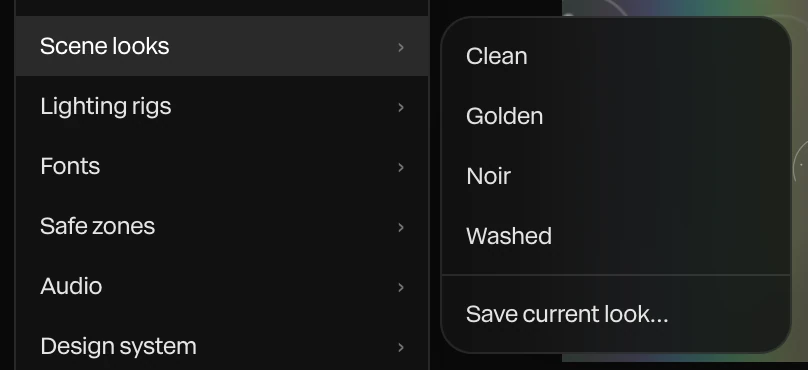
A look saves these settings:
- The Environment, Env intensity, Env rotation and Exposure
- Tone mapping, Ambient occlusion and Bounce light
- Bloom, Contrast, Saturation and Grain
- The Film overlay and its Overlay intensity
It doesn't save your light layers. Save those as a lighting rig. See Lighting and environments.
Apply a look
Choose a look from Menu › Scene looks. Its settings replace the scene's. One undo takes the whole look off again.
Looks are saved with the project, so a new project starts without them.
Share a look
Choose Menu › Copy look link. The link opens Paraplex with the look applied to whatever is open, in one step you can undo. Use it to pass a look to someone else, or to carry it into another of your projects.
Randomize
Randomize rolls new values for a group of a shape's settings, for a variation to react to. Each roll is one undo.
- Select a shape.
- Choose Menu › Randomize and a group.
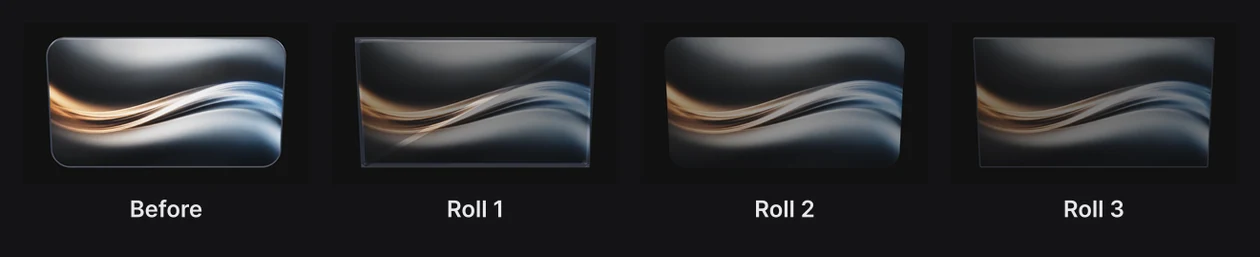
| Group | What it rolls |
|---|---|
| Glass | The glass dials: IOR, Dispersion, Volume thickness, Attenuation distance, iridescence and anisotropy. They show on a glass shape. See Glass and Liquid glass. |
| Panel | The Bevel, the corner radius and the Opacity |
Keep rolling until something works, then fine-tune it by hand. Undo steps back through the rolls.
Note
The menu also lists Light, but it doesn't change a light yet.