
Share links and copies
There are three ways to share a piece without exporting a file: a link to watch it, a copy to edit, and a share file for a preview. All of them start from Share in the top bar.
A link to watch it
- Click Share, then Copy shareable link.
- Paste the link anywhere: an email, a chat, a review doc.
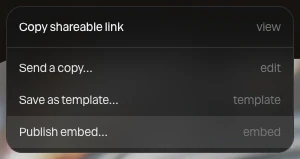
Anyone with the link can watch the piece and try its hover and click behaviors. They can't edit it.
- You need to be signed in: the page is published under your account, and counts toward your plan's published pieces.
- Each project has one link. After you change the piece, click Refresh shareable link: the same link shows the new version.
- The link's page isn't listed anywhere, and search engines are asked not to show it.
See Publish and embed to put the piece on your own website instead.
A copy to edit
Send a copy gives a colleague their own copy of a project, to change as they like. Nothing they do reaches yours.
- Click Share, then Send a copy…. Or click Send a copy on the project in your projects list.
- Paraplex makes the link and copies it. Send it on.
Whoever opens it gets the project as it is in your account at that moment, saved as a new project in their browser. They don't need an account.
Important
A copy link works for seven days, and can't be taken back sooner. The project must be in your account: sign in, with cloud sync on, and save it first.
A share file for a preview
Menu › Export share file… downloads the scene as a small file, <project name>.paraplex-share.json. Put the file on a web host that lets other sites read it, then open Paraplex with ?view= and the file's address on the end:
https://app.paraplex.ai/?view=https://example.com/launch.paraplex-share.json
The piece opens as a preview: it plays and scrubs, with the editing tools out of the way, and nothing is saved.
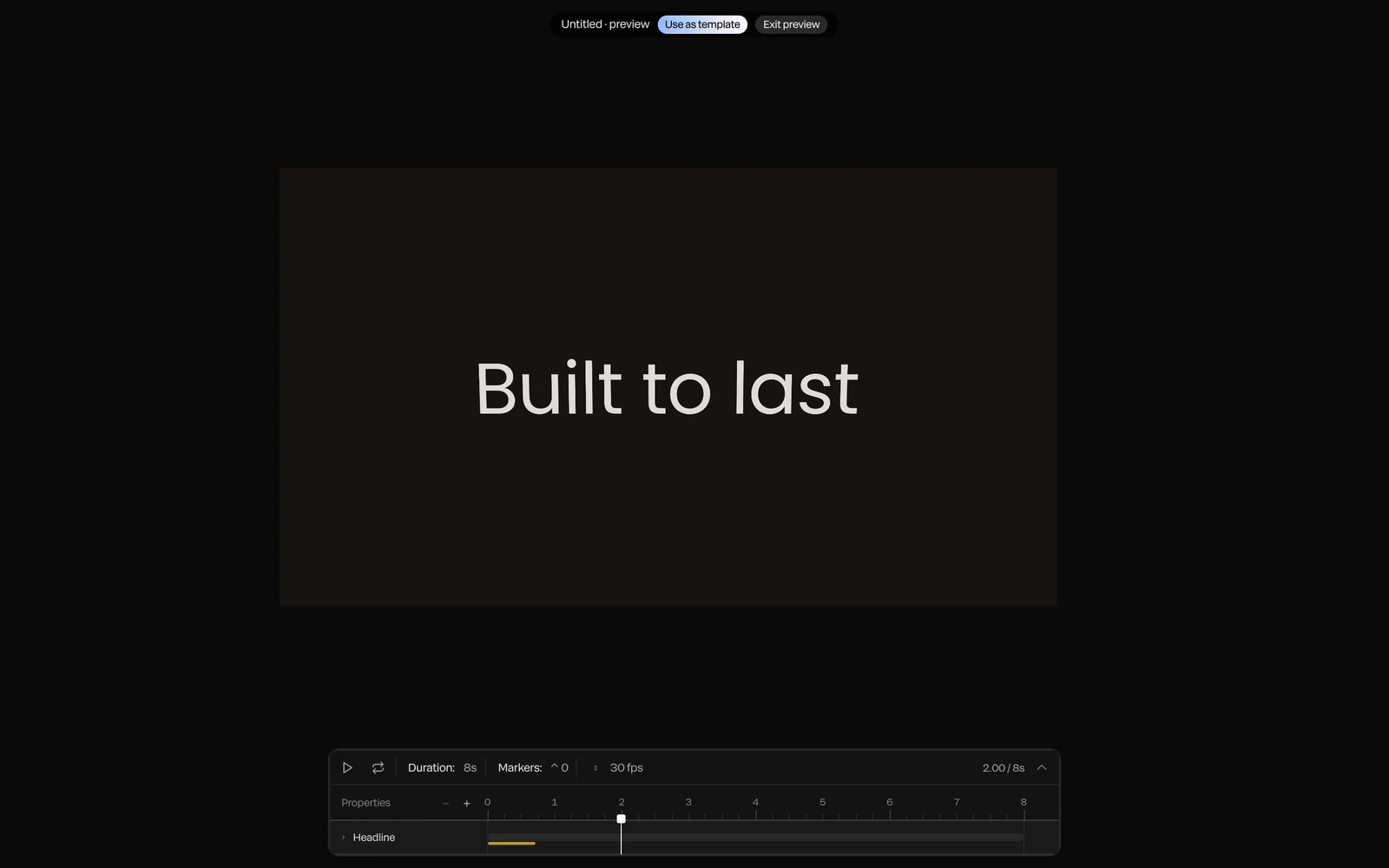
| Button | What it does |
|---|---|
| Use as template | Opens a copy as a new project of the viewer's own |
| Exit preview | Back to the viewer's own project. The preview was never saved. |
| Notes | Shows the maker's notes, if the piece has any |