
Text, advanced
Beyond fonts and sizes, text can pick out single words in a color, use a font's OpenType features, turn over phrase after phrase, count, and become a shape you edit point by point. Start with Text if you haven't yet.
Color and size for single words
Rich text lets one word stand out from the rest of the line.
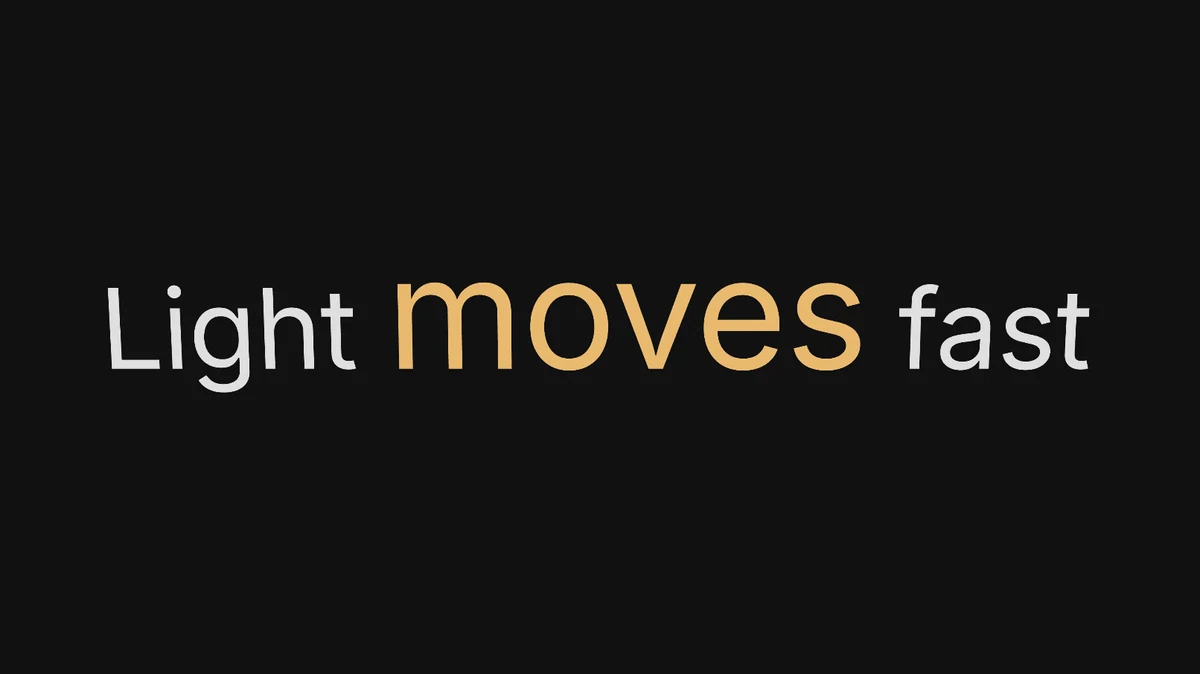
- Double-click the text to type in it, then select the words: drag across them, or hold Shift and use the arrow keys.
A Selection group appears at the front of Text settings:
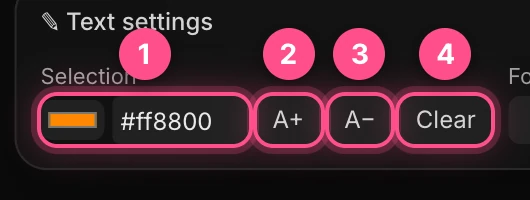
- Color for the selected words. Click the swatch, or type a hex code.
- A+ makes them 1.4 times bigger.
- A− makes them 0.7 times the size.
- Clear takes the formatting off.
- Click an empty part of the canvas to finish.
A+ and A− set a size rather than adding up: pressing A+ twice still gives 1.4 times. When you're not typing, the same buttons sit under More › Rich text as Every word, and format the whole text.
Note
Single words can have their own color and size, but not their own font or weight. For a word in another font, use a second text layer.
OpenType features
Many fonts carry extra versions of their letters and numbers. Turn them on in More › Style › OpenType. Only the features the chosen font has are shown, so the list changes from font to font.

| Feature | What it does |
|---|---|
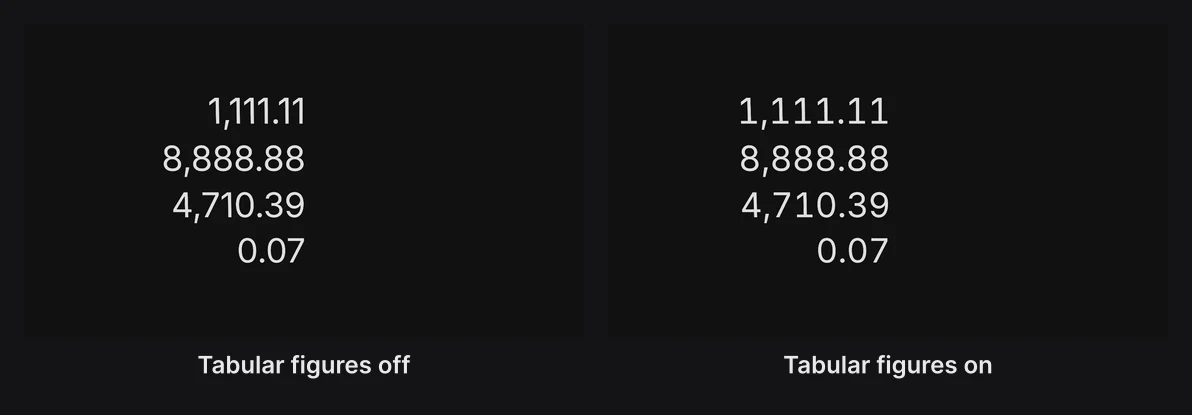
| Tabular figures | Makes every digit the same width, so numbers line up in columns. Works with any font. |
| Oldstyle figures, Lining figures | Numbers that rise and dip like lowercase letters, or that all stand at capital height |
| Slashed zero | A zero with a slash, so it can't be mistaken for the letter O |
| Case forms | Moves punctuation like hyphens and brackets up to suit capitals |
| Small caps | Small capital letters in place of lowercase |
| Stylistic sets | Alternate letter shapes the font's designer included. Try each one to see what changes. |
Tip
Turn on Tabular figures for any number that counts. Every digit is then the same width, so the number holds still instead of jiggling as its digits change.
Kerning, the fine spacing between pairs of letters, is always on. Ligatures, like "fi" joined into one shape, aren't used: every letter is drawn on its own.
Rotating phrases
Rotating phrases is a line whose first words stay put while its last words turn over, one phrase after another, like a hero headline on a website.

- In the dock, press and hold Text to open its family, and choose Rotating phrases.
- A sample line arrives in the middle of the frame. Each phrase holds for 1.4 seconds and changes over 0.6 seconds, as code that locks onto the new letters. The phrases repeat to the end of the timeline, so four phrases make an eight-second loop.
- To write your own phrases, select the layer and open Animate in Text settings. The phrases are in the Text swap row. See Swap between phrases.
Note
Rotating phrases arrive in a dark gray that's hard to see on a dark background. Pick a lighter Color in Text settings.
Keep the text left-aligned, as it arrives, so the opening words never shift when the last word changes length.
Counters and swaps
Two more ways for text to change over time are on Text animation:
- Make a number count: a price, a percentage or a clock that counts up, or rolls like an odometer.
- Swap between phrases: one word rolling, flipping or retyping into the next.
A counting number can't be typed on the canvas: set its numbers in Animate › Effects › Number.
Turn text into a shape
Right-click a text layer and choose Convert text to path. Its letters become one shape, with anchors and handles you can drag to reshape them, and you can then give it depth, a bevel and any material.
It stops being text: you can't type in it any more, and its text animation is dropped. Duplicate the layer first if you might want the words back. See Pen and paths.
Text along a curve
Paraplex doesn't set letters along a curved line. What it can do is move a whole text layer along a path, turning with the curve. See Motion paths and morphs.