
Social formats and safe zones
Every platform wants its own shape, and the vertical ones cover part of your video with their buttons and captions. Set the canvas to the right shape, and turn on a safe zone to see which parts of the frame stay clear.
Pick the shape
Choose Menu › Aspect ratio and a shape. The canvas takes that shape's size, such as 1080 × 1920 for Vertical. Your layers stay where they are, so check the scene afterwards.
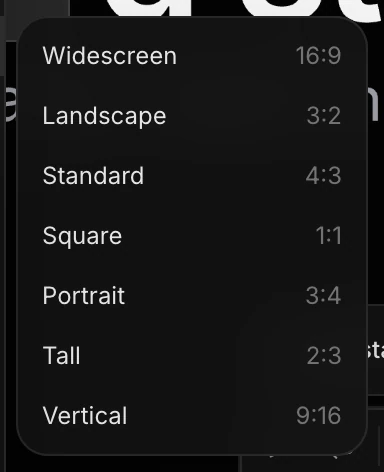
| Platform | Shape | Size |
|---|---|---|
| TikTok, Instagram Reels and Stories, YouTube Shorts | Vertical 9:16 | 1080 × 1920 |
| Instagram and LinkedIn feed | Square 1:1, or 4:5 | 1080 × 1080, or 1080 × 1350 |
| YouTube, websites, presentations | Widescreen 16:9 | 1920 × 1080 |
For an exact size, such as 1080 × 1350, type it into Canvas width and Canvas height at the top of the Scene's settings. See Canvas size and setup.
Tip
Need the same piece in several shapes? Don't rebuild it: add artboards and export them all at once. See Formats and artboards.
Show a safe zone
- Choose Menu › Safe zones.
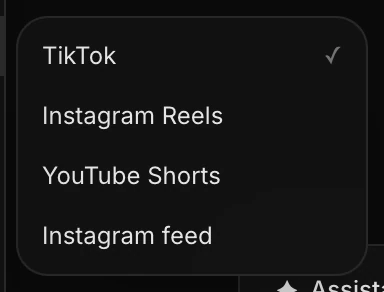
- Pick the platform: TikTok, Instagram Reels, YouTube Shorts or Instagram feed.
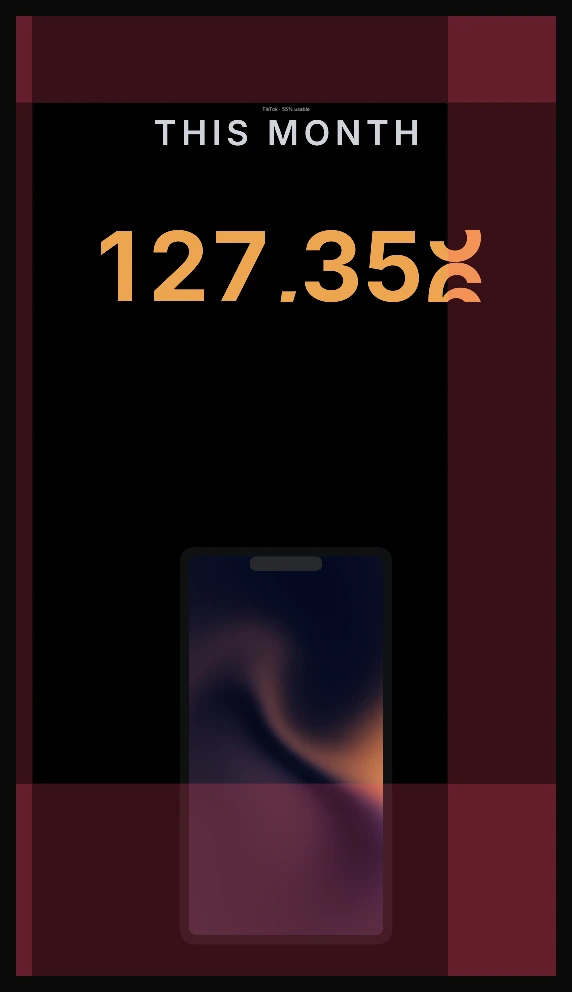
The parts of the frame the platform covers are tinted red, a dashed line marks the area that stays clear, and a label says how much of the frame is usable. Keep headlines, prices and buttons inside the line.
| Safe zone | What it keeps clear of |
|---|---|
| TikTok | The buttons down the right, and the caption at the bottom |
| Instagram Reels | The buttons down the right, the caption, and the tabs at the top |
| YouTube Shorts | The buttons down the right, and the title at the bottom |
| Instagram feed | Little covers the picture; the margins are for comfort |
One safe zone shows at a time. Pick the one that's on to turn it off.
Things to know
- Safe zones are guides only. They never appear in an export.
- The zone is saved with the project, so it's still there when you come back.
- The zones follow each platform's usual layout, which changes from time to time. Leave a little room past the line.