
Search
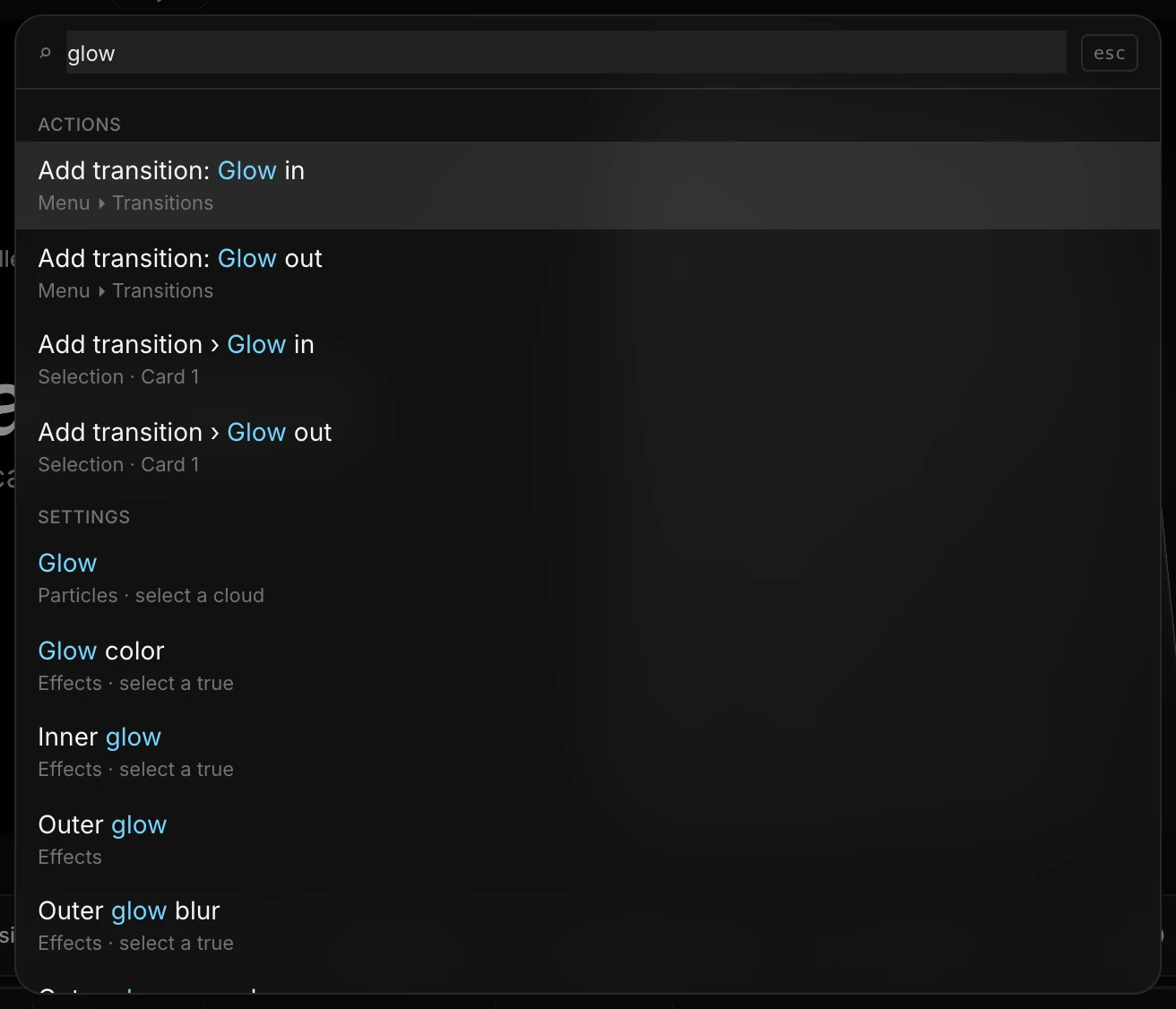
Search finds almost anything in Paraplex from one box: layers, things to add, templates, actions, settings and help. If what you typed is really a question, its last row hands it to the assistant.
Open search
- Press ⌘ K or ⌘ F (Ctrl K or Ctrl F on Windows). This works even while you're typing in a field.
- Or click the magnifier at the left of the quick-actions strip.
Then:
- Type a few letters. Matching letters light up in blue.
- Use ↑ and ↓ to move through the results, and Enter to choose one.
- Press Esc to close.
What you can find
Results come in groups, in this order, with up to six in each:
| Group | What choosing a result does |
|---|---|
| Layers | Selects the layer and scrolls the Layers panel to it |
| Add | Adds the thing, exactly as its dock button does |
| Library | Applies a template, inserts a component, or opens a skill |
| Actions | Runs a Menu command, or an action on what's selected, such as Copy or Duplicate |
| Settings | Takes you to the setting in the properties panel |
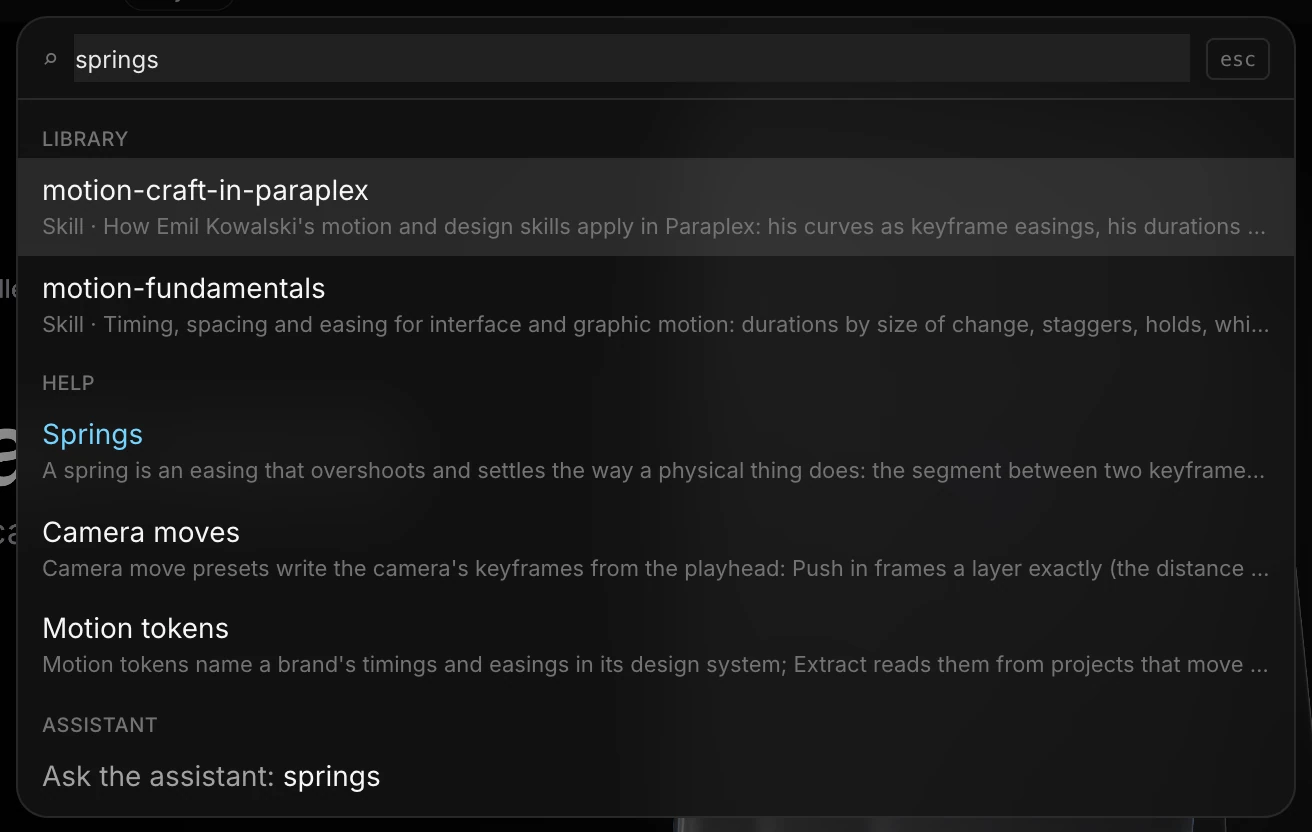
| Help | Opens a short help card |
| Assistant | Sends your words to the assistant |
With nothing typed, search shows the first few items of each group.
Jump to a setting
You don't need to remember which section a setting lives in. Search for it by name, such as outer glow, and choose it. The properties panel opens the right section, scrolls to the setting and rings it in blue for a moment.
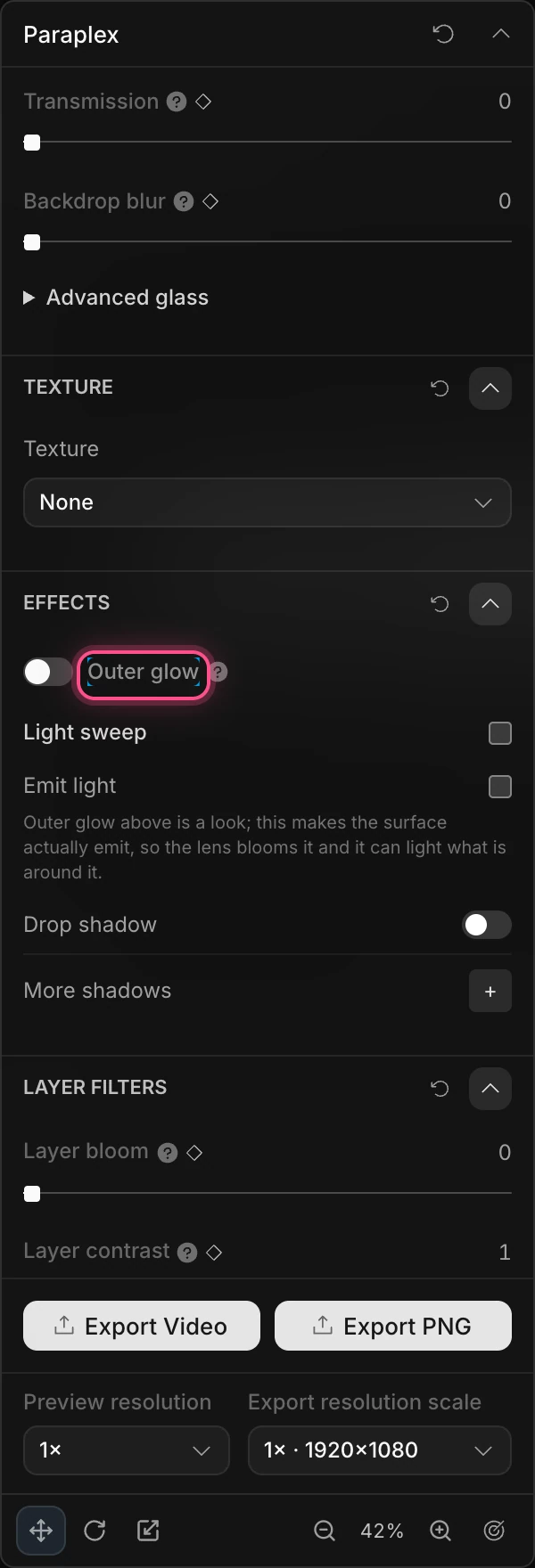
If the setting doesn't apply to what you have selected, Paraplex tells you which section it's in and what to select first.
Get quick help
Search for a feature by name and look under Help:
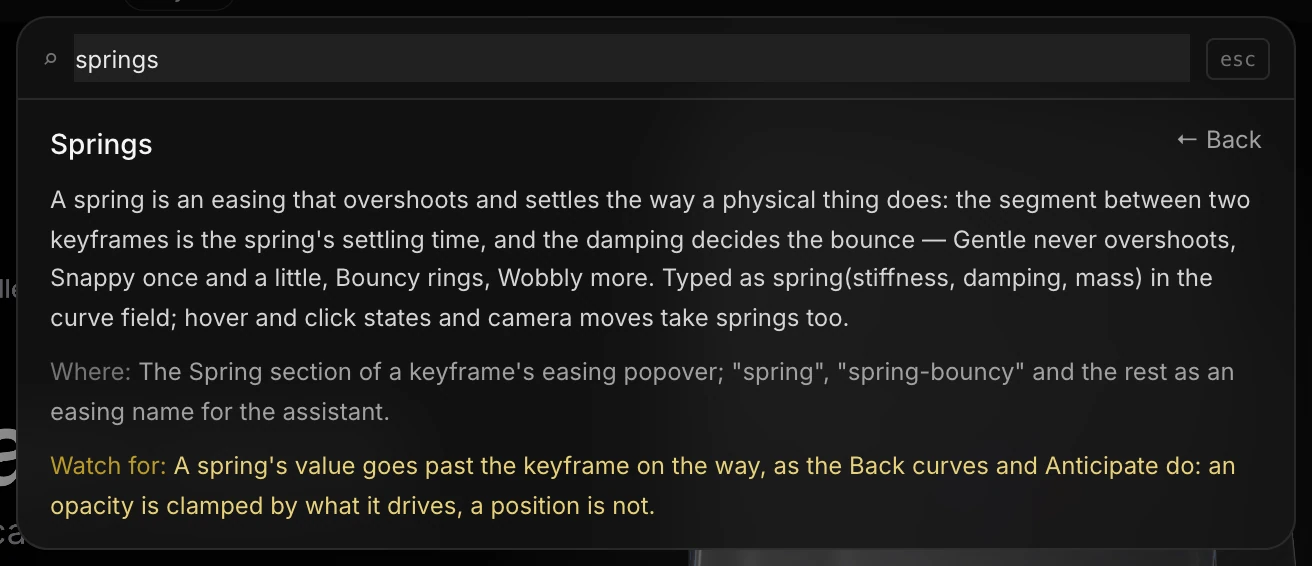
Choose a help result to open its card. It says what the feature is, Where to find it, and what to Watch for. Click ← Back to return to your results.
Ask the assistant
Whatever you type, the last row reads Ask the assistant: followed by your words. Choose it to open the assistant and send it your search. This is handy for questions like how do I make the title bounce?. See Meet the assistant.
Tips
- Want to learn where a Menu command lives? Highlight it and press ⇧ Enter. The Menu opens at that item instead of running it.
- Some results show their keyboard shortcut beside them, such as P for the pen.
- A few commands are only in search, not in the Menu, including Add a note, Make this the home view and Preview mode.