
Supported files
Most files go in the same way: drag them from your desktop onto the canvas. Paraplex looks at what each one is and makes the right kind of layer from it. Some kinds have their own menu item too, and a few things come in best by pasting.
Drop files on the canvas
| You drop | It becomes |
|---|---|
| A picture: PNG, JPEG, WebP, GIF, AVIF, HEIC, TIFF or SVG | An image layer. Dropped on a shape, it goes onto that shape. See Images and video. |
| A video: MP4, WebM or MOV | A video layer, playing along the timeline |
| A 3D model: GLB or glTF | A model layer. See 3D models and splats. |
| A Gaussian splat: PLY, SPZ, SPLAT, KSPLAT or SOG | A splat layer |
A Lottie: .json or .lottie | Layers with their keyframes. See Lottie. |
| A Send to Paraplex file from Figma | Your Figma frames as layers. See Figma plugin. |
| A folder of app screens and recordings | The promo maker. See Build a scene from a folder. |
A HyperFrames project folder or .zip | A code layer. See Code layers. |
| An HTML, TSX or JSX file | A code layer |
A .paraplex-recording from the Paraplex Recorder | A screen recording. See Screen recordings. |
Drop several pictures at once on a component with empty picture slots, and they fill the slots in turn.
Note
An SVG dropped on the canvas comes in as a picture. To get its shapes as editable paths, use the dock's Vector (SVG) or paste it. See SVG and vectors.
Files Paraplex can't use are left out without a message. Sound, fonts, spreadsheets and color lookup tables have their own buttons instead, below.
Paste
Press ⌘ V (Ctrl V on Windows) on the canvas to bring in what you copied elsewhere:
| You copied | It becomes |
|---|---|
| Frames from the Figma plugin (Copy for Paraplex) | Your Figma frames as layers |
| An SVG, such as Copy as SVG in Figma or Illustrator | Vector paths |
| HTML, a React component, or a shadcn component's link | A code layer |
| A picture | An image layer |
| Text | A text layer |
Files with their own buttons
| File | Where |
|---|---|
| Sound: any audio file | Press and hold the dock's Audio button, then Audio track (file). See Audio. |
| Fonts: TTF or OTF | Menu › Fonts › Upload font (TTF/OTF)… |
| A spreadsheet: CSV or TSV | A chart's data, or Data variants. See Data sheets. |
| Design tokens: JSON | Menu › Colors › Import tokens (JSON)…. See Design tokens. |
| A brand kit | Menu › Brand kit › Import kit… |
| An HDRI environment: HDR, EXR, JPEG, PNG, WebP or AVIF, up to 32 MB | The Scene's Environment section. See Lighting and environments. |
| A color lookup table: CUBE | A LUT pass's Load .cube. See The effect library. |
A skill: SKILL.md, a folder or a .zip | The assistant's Skills tab. See Skills. |
| A library export | Menu › Import library… |
In the Menu
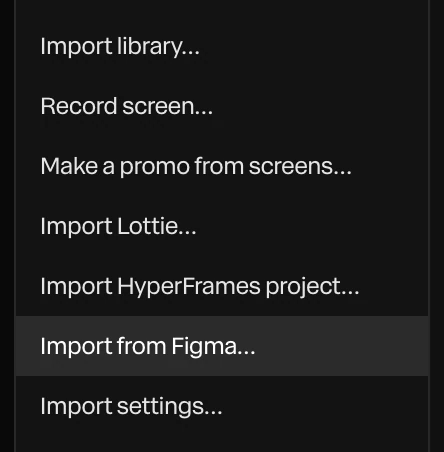
The Menu's import items sit together, near the bottom:
Things to know
- Pictures and videos are stored inside the project, so very large files make a project slow to save and open. Compress long videos before you bring them in.
- There's no project file to download. To move projects to another browser, sign in with cloud sync on, or use Menu › Export library… and Import library…. See Saving your work.