
Scenes and cuts
Most promos and explainers are several shots in a row: a hero, a feature, a number, a price. In Paraplex, each shot is a group of layers that's on screen for its own stretch of the piece. Where one shot's time ends and the next begins, you get a cut.
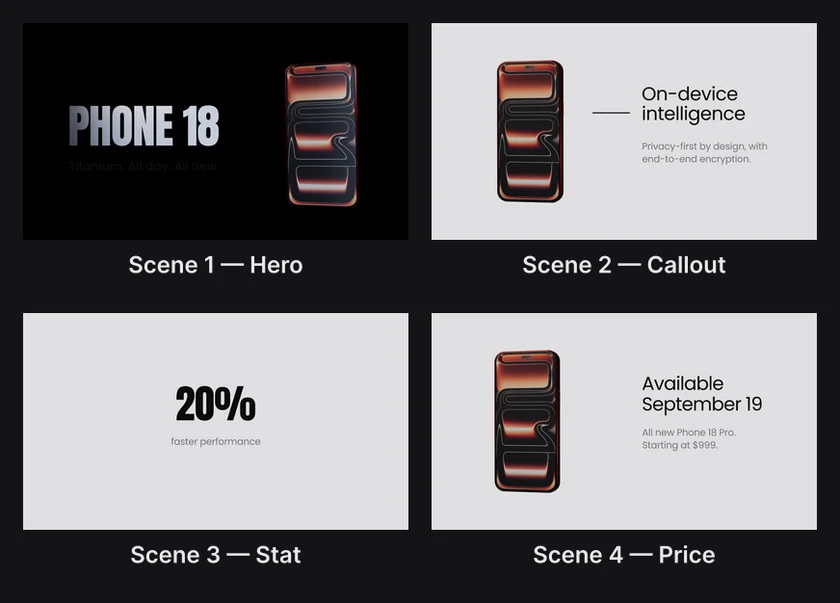
Where to find it: groups in the Layers panel, and the Clip row on the timeline. The Product launch template is built this way, so open it to see a finished example. See Starting a project.
Build a piece in shots
- Put each shot's layers in a group, and name it, such as Scene 1 — Hero. See Groups and pre-composition.
- Add a marker where each cut should fall: move the playhead there and press M with the timeline expanded.
- Select the first shot's group. Trim its clip to end at the first marker: drag the clip's end, which snaps to the marker.
- Trim each following shot's clip to start where the one before ends.
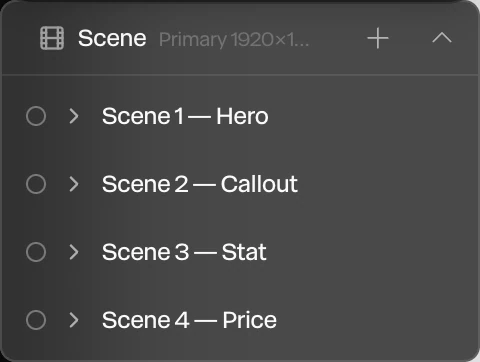
Outside its clip, a group and everything in it isn't drawn, on the canvas or in the export. When one clip ends exactly where the next begins, the cut is clean: no frame shows both shots, and no frame shows neither. See Clips and transitions.
Tip
Keep each shot's lights inside its group. Then they switch off with the shot and don't light the next one.
Time the shots before you animate them
Keyframes are measured from the start of the piece, not from the start of a shot. Sliding a shot's clip later doesn't take its animation with it.
So settle when each shot starts and ends first, then animate inside it. If you do move a shot, drag its keyframes to match in the scene timeline: with nothing selected, each row's diamonds move every keyframe at that moment. See Editing keyframes.
Transitions between shots
A hard cut is the default. To soften it:
- Slide or zoom a shot in. Drag a transition in from the start of the next shot's clip. A group's transition can slide and zoom it, but not fade it. See Clips and transitions.
- Cross-fade. Let the two clips overlap by a moment, and fade the next shot's layers in with Animate in. See Animate in and out.
- Match cut or smart animate for a cut that carries something across. See Smart animate and match cuts.
The transitions in the timeline's scene row apply to the very start and end of the whole piece, not to the cuts inside it.
The camera across cuts
There's one camera for the whole piece. To change the angle at a cut, keyframe the camera on each side of it with Step Hold easing, so it jumps instead of gliding. See Camera and lens and Easing and springs.
Or leave the camera still and arrange each shot's layers for it. That's how the Product launch template works.