
Undo and redo
Undo steps back through your changes, and redo steps forward again. Layers, settings, keyframes, transitions and text are all covered. There's no limit to how far back you can go.
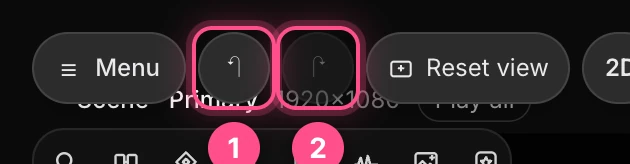
| Mac | Windows | |
|---|---|---|
| Undo (1) | ⌘ Z | Ctrl Z |
| Redo (2) | ⇧ ⌘ Z | Ctrl Shift Z or Ctrl Y |
Or click the arrows in the top bar. They're dimmed when there's nothing to undo or redo.
One step for one action
Actions that change many things at once undo in a single step:
- dragging a gizmo on settings that aren't animated, even with several layers selected
- a camera move preset, Animate in or Animate out, an appearance, Morph into, or a Reveal
- applying a template
- the changes the assistant makes when you click Apply
Pasted pictures and videos are the exception. Each one is a separate step, after the step that pastes the layers.
What undo doesn't cover
- Orbiting or dollying the camera. Use Reset view (F) to put the camera back instead. See Moving around the canvas.
- Reset view and Make this the home view themselves.
- Selection, the playhead's position, and how you've zoomed or panned your view.
- Display preferences such as folded sections and units.
Important
While you're typing in a field, ⌘ Z undoes your typing in that field. Click an empty part of the canvas first to undo changes to the scene.
Undo history and reloading
Undo history lasts while the project is open. When you reload the page or open a project, history starts fresh. Your work is still there, but you can't undo past that point.