
Behaviors
Behaviors make a layer interactive. Give a card a hover state and it lifts when the pointer reaches it. Give it a click and it presses down, jumps to a moment in the timeline, or opens a link. Make it draggable and the viewer can slide it around. Behaviors work in Preview, share links and embeds.
Where to find it: the Behaviors section of the properties panel, with a shape, text, a picture, a 3D model, a particle cloud, a blob or a group selected.
Add a hover state
A state is a set of the layer's own settings that it takes on while something is happening, such as a bigger scale while the pointer is over it.
- Select the layer.
- In the Behaviors section, set Hover to On.
- Click + Property, and pick a setting from the list, such as Scale, Position Z or Fill color.
- Set its value while hovered, with the slider or the color.
- Set Duration and Easing for how it gets there.
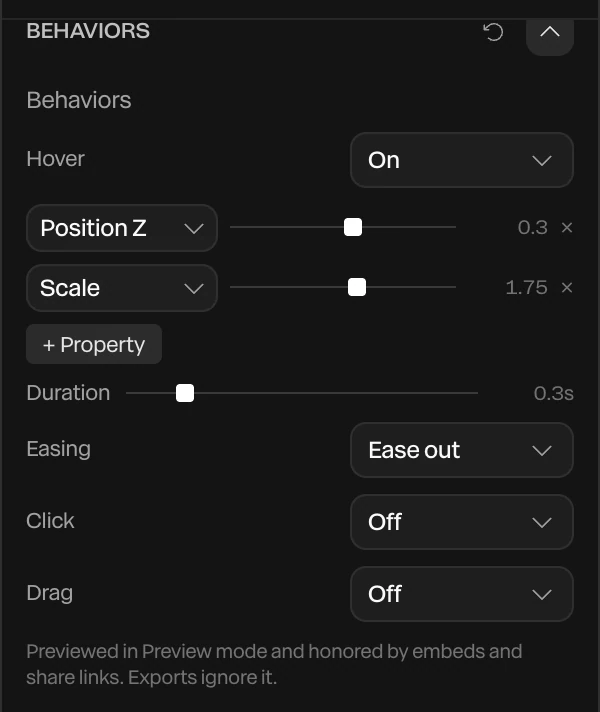
The values are the layer's own, not changes to them. A card at Scale 1.6 needs a hover Scale of about 1.75 to grow a little; a hover Scale of 1.1 would shrink it.
+ Property offers any number or color setting the layer has, with the same ranges as the properties panel, and the dials of its layer effects. Lists and switches aren't offered, because a state blends from one value to the next. Click × to remove a setting from the state.
A state isn't keyframes. It blends in over its Duration and back out the same way, on top of whatever the timeline is doing.
| Easing | How it moves |
|---|---|
| Ease out, Ease in-out, Ease in, Ease | Smooth curves, fast or gentle at either end |
| Linear | A steady speed |
| Spring, Spring, bouncy | Overshoots a little and settles, or bounces |
Add a click
Set Click to:
- While pressed: the layer takes the click state while the pointer is held down on it, like a button.
- Toggle: one click puts it in the click state, the next takes it out.
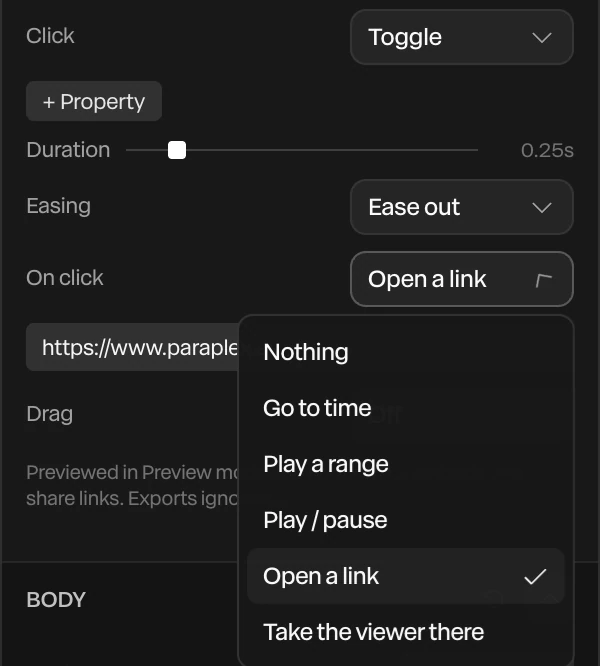
The click state has its own + Property, Duration and Easing, like hover. Under them, On click sets what the click does too:
| On click | What happens |
|---|---|
| Nothing | Only the click state |
| Go to time | The playhead jumps to a time in seconds, or to a marker. Check Then play to play on from there. |
| Play a range | Plays from one time to another (From and To, in seconds) |
| Play / pause | Starts or stops playback |
| Open a link | Opens an https:// link in a new tab |
| Take the viewer there | The camera glides to a layer, at the viewer's own height, and turns to face another one: a hotspot, for walking round a room. See Viewer camera. |
Make it draggable
Set Drag to Free, Horizontal, Vertical or Along its plane. Then:
- Range limits how far it can go from home. At 0 (shown as "any") there's no limit.
- Returns when let go, on by default, sends it home when the viewer lets go, over Return seconds with its own Easing.
Pointer fields on particles
A particle cloud has a Pointer field in place of hover, click and drag. Turn it On, and the dots move away from the pointer as it passes. Radius sets how far the push reaches. Strength sets how hard it pushes; a negative strength pulls the dots in instead. See Particles.
Try them
Click Preview in the top bar, and use the piece as a viewer would. Press Esc to edit again. See Preview mode.
Important
Exports ignore behaviors. A video or a picture shows the timeline as it is. Behaviors are for share links and embeds.
On the Free plan, one published embed can be interactive: one with hover or click states, a state machine or a code layer. Pro has no limit. See Publish and embed.