
Backgrounds
The background is what fills the frame behind every layer. It can be a color, a linear, radial or angular gradient, or a shader that moves on its own. Turn it off to export with a transparent background.
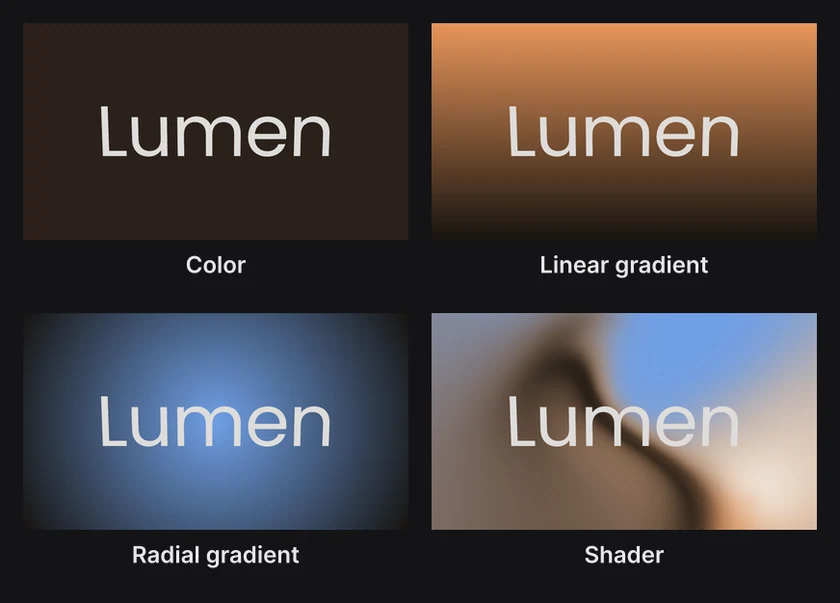
Where to find it: the Background section, with Scene selected at the top of the Layers panel.
Set the background
- Click Scene at the top of the Layers panel.
- In the Background section, pick a color beside Include.
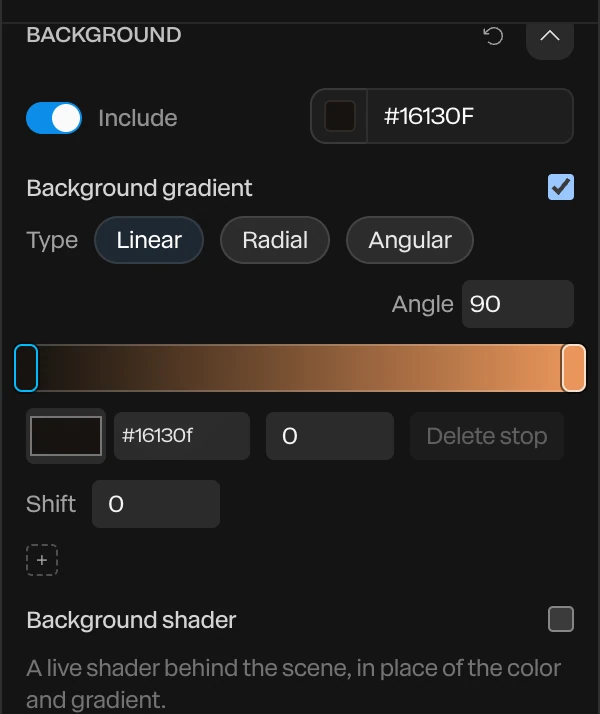
For a gradient, check Background gradient:
| Setting | What it does |
|---|---|
| Type | Linear runs across the frame, Radial spreads from the middle, Angular sweeps round the middle |
| Angle | Which way a linear gradient runs, or where an angular one starts. 90 runs from bottom to top. |
| The stops | Click a stop to set its color and position. Click + to add one, Delete stop to remove it. |
| Shift | Slides the colors along the gradient |
The gradient covers the color while it's on. Gradients work the same way on shapes. See Fills and gradients.
A shader background
Check Background shader for a live shader behind the scene, such as liquid metal, a mesh gradient or noise. It takes the place of the color and gradient, and moves on its own.
Pick the shader and set its dials as you would a shape's shader fill. See Shader fills.
Tip
Glass bends a shader background, and blend modes mix with it. A color or gradient background sits outside the scene, so glass and blend modes don't see it. To put a gradient behind glass, use a shader such as a mesh gradient, or a large shape with a gradient fill.
A transparent background
Turn Include off and the background goes: the frame shows the editor's dark backing where it was. An export keeps the background see-through:
- Export PNG saves a picture with a transparent background.
- Export Video set to WebM saves a transparent video. An MP4 can't be transparent, so it keeps the background.
Shadows from the ground shadow stay as see-through shading. See Ground shadow and caustics.
A backdrop
The background is flat and lit by nothing. For a studio wall that catches light and shadows, click Backdrop in the dock's Scene group. It adds a large, matte, dark gray shape behind the scene.
It's an ordinary layer: recolor it, move it, give it a material or a picture. Lights' shadows fall on it when they cast shadows. See Lighting and environments.
The skies and HDRI environments have a Backdrop setting of their own, which shows the sky or the photo behind the scene. See Lighting and environments.