
Build a scene from a folder
Got a folder of pictures? Paraplex can lay them all out at once, as a grid of cards to arrange, or, for a folder of app screens, as a finished launch video with each screen on a 3D phone.
A grid of your pictures
- In the dock, click Build scene from folder.
- Choose a folder.
Every picture in it, up to 50, comes in as a card in a new group named Folder 1, in a grid, in the order of their file names. Other files are left out.
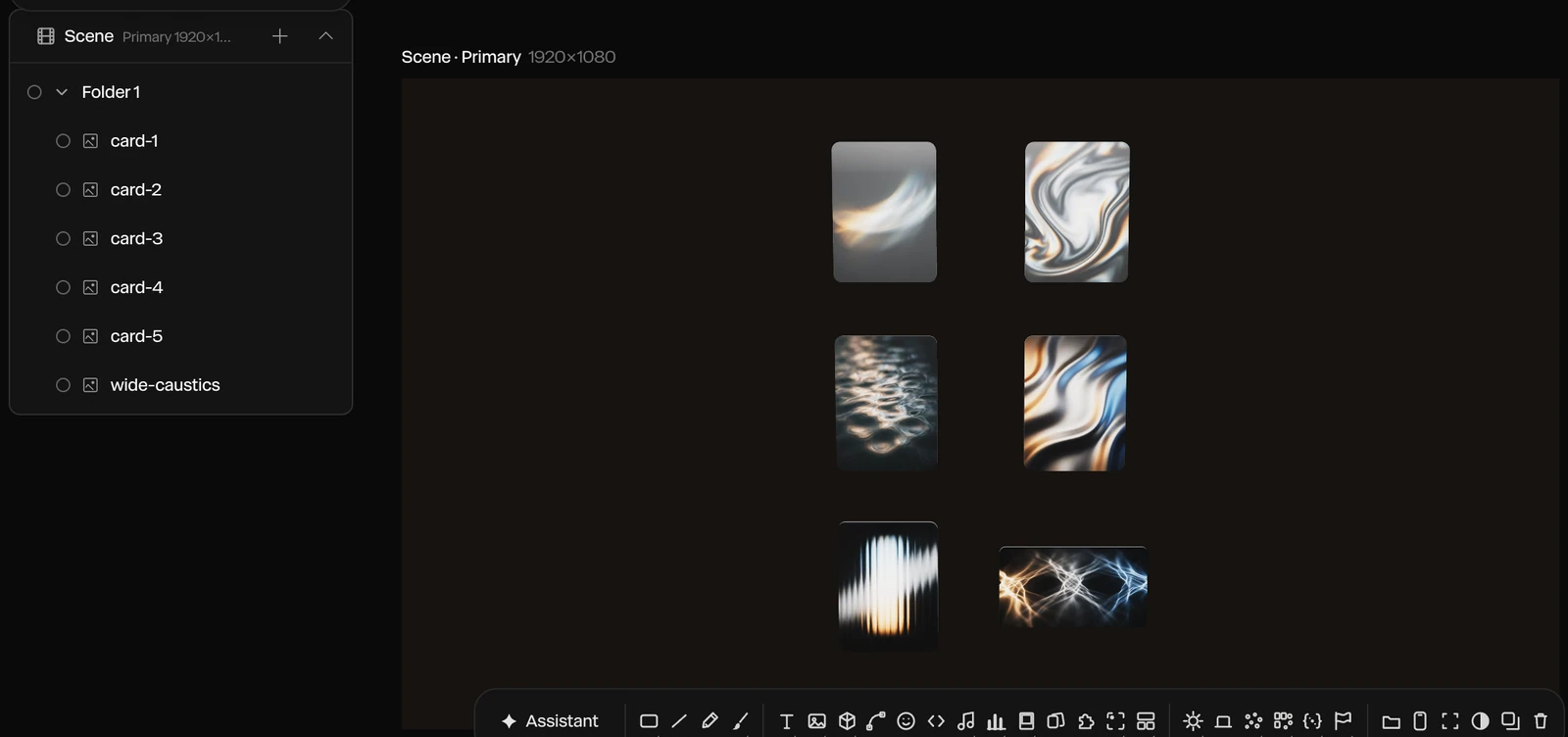
The grid usually comes in bigger than the frame. Select the group and lower its Scale to fit, or give it a layout. See Groups and pre-composition and Layouts and bentos.
A launch video from app screens
The promo maker turns a folder of your app's screenshots and screen recordings into a launch video: your app's name, a 3D phone showing each screen with a short callout beside it, and your name again to close.
- Choose Menu › Make a promo from screens…, or click Promo from screens in the dock. You can also drop the folder straight onto the canvas.
Click Choose a folder… or Choose files…, or drop them on the window.
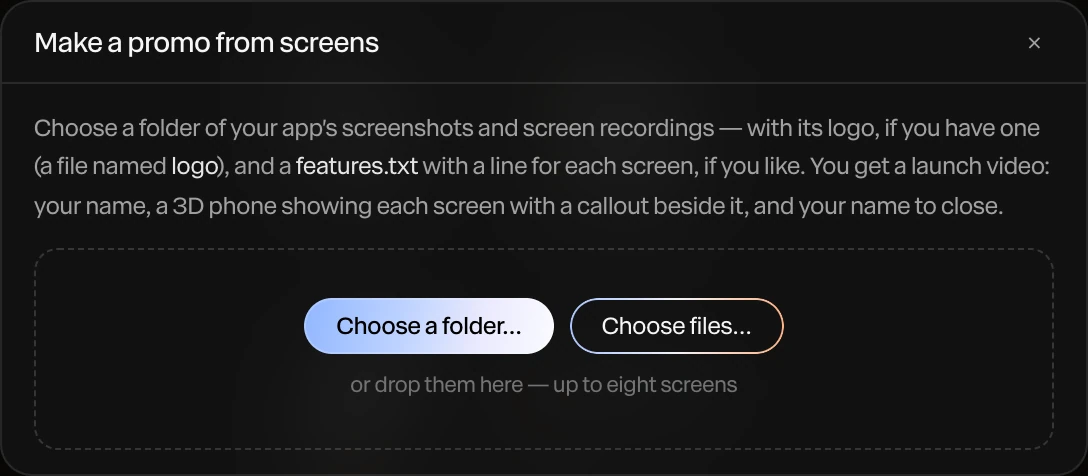
- Check the App name and the Line under it, and each screen's callout. Use Move up, Move down and Leave out to change the order.
- Pick a Look (Dark or Light) and a Shape (Landscape 16:9 or Portrait 9:16).
- Click Make the promo. It opens as a new file.
What to put in the folder
| File | Used as |
|---|---|
| Screenshots (PNG, JPEG, WebP) and screen recordings (MP4, MOV, WebM) | The screens, in the order of their names, up to 8 |
| An SVG, or a picture with "logo", "icon" or "wordmark" in its name | The logo |
A text file named like features.txt | The callouts, one line for each screen |
With no text file, each callout comes from the screen's file name: 02-smart-checkout.png gives "Smart checkout". The app name comes from the folder's name.
Tip
Name your files in order, such as 01-home.png, 02-search.png, so the screens play in the order you want.
A folder dropped on the canvas opens the promo maker only when every file in it is a screen, a logo or a callouts file.