
2D design mode
Every Paraplex scene is 3D, but a lot of design is flat. 2D design mode turns the editor into a layout tool. The camera faces the frame head-on and stays there, you drag layers by their bodies, and smart guides snap them into line.
Turn on 2D design mode
Press D, or click 2D in the top bar.
If you'd turned the camera, it swings back to face the frame head-on, at the same distance. Two new buttons appear beside 2D:
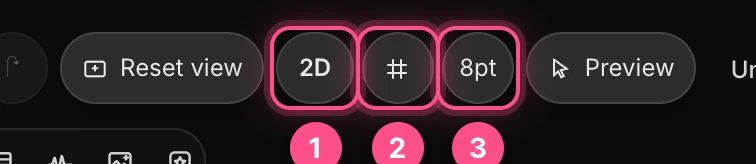
- 2D: on (press again to turn it off)
- Design grid: shows the 8-point grid over the frame
- 8pt: snaps layers to that grid
Drag layers with smart guides
In 2D mode, press a layer and drag it by its body. You don't need the gizmo.

As you drag, the layer snaps its edges and center to other layers and to the frame. Pink lines show what it's lined up with. Red-orange lines with numbers show the distance to its neighbors.
- Hold Shift to move in one direction only.
- Hold ⌘ (Ctrl) to drag without snapping.
- Without a guide to snap to, a layer lands on whole pixels.
- Clicking inside a selected group grabs the whole group.
Note
A layer arranged by its group's layout, such as a cell in a grid, can be selected but not dragged, because the layout places it. Change the layout instead. See Layouts and bentos.
See a layer's size
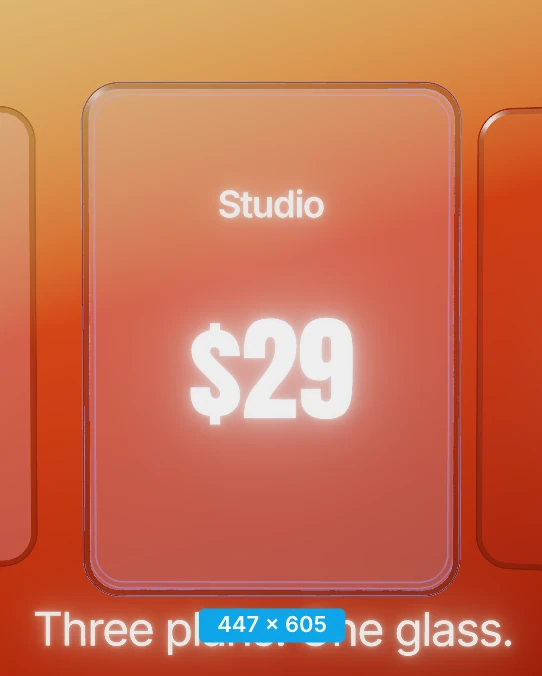
A selected layer shows its width and height in pixels in a blue label just below it.
Nudge with the keyboard
With a layer selected, the arrow keys move it 1 pixel at a time, or 10 with Shift. Each nudge is one step in undo.
Use the 8-point grid
Many design systems place everything on multiples of 8 pixels. Turn on:
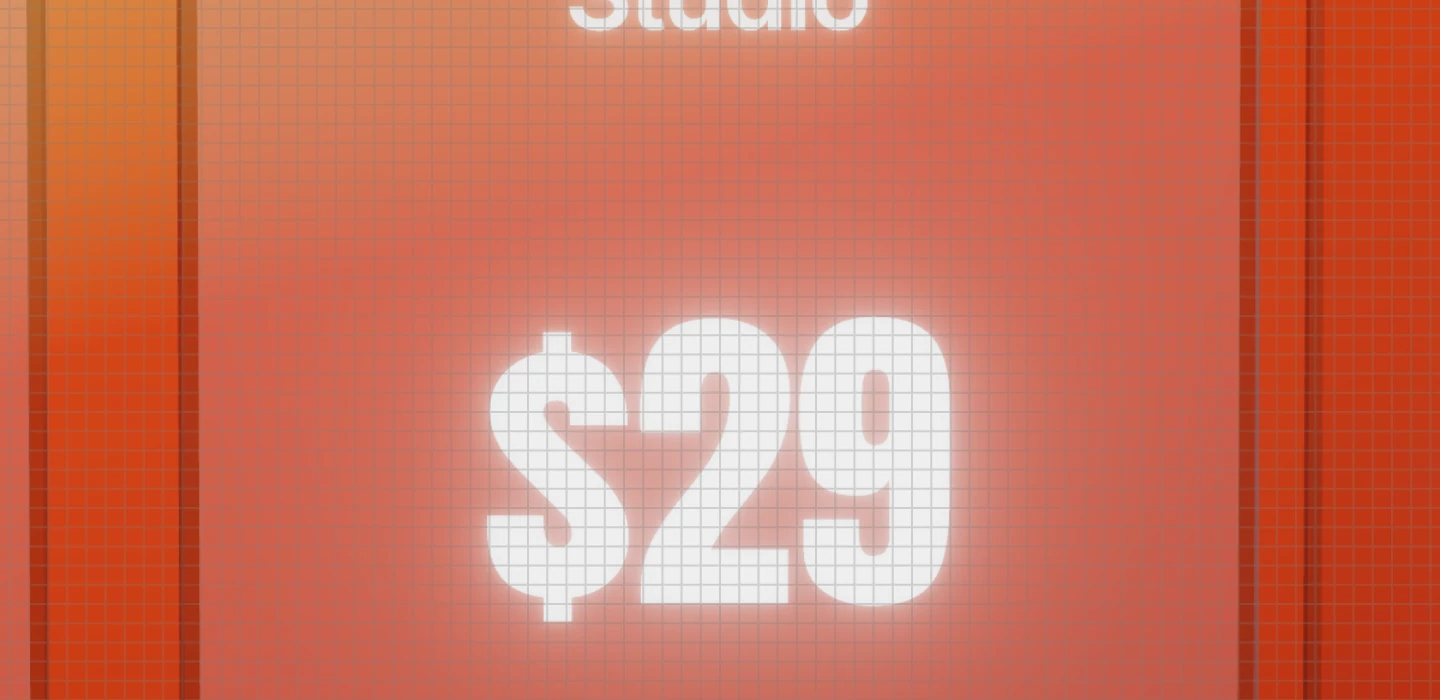
- Design grid to draw an 8-pixel grid over the frame.
- 8pt to snap a dragged layer's corner to that grid. The arrow keys then nudge by 8 pixels, or 40 with Shift.
Tip
Can't see the grid? It only appears once you zoom in far enough for its lines to be at least 4 screen pixels apart. Pinch, or Ctrl-scroll, to zoom in.
The gizmos in 2D
| Gizmo | In 2D mode |
|---|---|
| Move (G) | No gizmo: drag the layer by its body |
| Rotate (R) | Only the ring that turns the layer flat on the frame |
| Scale (S) | Only the width and height handles |
Dragging an empty part of the canvas moves your view around instead of orbiting the camera.
Turn 2D mode off
Press D or click 2D again. The grid and 8pt buttons go away.
The camera stays facing the frame. To get your earlier angle back, undo straight after turning 2D on, or press F to return to the scene's home view.
2D mode, the grid and 8pt are saved with your project.