
Quickstart: your first animation
In five minutes you'll take a ready-made template, put your own words in it, change a color, and export a video you can post anywhere.

You'll learn how to
- Start from a template
- Play your animation
- Change text right on the canvas
- Change a color
- Name your project
- Export an MP4 video
Before you start: Nothing to prepare. Everything you need is already in Paraplex.
Step 1: Pick a template
A template is a finished animation that you edit instead of starting from a blank page.
- Open Paraplex. The home page appears.
- Scroll down to Titles & text.
- Hover Kinetic stomp and click Use template.
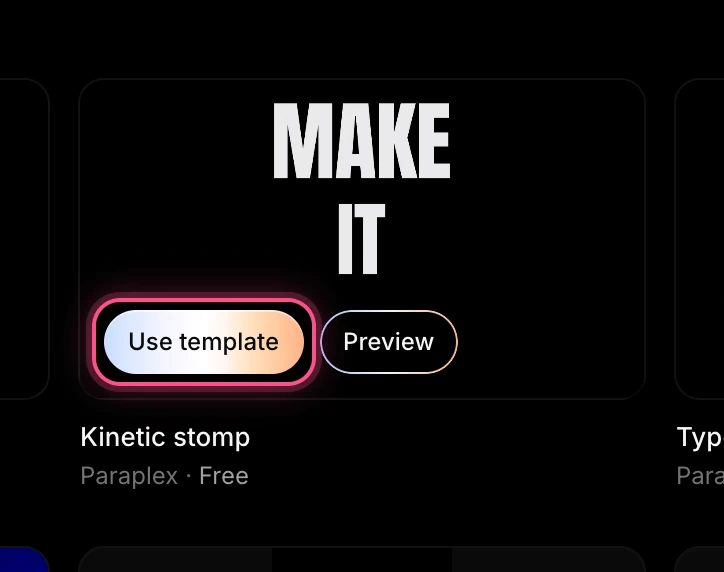
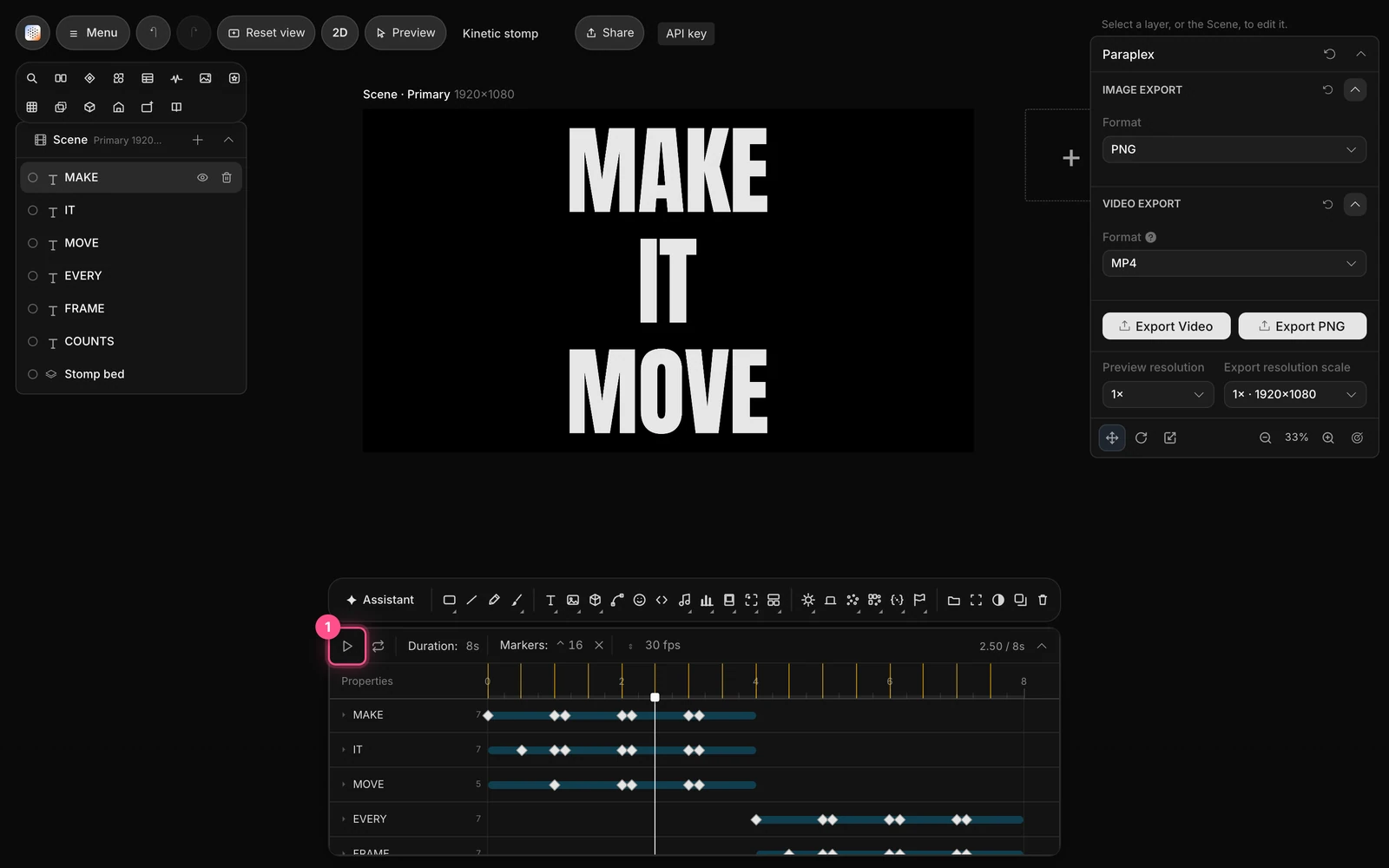
The template opens in the editor. You'll see its words on the canvas in the middle, its layers on the left, and the timeline along the bottom.
Step 2: Play it
Press Space, or click the play button at the left end of the timeline (1). Press Space again to pause.

Here's what it does: three words stomp in, then three more, in time with a drum beat.

Step 3: Put in your own words
You change text right where you see it, on the canvas.
- Pause the animation where you can see MAKE IT MOVE. If the canvas is empty, drag the playhead (the white marker on the timeline's ruler) to about 2 seconds.
- Double-click MAKE on the canvas. The word is selected, ready for typing.
- Type your own word.
- Press Esc to finish.
- Do the same for IT and MOVE.
The second set of words, EVERY FRAME COUNTS, appears after the 4-second mark. Drag the playhead past 4 seconds to change those too.
Important
Double-clicking does nothing while the animation is playing. Pause first.
Step 4: Change a color
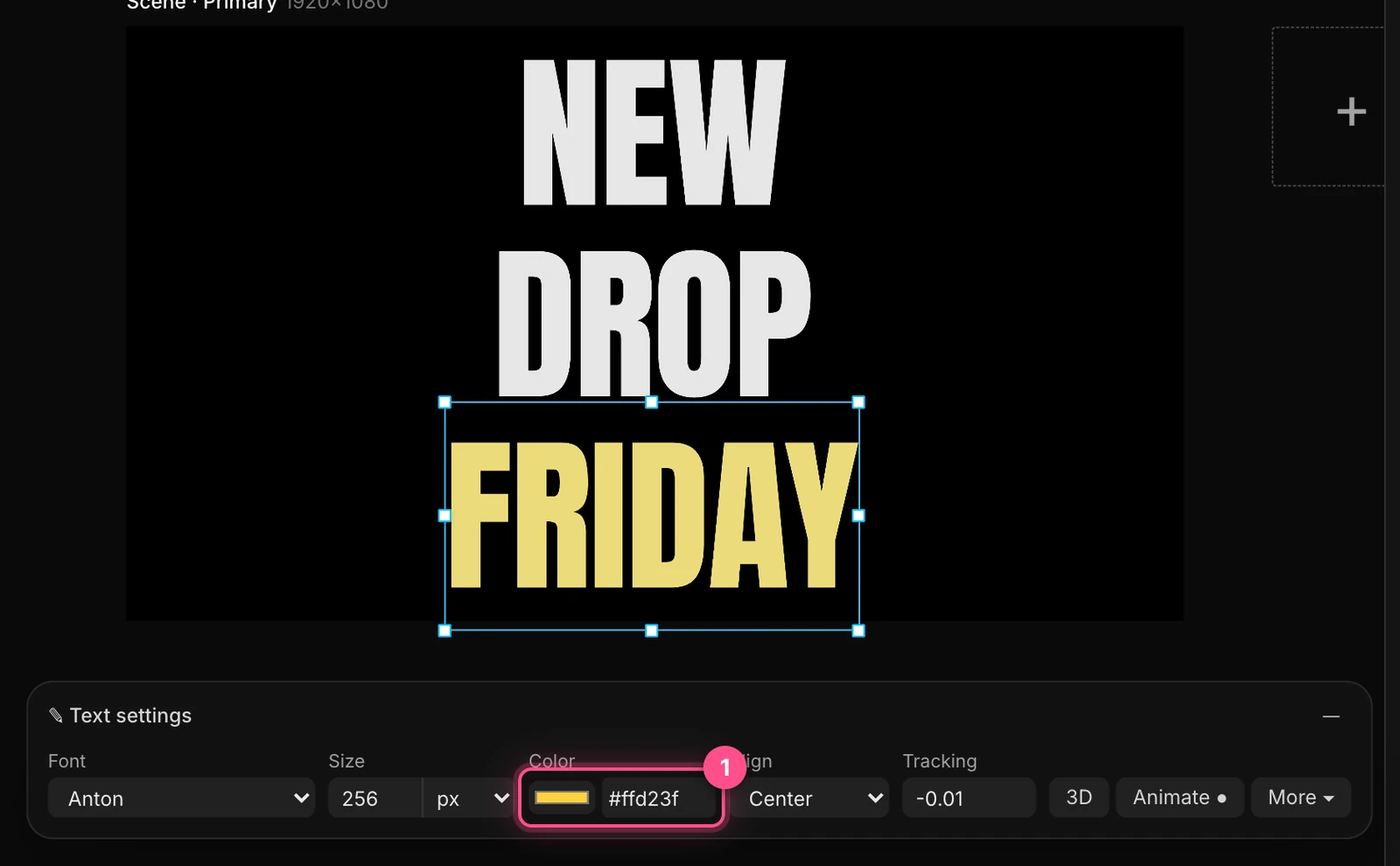
- Click a word on the canvas to select it. A Text settings panel appears below the frame.
- Next to Color, click the swatch and pick a color. Or type a hex code such as
#ffd23finto the box beside it and press Enter.
Tip
Text settings is also where you change the font, size, alignment and letter spacing.
Step 5: Name your project
- Click Untitled in the top bar.
- Type a name, such as
My first animation. - Press Enter.

Your scene became a project with your first change; now it has your name. You can open it again later from Recent on the home page. See Saving your work for how saving works.
Step 6: Export your video
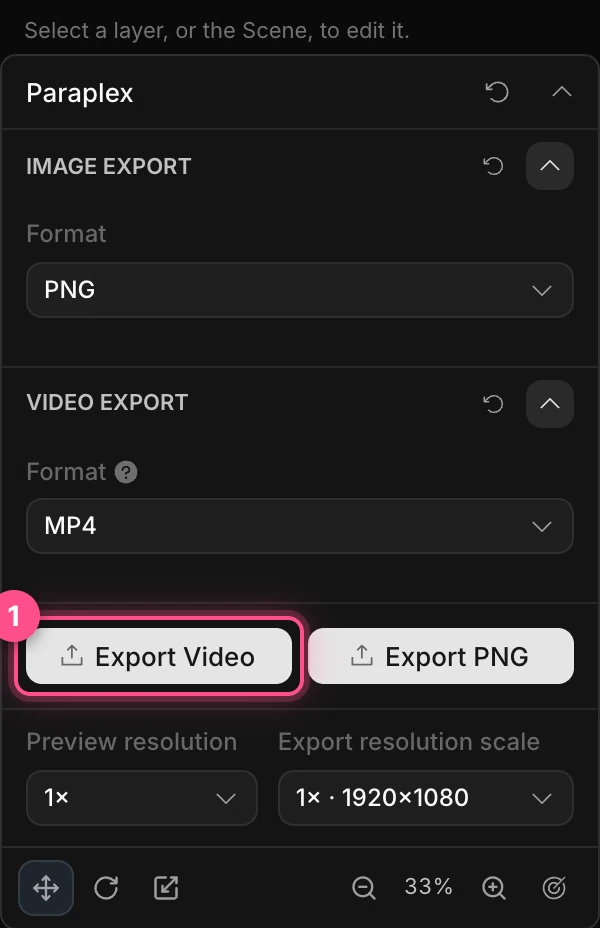
- Click Export Video at the bottom of the properties panel on the right.
- Wait while Paraplex renders the video. The button dims and a progress bar fills above it.
- When it's done, your browser downloads an MP4 file, named something like
paraplex-1920x1080.mp4.
The video includes the template's drum beat, so it's ready to post.
Note
Exporting draws every frame at full quality, one at a time. It takes longer than playing the animation, and longer still for long or detailed scenes.
Try this next
You've made and exported your first animation. Here's where to go from here:
- A tour of the editor: what every part of the screen does.
- Core concepts: layers, keyframes and the timeline, explained.
- Text animation: change how the words come in.
- Exporting video: other formats, sizes and frame rates.
- Make a vertical promo for social: your next project.