
Rigs and formations
When many layers move together, you don't need to keyframe each one. A group's rig arranges its layers and can stagger their animation, so one move ripples across a row. A formation is many cards or dots in one layer that flow from shape to shape.

Where to find it: the Group Rig section, with a group selected. Formations have their own panel. See Formations.
Cascade one move across a group
Stagger delays each layer's animation by a little more than the one before, so the same move plays one layer after another.
- Animate one layer, such as a rise and fade in. See Animate in and out.
- Duplicate it for as many as you need. Each copy keeps its keyframes. See Copy, paste and duplicate.
- Group them, and pick an Arrangement in the Group Rig section. See Groups and pre-composition.
- Under Per child, set Stagger: the seconds between one layer and the next.
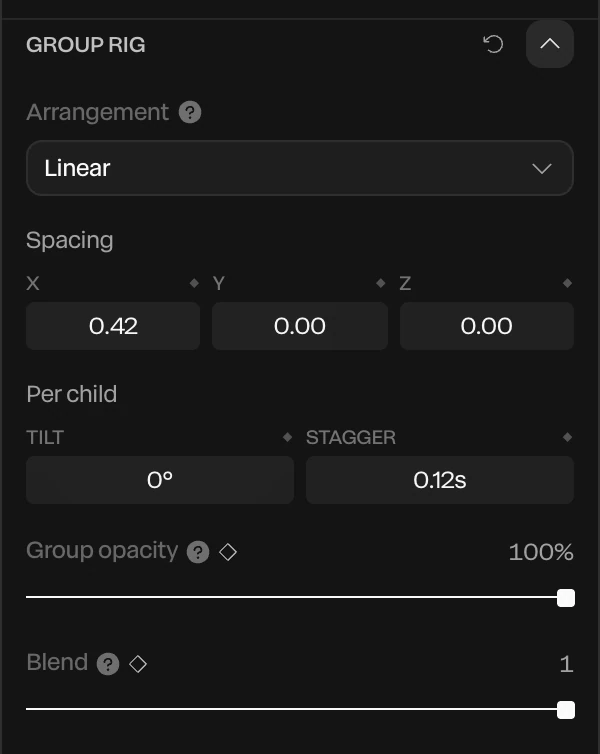
The layer at the top of the group in the Layers panel goes first. The others follow in list order. Stagger shifts every layer's own keyframes, so it works on any move: position, scale, color, a fade.
Tip
About 0.05 to 0.15 seconds apart reads as a quick ripple. Longer gaps feel deliberate, one item at a time.
Animate the rig itself
The rig's dials have ◆, so the arrangement can change over time:
| Animate | For |
|---|---|
Blend from 0 to 1 | Layers gathering from one stack into their arrangement: a hand of cards fanning out, a menu opening. Reverse it to gather them up. |
| Spacing | A row or grid spreading apart or drawing together |
| The Arc's Radius and Angle | A ring growing, or an arc opening wider |
| Tilt | Each layer turning a little more than the one before, like a fanned deck |
| Group opacity | The whole group fading as one picture |
Spin a carousel
A Carousel arrangement puts the layers on a ring round the group's middle, each facing out. To spin it, keyframe the group's Rotation Y: 0° at the start and 360° at the end for one full turn.

- Tip the group toward the camera a little with Rotation X, so you see the ring's shape rather than its edge.
- For a turn at an even speed, set the keyframes' easing to Linear. See Easing and springs.
- For a loop with no jump, end on exactly one turn,
360°, at the last frame of the piece.
Flow a formation between shapes
A formation lays out many cards, dots or cubes as a grid, a ring, a sphere, a galaxy and more. Keyframe its Layout, and the items travel from one shape to the next, one after another. See Formations.
See what's moving a layer
The Animations section, under Transform, lists everything that moves the selected layer: its keyframes, its transitions, a motion path, its group's stagger. Click Edit on an entry to go to its settings.