
Properties panel
The properties panel on the right shows the settings for whatever you've selected, grouped into sections. Change a value and the canvas updates straight away.
What the panel shows
The sections depend on your selection:
| You select | Sections you see |
|---|---|
| Nothing | Only the export settings, under the line "Select a layer, or the Scene, to edit it." |
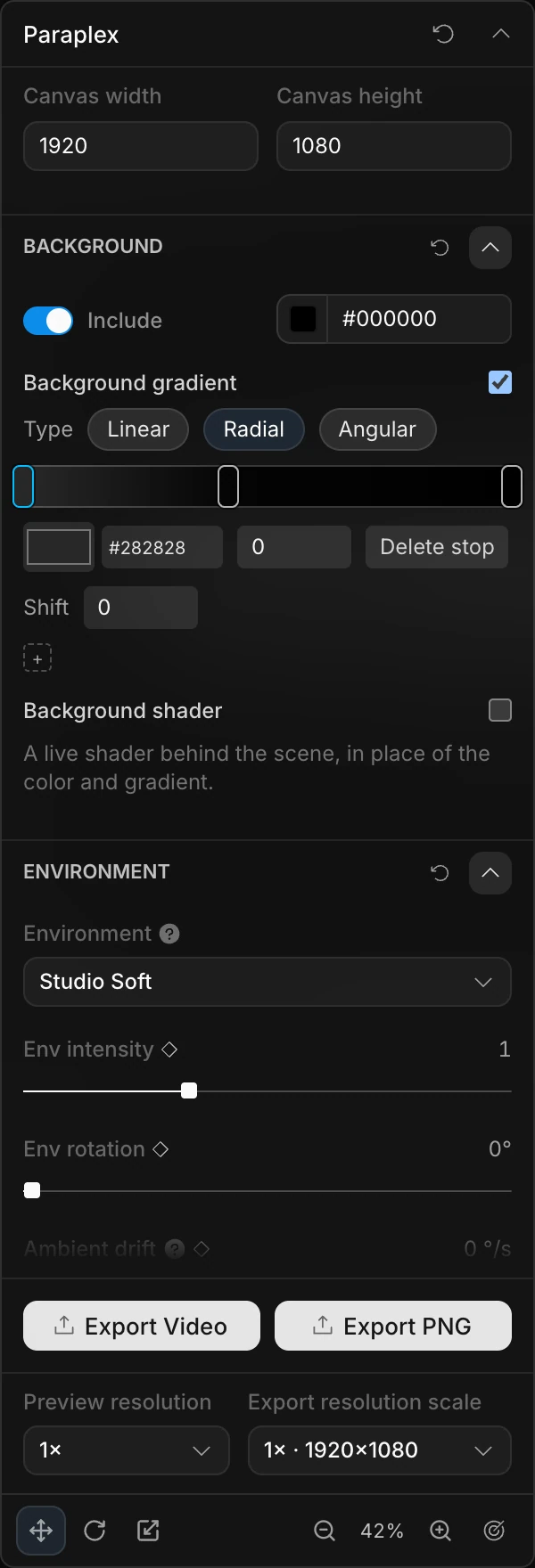
| The Scene row | Canvas size, Background, Environment, Key light, Ground shadow, Studio render, Filters, Camera, Shake, Lens, Speed Ramp, Simulation |
| A shape | Panel, Transform, Motion, Panel Fill, Stroke, Panel Surface, Compositing, Mask, Motion path, Echo, Appearance, Panel Material, Texture, Effects, Layer Filters, Wave, Behaviors, Body |
| Text | The same as a shape, minus Panel, plus the floating Text settings panel |
| A group | Transform, Motion, Layout, Combine, Group Rig, Compositing, Mask, Motion path, Echo, Layer Filters, Behaviors |
| A light | Transform, Light, Light Shape |
| Particles | Transform, Motion, Compositing, Mask, Motion path, Echo, Layer Filters, Wave, Behaviors, Particles, Particle Field, Unit chart, plus a floating Form bar |
| A 3D model | Transform, Motion, Compositing, Mask, Motion path, Echo, Appearance, Texture, Layer Filters, Behaviors, Body, plus a floating Model panel |
| An audio clip | A floating bar with volume, fades and a start time |
Every selection ends with the Image Export and Video Export settings and the export buttons. A layer inside a grid or flex layout also gets a Cell section.
Sections
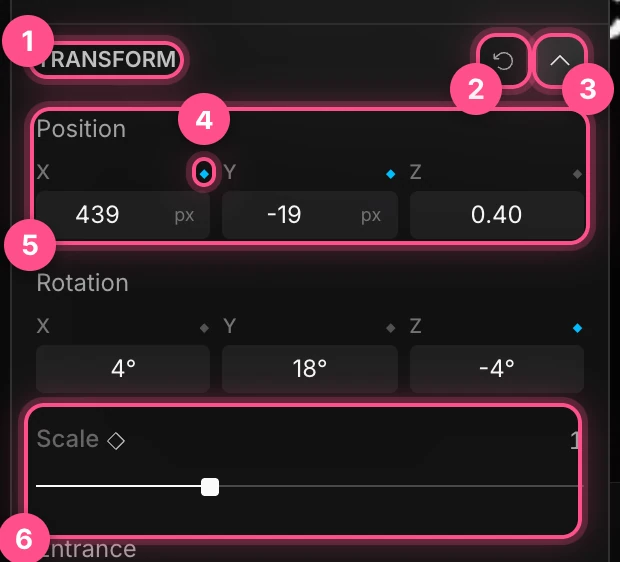
- The section's title. Click the header to fold the section away. Paraplex remembers which sections you've folded.
- Reset (↺) puts every setting in the section back to its default, as one undo step.
- Fold and unfold.
- A keyframe diamond. See Keyframe diamonds below.
- A value field.
- A slider.
Warning
The ↺ at the very top of the panel, beside Paraplex, resets every setting in the panel, not just one section. Undo puts things back if you click it by mistake.
Get help on a setting
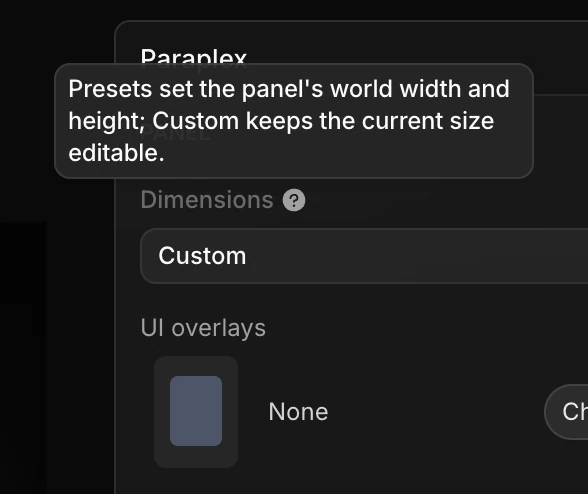
A ? beside a setting's name means there's more to know. Hover it to read what the setting does.
Type and drag values
- Number fields such as Position, Rotation and Size: drag left or right on the value to scrub it, or click to type. Press Enter to set it or Esc to cancel.
- Sliders: drag the handle, or click the number to type a value. Double-click the handle to put it back to its default.
- Colors: click the swatch to open the color picker, which also lists your palette's colors. Or type a hex code in the box beside it.
Choose units
Lengths such as Position X and Y and Size show in px by default. Click the small unit label beside a value to switch:
| Unit | Means |
|---|---|
| px | Pixels on the frame |
| u | Paraplex's own scene unit |
| vw and vh | Hundredths of the frame's width or height |
| % | Hundredths of the parent layout's box, or of the frame |
Choosing px or u switches every length field, and Paraplex remembers it. Choosing vw, vh or % applies to that layer only, and the layer doesn't move. You can also type a unit with the number, such as 100vw or 320px. Position Z is always in scene units.
Keyframe diamonds
The small diamond beside a setting is how you animate it.
- A gray or outlined diamond means the setting isn't animated. Click it to set a keyframe at the playhead.
- A filled blue diamond means the setting is animated. Changing the value then adds or updates a keyframe at the playhead.
Important
The diamonds beside sliders and colors only show while the timeline is expanded. Keep it open while you animate: with it collapsed, changing a slider that's already animated isn't recorded.
Warning
Clicking a filled diamond deletes all of that setting's keyframes. To delete just one, select it on the timeline and press ⌫.
See Animation basics.
Edit several layers at once
Select several layers in the Layers panel, then change a setting. The change applies to every selected layer that has that setting, except their position. To move them together, drag the gizmo.
Floating panels
Some layers bring a floating panel along with their sections. A text layer brings Text settings: font, size, color, alignment and letter spacing, with buttons for 3D, Animate and More.
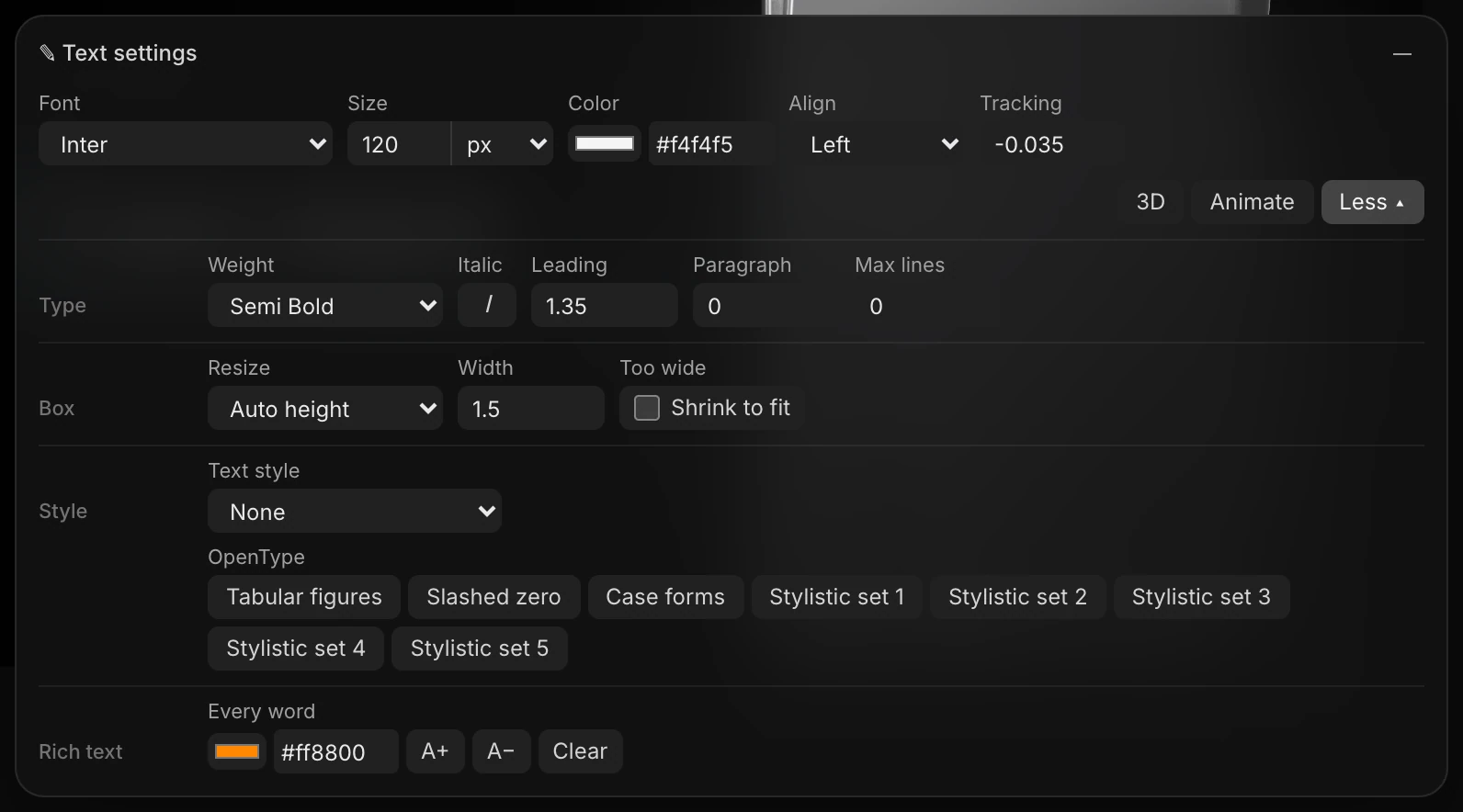
- Drag a floating panel by its header to move it. Double-click the header to put it back.
- Click — to shrink it to a small bar.
- Floating panels for text, particles, 3D models, generators and code hide while the animation plays, and come back when you pause.
The bottom of the panel
These stay at the bottom, whatever you select:
- Export Video and Export PNG.
- Image Export: Format (PNG or JPG).
- Video Export: Format (MP4, WebM, GIF or PNG sequence).
- Preview resolution: how sharp the canvas looks while you edit, from 0.25× to 1×. It doesn't change your exports. Lower it if the editor feels slow.
- Export resolution scale: the size of every export, as a multiple of the artboard: 0.5×, 1× (its own size), 1.5×, 2× or 4×. Each choice shows the size it makes, such as 2× · 3840×2160. If your browser can't encode a video that large, the video comes out at the largest size it can, and Paraplex tells you. A GIF stays small enough to post, at most 640 pixels on its longest side, whatever you choose.
- The gizmo buttons and the zoom controls. See Moving around the canvas.
See Exporting video and Exporting images.