
Motion paths and morphs
A motion path carries a layer along a line you draw, so it can swoop, curve and bank instead of moving in straight hops. A morph turns one layer into another: a dot grows into a card, a button stretches into a toast.

Where to find it: the Motion path section, with a layer selected, and Morph into in a layer's right-click menu.
Send a layer along a path
- Draw the route with the pen, or add a line. See Pen and paths.
- Select the layer that should travel.
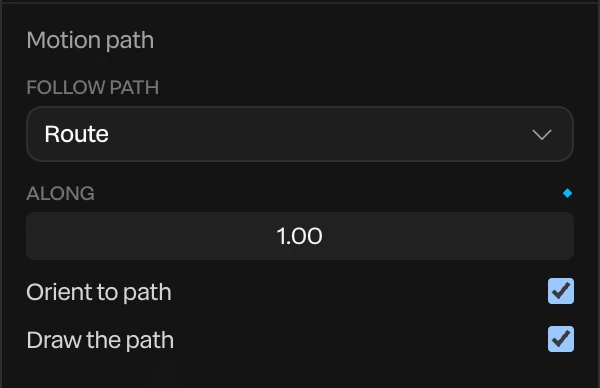
- In the Motion path section, open Follow path and pick the route.
- Keyframe Along:
0at the moment it should set off, and1where it should arrive. See Animation basics.
| Setting | What it does |
|---|---|
| Follow path | The path the layer travels along. None lets it go. |
| Along | How far along the path it is, from 0 at the path's start to 1 at its end. Keyframe it to move. |
| Orient to path | Turns the layer to face the way the path is heading, like a plane banking along its route. Its own rotation is added on top. |
| Draw the path | Shows the route in the piece itself, like a trail on a map. Off, the path is a guide you see only while editing, never in Preview or an export. |
Shapes, text, groups, 3D models, particles, blobs, formations and generators can all follow a path. Reshape the path, and everything on it follows the new curve.
Tip
Use the easing on the Along keyframes to set the pace: a slow start, a fast middle, a gentle arrival. See Easing and springs.
Turn straight moves into a curve
If you've already keyframed a layer's position, Paraplex can turn those straight hops into one smooth route:
- Select the layer. It needs position keyframes at two moments or more.
- In the Motion path section, click Make motion path.
A path appears through every place the layer was keyed, and the layer follows it with the same timing. Shape the curve by dragging the path's anchors and handles with the pen. The button shows only while the layer isn't following a path yet.
Morph one layer into another
- Put both layers in place: the one you start with, and the one it should become.
- Move the playhead to where the morph should start.
- Right-click the first layer, in the Layers panel or on the canvas, and choose Morph into and the second layer.
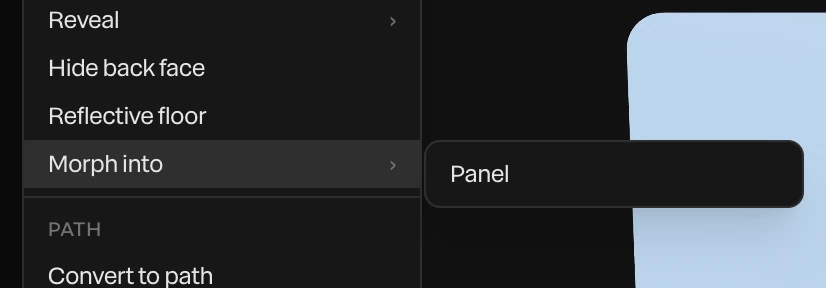
Over half a second, the first layer takes on the second one's place, size, corner rounding, color, opacity, depth and turn. Then it hands off: the first layer ends as the second begins, so the second carries on with its own content. It's one undo step.

The keyframes it makes are ordinary keyframes, so you can drag them on the timeline to change the timing. See Editing keyframes.
Rounded shapes morph smoothly into each other, so a row of them makes a chain: a dot into a pill, the pill into a card, the card into a bar. Morph each into the next, each starting where the last one ended.
Tip
Keep a shape's content, such as a label or an icon, as separate layers rather than inside the shape. Fade the old content out early in the morph and the new content in near its end.
Morph a path's outline
Two pen paths morph their outlines too, even when they have different numbers of anchors: a spinner's arc can bend into a check mark. You can also keyframe a single path's outline and it reshapes between its keyframes. See Pen and paths.