
Smart animate and match cuts
Smart animate builds a transition between two screens for you. Layers with the same name glide into their new place, size and color, and the rest fade or slide in and out, like an app moving from a list to a detail view. A match cut flicks through pictures behind a logo that stays put, the logo recoloring to stand out on each one.
Where to find it: Screens in a group's right-click menu, and the Logo match cut template.
Smart animate between screens
A screen is a group: everything on one screen of your app, website or slide. Smart animate needs two of them side by side in the Layers list.
- Build the first screen as a group, and the second as another group in the same place in the list.
- Give the layers that should carry across the same names in both screens, such as Card and Title. Layers in groups inside the screens are matched by their whole path, such as Card/Title.
- Move the playhead to where the transition should start.
- Right-click the first screen, in the Layers panel or on the canvas, and under Screens choose a style and the second screen.
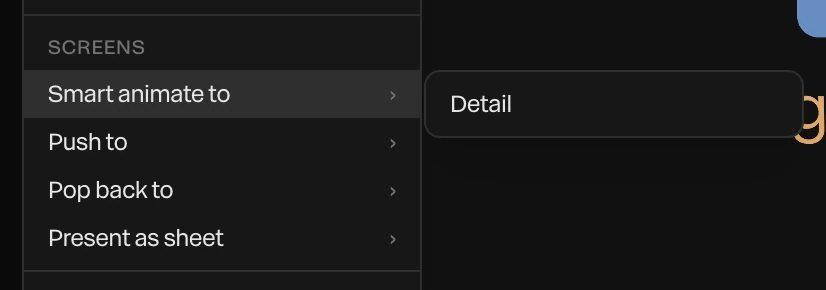
A message says how many layers carried across, and how many left and arrived. It's one undo step.
| Style | What it does |
|---|---|
| Smart animate to | Matching layers move into place, and the rest fade out and in |
| Push to | The second screen slides in from the right over the first, like going deeper into an app. Matching layers fly to their new places. |
| Pop back to | The same backwards, like going back |
| Present as sheet | The second screen's own layers rise from below, like a panel sliding up. Make the second screen a copy of the first plus the sheet. |
A matching pair moves into its counterpart's place, size, corner rounding, color and opacity. Two texts with different words cross-fade as they move. Push to, Pop back to and Present as sheet keep both screens inside a mask the size of the first, named Screen mask, so nothing slides outside the screen.
The first screen ends where the second takes over. The keyframes it makes are ordinary keyframes, so you can drag them to change the timing. See Editing keyframes.
Tip
Name layers before you duplicate a screen to make the next one. The copies keep their names, so everything pairs up. A transition of 0.35 to 0.5 seconds reads as an app's.
To turn one layer into another outside of screens, use Morph into. See Motion paths and morphs.
Match cuts
A match cut shows one picture after another, each for a fraction of a second, behind a logo that never moves. The Logo match cut template is set up for it. See Starting a project.

Select the Match cut group to open its panel.
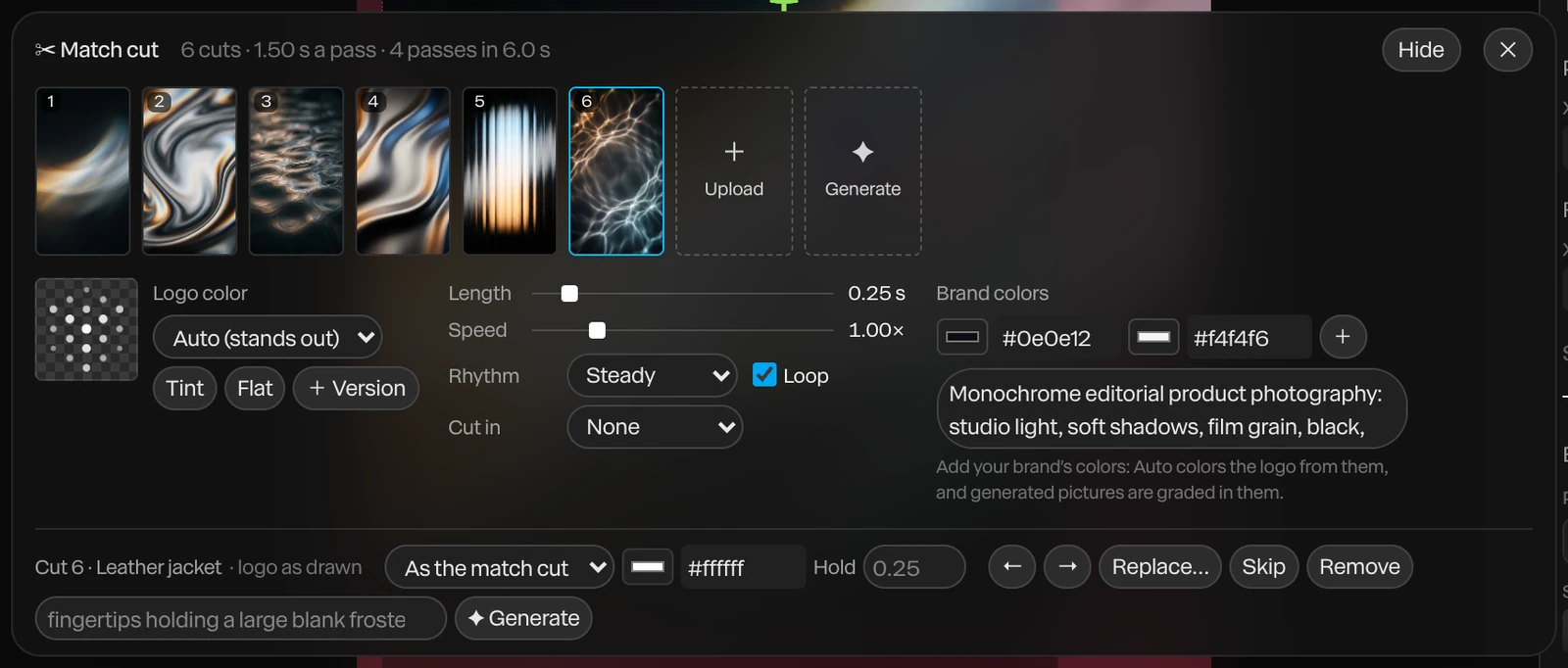
Your pictures and logo:
- Upload adds pictures or videos. They replace the example pictures first, then add cuts.
- Generate makes a new cut with AI from the description under Brand colors. It uses credits.
- Click the logo to replace it with your own SVG, PNG or WebP.
The logo's color:
- Logo color: Auto (stands out) picks, for each cut, a color that shows clearly against the picture behind the logo: the logo as drawn, or one of your Brand colors. As drawn keeps its own colors, and you can also pick one color.
- Tint keeps the logo's own shading under the color. Flat fills it with the color.
- + Version adds another version of your logo, such as an all-white one, for Auto to choose from.
Timing:
- Length is how long each cut stays on screen. Speed speeds every cut up together.
- Rhythm: Steady holds each cut as long as the last. Speed up and Slow down shorten or lengthen the cuts across a pass.
- Loop repeats the pass to the end of the piece, and makes the piece a whole number of passes, so the video loops without a jump.
- Cut in: Scale down or Scale up zooms each picture into the frame as it lands. None cuts straight.
Click a cut to give it its own logo color and length, move it earlier or later, replace or skip it, or remove it.
Tip
Pictures with one object at the center work best: the logo sits over the middle, and Auto reads the color right behind it.