
Image effects
Image effects restyle the picture on a shape: print it as halftone dots, dither it into a few colors, look at it through ribbed glass or water, crumple it like paper, split its colors or glitch it. Stack several, change their order, and keyframe their settings.
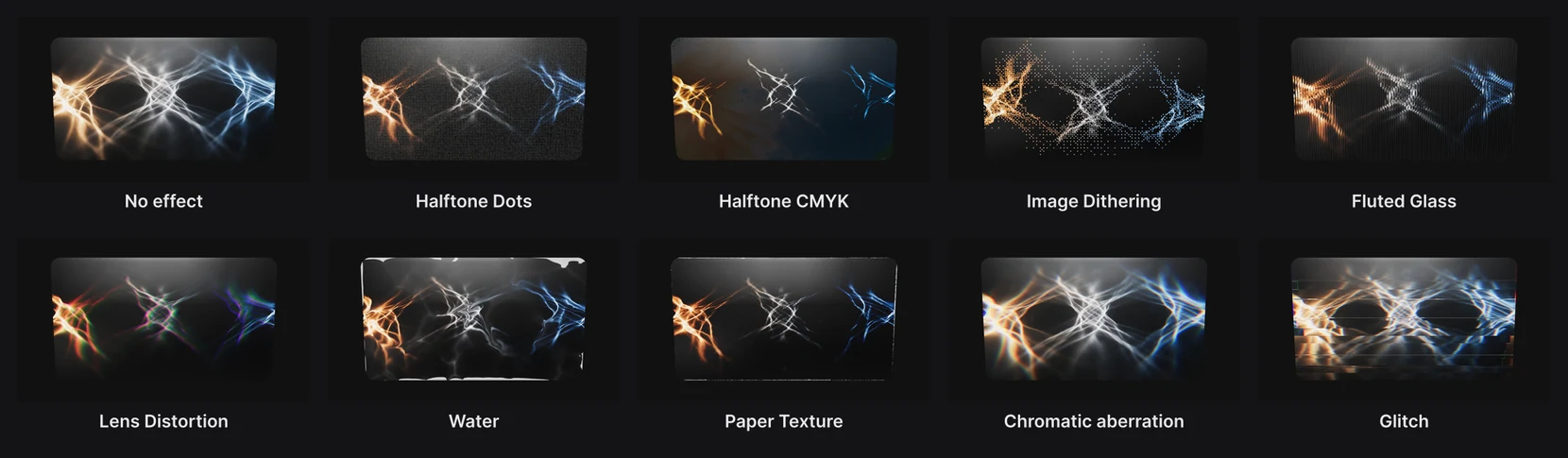
Where to find it: Image effects in the Panel Fill section, with a shape selected that has a picture, a video or a shader fill.
Add an effect
- Select a shape with a picture or video on it, or with a shader fill. See Images and video and Shader fills.
- In the Panel Fill section, under Fill, open Add effect… next to Image effects and pick one.
- Click the effect's name to open its settings.
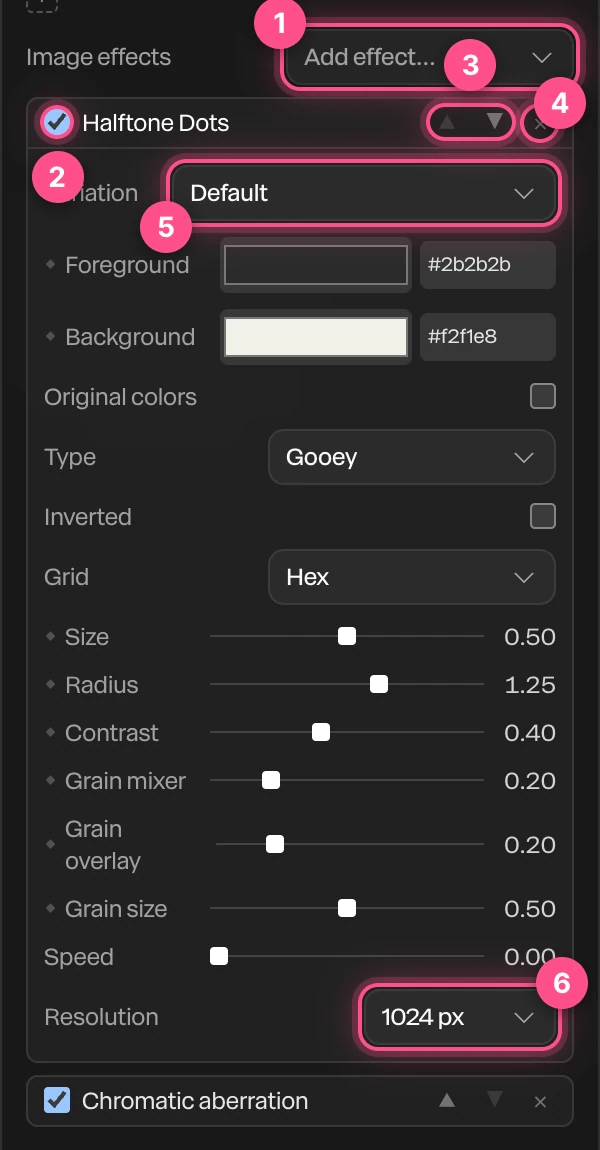
- Add effect…: adds another effect to the end of the chain.
- The checkbox: turns the effect off and on. Its settings are kept while it's off.
- ▲ ▼: moves it earlier or later in the chain.
- ×: removes it.
- Variation: a ready-made starting point. Picking one starts again from its values.
- Resolution: how sharp the effect is drawn,
512 px,1024 pxor2048 px.
Between Variation and Resolution are the effect's own settings, such as its colors, size and contrast.
The effects
| Effect | What it does | Variations |
|---|---|---|
| Halftone Dots | Prints the picture as dots, in two colors or the picture's own (Original colors) | LED screen, Mosaic, Round and square |
| Halftone CMYK | Four-color printing dots: cyan, magenta, yellow and black | Drops, Vintage |
| Image Dithering | Few colors in a pattern of pixels, like an old computer screen | Retro, Noise, Natural |
| Fluted Glass | Looks through ribbed glass | Waves, Abstract, Folds |
| Lens Distortion | Bends the picture through a lens and splits its colors | Fisheye, Duotone, Smoke |
| Water | Ripples the picture under moving water with caustic light | Abstract, Streaming, Slow-mo |
| Paper Texture | Prints it on paper, with fibers, crumples, folds and drops | Abstract, Cardboard, Details |
| Chromatic aberration | Splits red, green and blue apart toward the edges | Edge fringe, Split |
| Glitch | Shifts blocks and tears lines, in bursts | Constant, Rare |
Each also has a Default variation. The halftones, dithering, glass, lens, water and paper effects come from Paper Shaders, an open-source collection.
Stack and order effects
Effects run in order, top to bottom: each one works on what the one above it made. Change the order and you change the result.
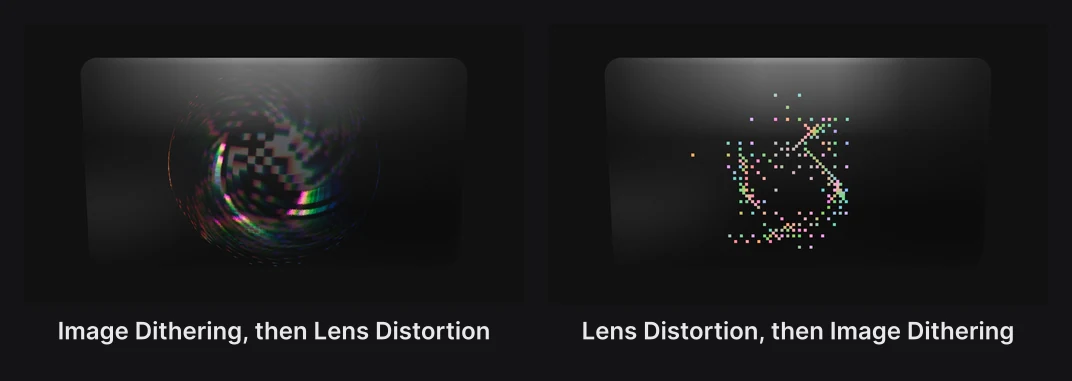
Move an effect with ▲ and ▼. To compare with and without one, turn it off with its checkbox instead of removing it.
Animate an effect
Most settings and every color have a ◆. Click it to set a keyframe at the playhead, then change the value at another time. See Animation basics.
Effects that move on their own, such as Water and Glitch, follow the timeline. They play the same way every time and in your exports.
Things to know
- Image effects work on shapes only. Text can't take them yet.
- On a video, they play over every frame.
Important
An image effect changes one shape. To glitch, grain or grade the whole frame at once, use the effect library in the Scene's filters instead.