
Components
A component is a reusable piece: a card stack, a slider, a filmstrip, or a group of your own. Paraplex comes with ten ready to drop in. Make your own, and every copy of it, an instance, follows the changes you make to the original, the master, while keeping its own words and pictures.
Add a ready-made component
Click Component in the dock. The Components window opens.
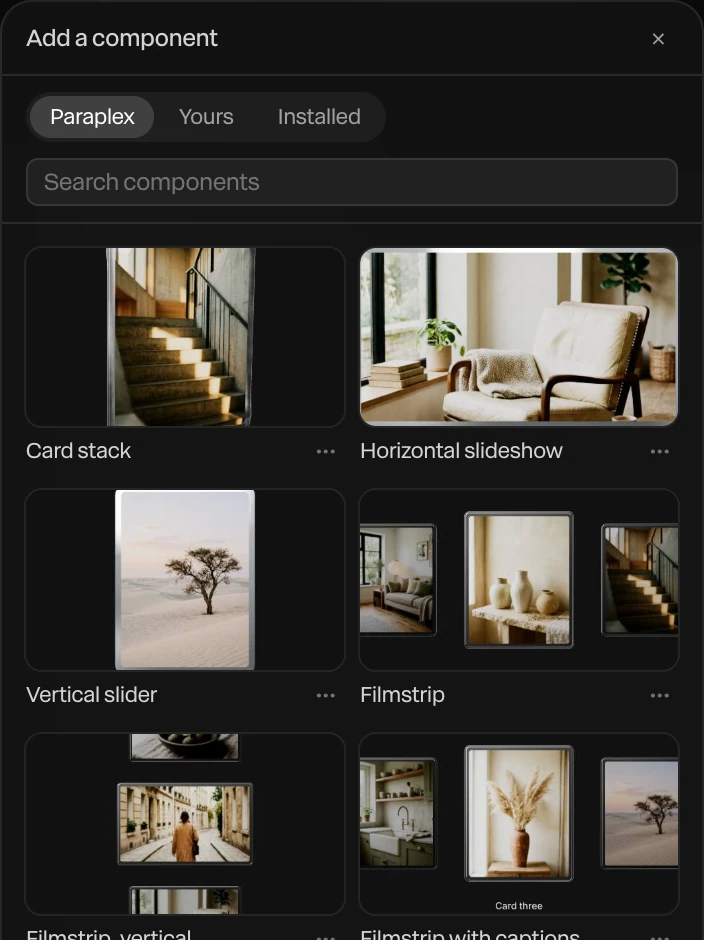
- Drag a component onto the canvas: it lands where you let go and starts at the playhead. Or click it to add it in the middle.
- Drop your pictures on its cards. Drop several at once, and they fill the cards in turn.
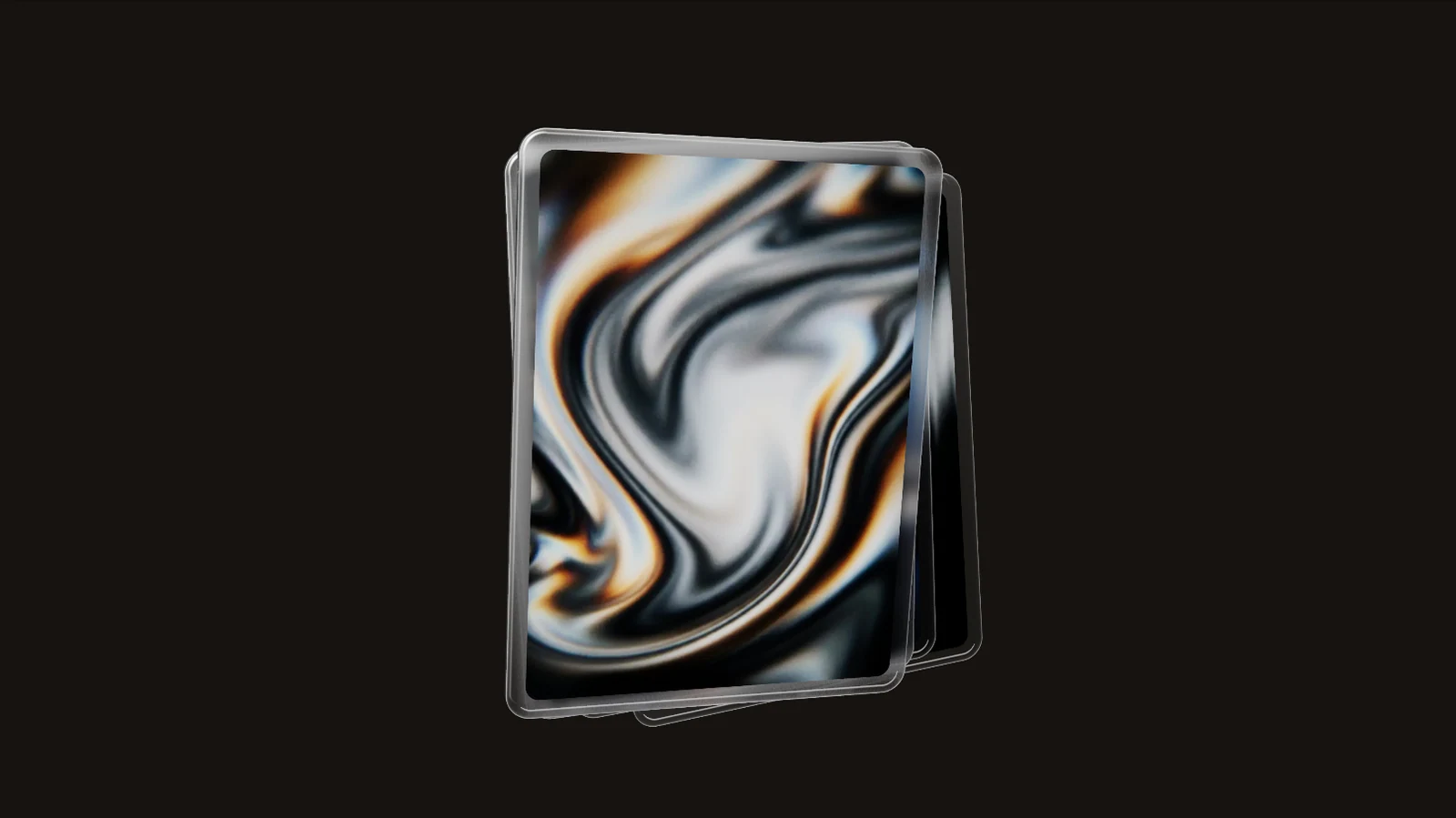
Set it up before it goes in
Click the ••• beside a component for its dials. They're used when it goes in, so set them first.
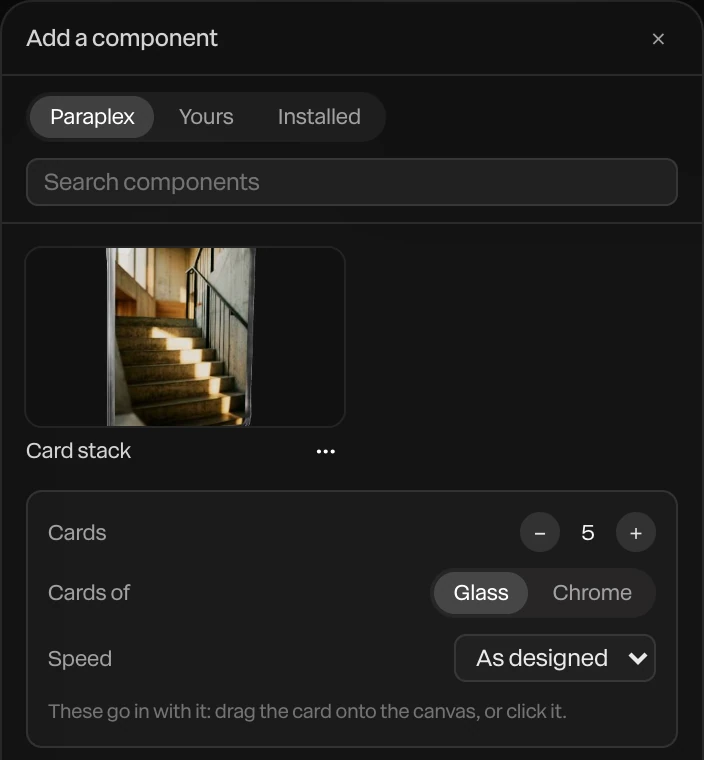
| Dial | What it sets |
|---|---|
| Cards | How many cards |
| Cards of | Glass or Chrome |
| Direction | Across or Down, for filmstrips |
| Captions | A caption under each card |
| Window | Dark or Light, for the website showcase |
| Speed | Slower or faster than it was designed, from 0.5× to 2× |
The ten are the Card stack, Horizontal slideshow, Vertical slider, Filmstrip, Filmstrip, vertical, Filmstrip with captions, Parallax gallery, Radial gallery, Depth slider and Website showcase. Hover over one in the window to see it move.
To change the dials after it's in, add it again.
Make your own component
- Select a group. See Groups and pre-composition.
- Right-click it and choose Create component…, or click Create from selection… in the Components panel.
- Name it.
The group becomes the master, and the component is saved to your library, under Yours in the Components window.
Instances and overrides
An instance is a linked copy. Change the master, and every instance changes with it.
- Add an instance: right-click the master and choose Add instance, or click Add instance in the Components panel.
- Open the Components panel: click Components in the quick-actions strip.
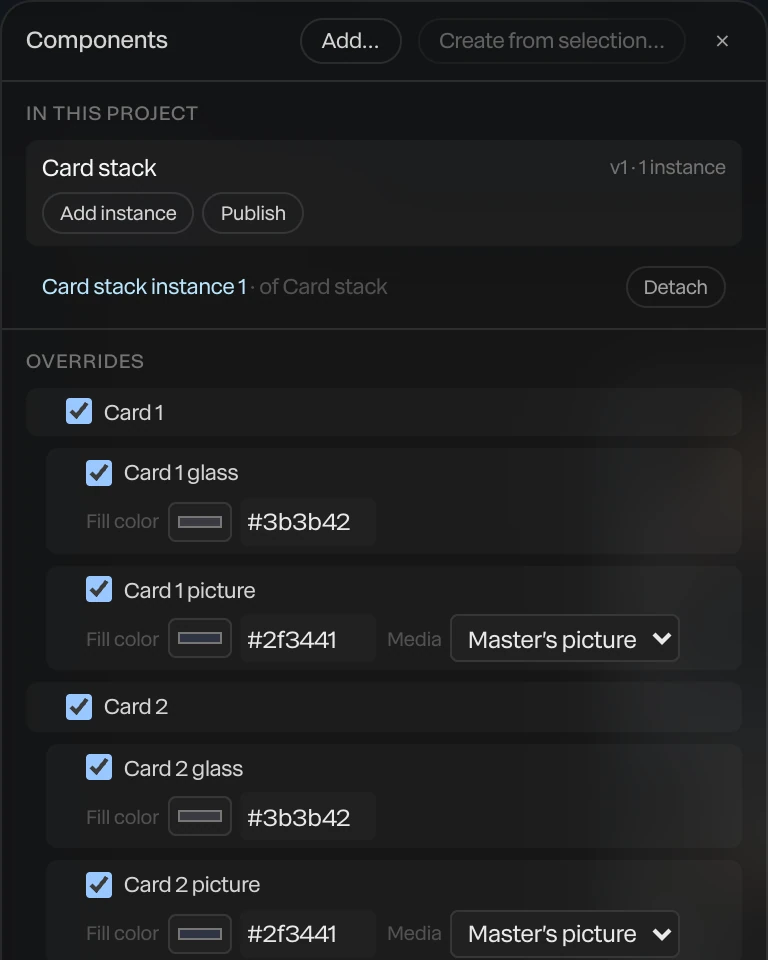
Select an instance to see its Overrides: the settings it can have of its own, which stay when the master changes.
| Can be overridden | |
|---|---|
| Text | A text layer's words |
| Fill color | A layer's color |
| Media | A picture, or Master's picture |
| Visible | Whether a layer shows |
| Counter start, end, prefix and suffix | A number counter's numbers |
| Icon | An icon layer's icon |
A dot marks a setting that differs from the master. Reset puts one back, and Reset all to master puts them all back. Components can hold other components, up to three deep.
To make an instance an ordinary group again, right-click it and choose Detach from component.
States
Save an instance's overrides as a named state, such as Hover or Pressed, then key the instance from one state to the next on the timeline:
- Change an instance: a darker fill, other words.
- In the Components panel, click Save … overrides as a state… and name it.
- Pick it under State to key, move the playhead, and click Key at … s. From there, the instance moves to that state over the Transition time.
Components from the UI kit come with states such as Hover, Pressed and Loading, and some with Variant choices such as size. States are keyed on the timeline and show in exports; they don't answer a viewer's pointer. For that, see Behaviors.
Share a component
In the Components window, under Yours, click ••• on a component, then Publish to the community. Others find it under Installed once they install it, and see an Update when you publish again. You need a handle first. See Community gallery.