
Shader fills
A shader fill paints a shape's face with a small program that draws a moving pattern: soft mesh gradients, grain, noise, swirls, rays, dots, or liquid metal poured over your logo. Every color and number in it can be keyframed, and you can write your own or paste one from Shadertoy.

Where to find it: Fill in the Panel Fill section, with a shape selected. Choose Shader fill.
Add a shader fill
- Select a shape.
- In the Panel Fill section, open Fill and choose Shader fill. The face fills with a mesh gradient.
- Open Shader and pick one. They're grouped by kind, such as Gradients · Mesh Gradient or Noise · Warp.
- If the shader has variations, pick a starting point from Variation.
- Set its colors and dials.
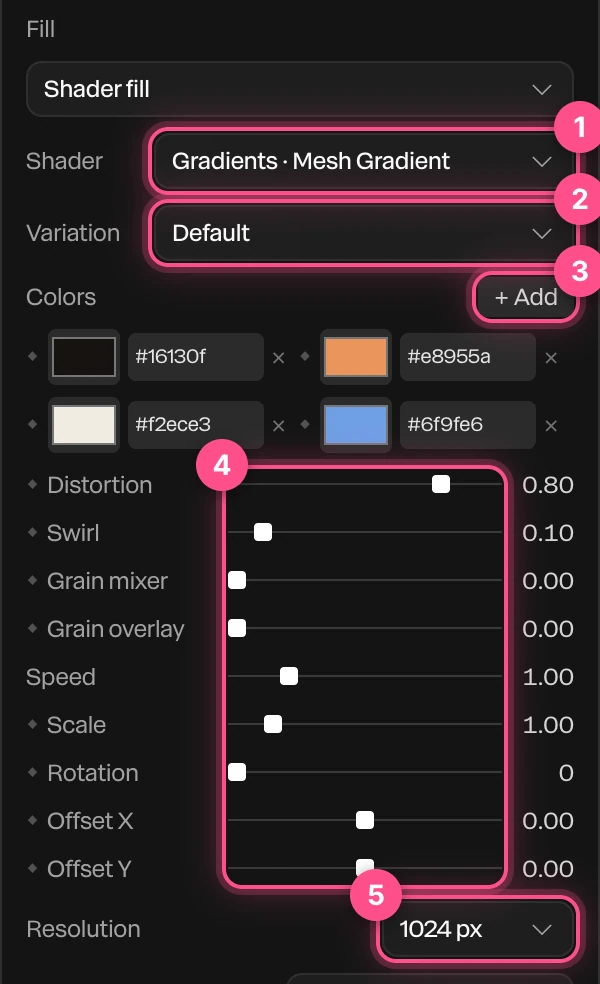
- Shader: which program draws the face.
- Variation: a ready-made set of colors and dials for it. Picking one starts again from its values.
- Colors: the shader's colors. + Add adds one, and × removes one. Some shaders have named colors instead, such as a back and a front color.
- The dials: what the shader has to change, such as Distortion and Swirl, then Speed, Scale, Rotation and Offset X and Offset Y, which move the pattern.
- Resolution: how sharp the pattern is drawn,
512 px,1024 pxor2048 px. Raise it for a large shape close to the camera.
Shader fills are for shapes. Text takes solid and gradient fills only.
The shaders
| Group | Shaders |
|---|---|
| Gradients | Mesh Gradient, Static Mesh Gradient, Static Radial Gradient, Grain Gradient, Color Panels |
| Noise | Simplex Noise, Perlin Noise, Neuro Noise, Voronoi, Warp |
| Shapes | Swirl, Spiral, Waves, Metaballs, Smoke Ring, Pulsing Border, God Rays |
| Patterns | Dot Grid, Dot Orbit, Dithering |
| Logo | Liquid Metal, Heatmap, Gem Smoke |
The shaders come from Paper Shaders, an open-source collection.
Pour a shader over your logo
The Logo shaders use the shape's picture as their shape: liquid metal, heat or smoke inside the outline of your logo.
- Put your logo on the shape. Drop the file on it, or use Add media… in the Panel Fill section. A logo with a transparent background works best.
- Choose Shader fill, then a Logo shader. A line under Variation confirms it plays over the picture.

Heatmap needs a picture. Liquid Metal and Gem Smoke draw a shape of their own without one.
Animate a shader
Most dials and every color have a ◆. Click it to set a keyframe at the playhead, then change the value at another time. See Animation basics.
The pattern moves with the timeline, not the clock on the wall, so it plays the same way every time and in your exports. Speed sets how fast it moves, and has no ◆. When the piece loops, the pattern starts over.
Important
Choosing a different shader clears the keyframes on the old one's dials, because the new shader's dials are different. A message says how many were cleared.
Write your own
- Open Shader and choose Your own · Custom (write your own), the last in the list. The Shader panel opens beside the canvas with a short starter program.
- Edit the program. The shape updates as you type.
- To add a dial, click + Add parameter. Name it, and choose number, color or boolean. A number takes a min, a max and a default.
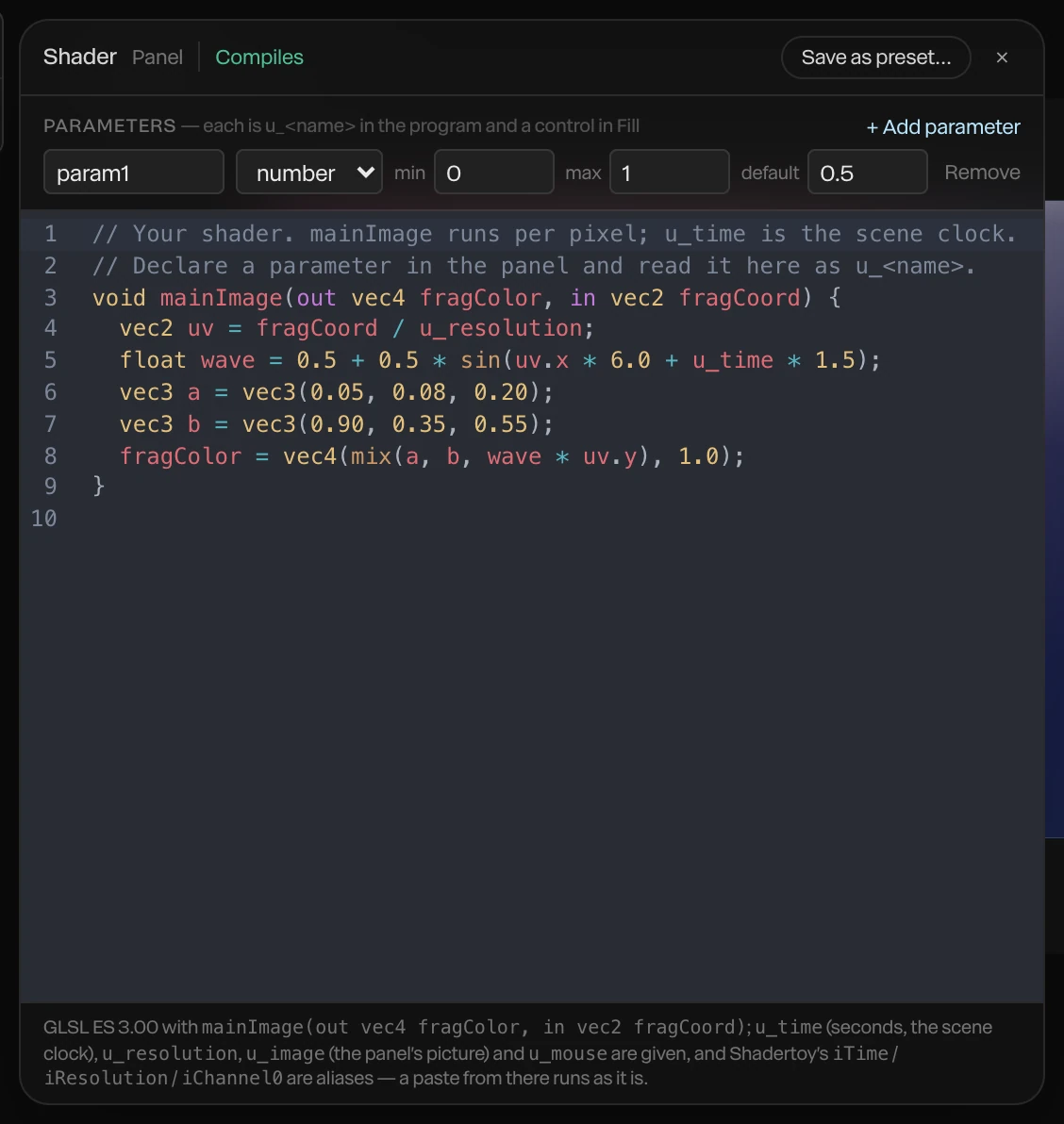
Each parameter becomes a control under Fill with its own ◆, and the program reads it by name. The panel's bottom line lists what else the program is given, such as the time and the shape's picture.
At the top, the panel says whether the program Compiles or Does not compile. While it doesn't, the errors show under the code with the line number of each, and the shape keeps the last picture that worked.
To reopen the panel later, click Edit shader code… under Shader.
Note
Writing your own is part of the Full view of the editor. In Simple, Custom leaves the list, except on a shape that already has one.
Paste from Shadertoy
Paste a Shadertoy program into the panel and it runs as it is. The panel then reminds you of Shadertoy's default license: non-commercial use with attribution, unless the author says otherwise. Check the shader's own license before you use it in a commercial piece.
Save a shader
Click Save as preset… at the top of the panel and name it. It's saved to your library, and Load preset… in the panel puts it on another shape.