
Working with the assistant
The assistant does its best work when it knows what you're after and can see what you mean. This page covers how to ask, how to show it references, and how to build a whole piece in stages with Director mode.
Ask clearly
- One goal per message. "Make the headline chrome and sweep a light across it" works better than five unrelated changes at once.
- Use numbers when you have them: "over two seconds", "about 60% of the frame width", "starting at 1 s".
- Name layers the way the Layers panel does. Or skip naming and point at them on the frame. See Feedback and Point at it.
- Describe the look in materials and light: glass, clay, brushed steel, warm key light, a soft gradient.
- Build in rounds. Apply what works, then ask for the next change. Each round is one undo.
The assistant can see your scene and checks its own work: it looks at frames of the result and fixes what's off before it answers.
Show it references
Click + beside the message box to attach something to your next message, or to start something new.
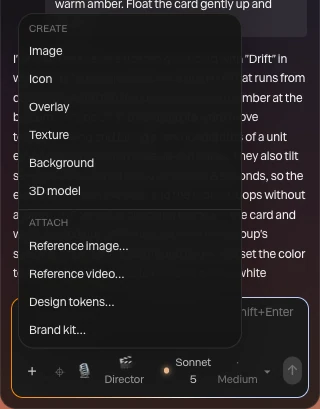
| Attach | What the assistant gets |
|---|---|
| Reference image… | One or more pictures to match: a layout, a style, a color |
| Reference video… | A clip, sent as a series of frames, so it can follow the motion and timing |
| Design tokens… | A design-token file, for your colors, fonts and sizes |
| Brand kit… | A brand kit, for the brand's colors, type and look |
Attached files show as chips over the message box until you send. Click a chip's × to remove it.
Generate things with it
The Create items start a message for you: Image, Icon, Overlay, Texture, Background or 3D model. Pick one, finish the sentence, and send. Each shows about what it costs. You can also just ask ("put a placeholder photo on each card"); the assistant uses the same generators as Generate images and Generate 3D models, and says when something costs credits.
Answer its questions
When a request could go more than one way, the assistant may ask before it builds. Its choices appear as buttons under its reply. Click one, or type your own answer.
Dictate
Click 🎙 to speak your message instead of typing it. Click it again (■) to stop. Your browser sends the audio to its own speech service to turn it into text. It appears only in browsers that can do this.
Director mode
For a whole piece, a launch video or an explainer, turn on 🎬 Director under the message box before you send.
- The assistant writes a plan, a beat per section with the look in a line or two, and blocks out the piece as a storyboard: a still of each section, shown beside its reply.
- It asks what to do next, with choices such as Build it, Change the look, Change the pacing and Start over. It doesn't build before you answer.
- Once you choose Build it, it adds the motion and detail section by section, checking each one before the next.
Like any turn, the storyboard and the build each wait for Apply. Director mode stays on until you turn it off.
Note
Director mode takes more turns than a single ask, so it spends more credits. Use it when the shape of the piece matters more than speed.
When a turn pauses
A turn has a time limit, 20 minutes, and a number of steps that grows with the effort you picked. If a big build reaches either one, the assistant stops with a note that it has paused. What it built so far is ready to review. Apply it, then reply "continue" and it carries on from there.