
Meet the assistant
The assistant builds and edits your scene from a description. Ask for "a frosted glass card with the word Drift, floating over a blue-to-amber gradient" and it adds the layers, sets their materials and keys the motion, the same way you would by hand. Everything it makes is ordinary layers and keyframes you can open and change.
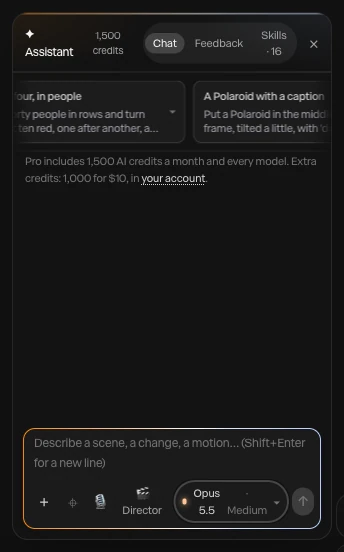
Where to find it: Assistant at the left end of the dock, or Ask the assistant at the end of any search (⌘ K, Ctrl K on Windows), which opens it and sends what you typed.
Ask for something
- Click Assistant in the dock.
- Type what you want in the message box: a whole scene, a change to what's there, or a motion.
- Press Enter, or click the ↑ button. Shift Enter starts a new line.
The colored line along the top of the panel flows while the assistant works, and it shows what it's doing as it goes. When it's done, it tells you what it made.
Not sure where to start? While the chat is empty, a row of prompt ideas scrolls above the message box. Click one to put it in the box, then edit it or send it.
Review, then Apply or Discard
The assistant works on a copy of your scene. Nothing changes on the canvas until you say so.
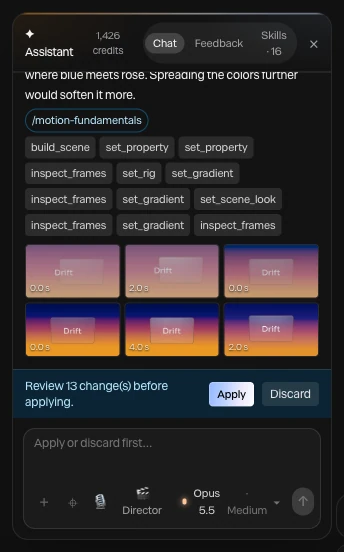
Under each reply you'll see:
- The steps it took, one chip per change, and any skills it read, such as /motion-fundamentals. See Skills.
- Frames it checked: stills of its work at different times, when it looked at the result to fix it.
- Review … change(s) before applying, with Apply and Discard.
Click Apply to put the changes in your scene, or Discard to leave it as it was. Until you choose, the message box is locked.
Important
Every turn waits for you. Apply keeps it, Discard drops it. A single ⌘ Z (Ctrl Z) after Apply takes back the whole turn, however many layers it built.
Pick a model
The pill beside the send button shows which model answers and how hard it thinks. Click it to change either.
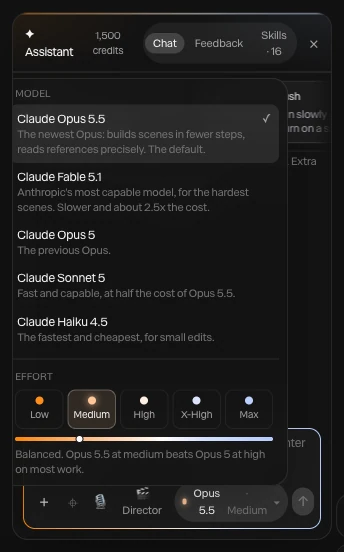
| Model | When to use it |
|---|---|
| Claude Opus 5.5 | The default. Builds scenes in fewer steps and reads references precisely. |
| Claude Fable 5.1 | The hardest scenes. Slower, and about 2.5 times the cost. |
| Claude Opus 5 | The previous Opus |
| Claude Sonnet 5 | Fast and capable, at half the cost of Opus 5.5 |
| Claude Haiku 4.5 | The fastest and cheapest, for small edits. It has no effort setting. |
Effort runs from Low (quick, small, clear edits) to Max (no limit on thinking, the slowest and costliest). Medium is the default and suits most work. More effort also lets a turn take more steps. If a big build runs out of steps or time, the assistant pauses and keeps what it built; reply "continue" to carry on.
What it costs
Each turn spends credits for what it actually used, which depends on the model, the effort and how much it did. As a rough guide, recoloring one word on Sonnet 5 at Medium cost about 30 credits, and building the Drift card above on Opus 5.5 at Medium about 75. Your balance is in the panel's header and the top bar, and updates after each turn.
With your own Anthropic key, the assistant costs no credits. See AI credits and keys.
Things to know
- The assistant can also generate pictures, icons, 3D models and voiceovers when you ask. Those cost their own credits, and it says so first. See Working with the assistant.
- A 3D model it generated stays in your models even if you discard the turn, because its credits were already spent.
- Closing the panel doesn't lose the conversation. Reloading the page starts a new one.