
Lighting and environments
The environment is the world around the scene. It lights every surface and is what metal, glass and glossy surfaces reflect. Each environment has a key light that throws the shadows, and you can add lights of your own.
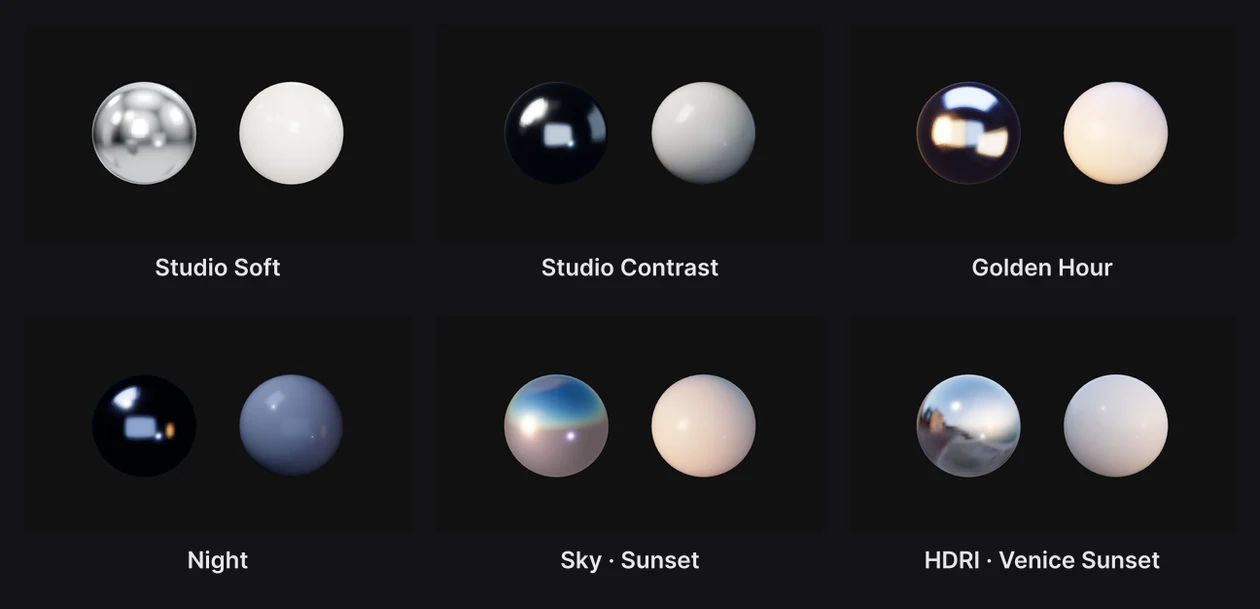
Where to find it: the Environment and Key Light sections, with Scene selected at the top of the Layers panel. Lights are in the dock's Spot light family.
Pick an environment
- Click Scene at the top of the Layers panel.
- In the Environment section, open Environment and pick one.
| Environment | What it's like |
|---|---|
| Studio Soft | Even, bright studio light. New scenes start here. |
| Studio Contrast | A darker studio with hard highlights, for dramatic product shots |
| Softbox Duo | Two large softboxes, for clean reflections on both sides |
| Golden Hour | Warm, low sunlight |
| Night | Dark and cool, with a few small lights |
| Neutral Room | A plain, gray room: light without a color cast |
| Sky · Midday, Sky · Afternoon, Sky · Sunset | An open sky at three times of day |
| Gradient | A sky made from a gradient you choose |
| HDRI | A 360° photo of a real place |
For HDRI, pick one of the eight library panoramas, such as a photo studio, Venice at golden hour or a neon city at night, or use your own file: a .hdr, an .exr, an Ultra HDR JPEG or any 360° picture. The library's panoramas are from Poly Haven and free to use. Your file is kept in the project.
The skies and HDRIs have a Backdrop setting. Set to Behind, the sky or panorama is drawn behind the scene, in the frame and in exports. With ground gives it a floor too, which the key light's shadows fall on.
Environment settings
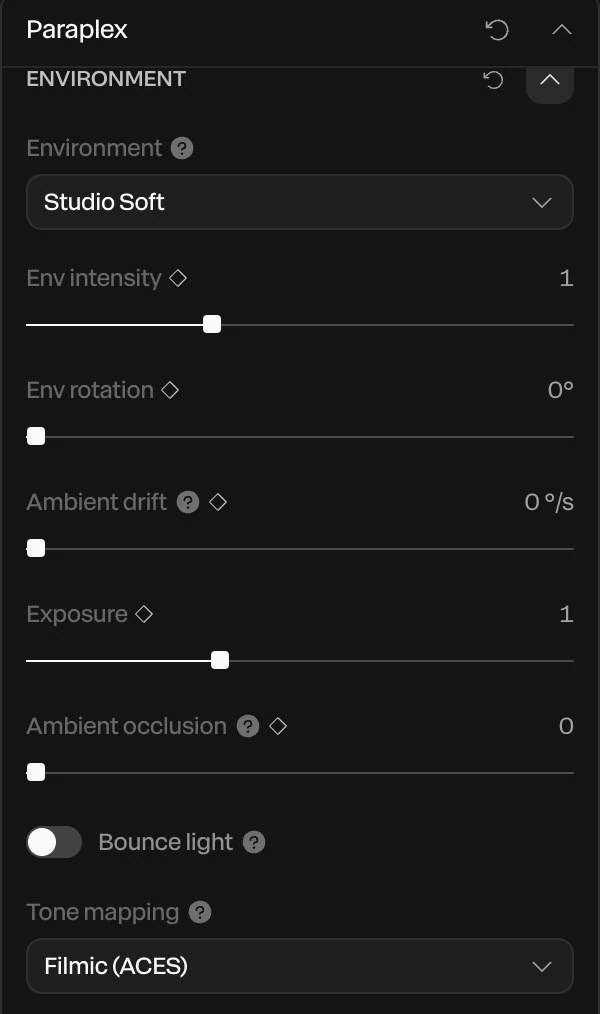
| Setting | What it does |
|---|---|
| Env intensity | How much light the environment gives, from 0 to 3 |
| Env rotation | Turns the environment round the scene, which moves the reflections on metal and glass |
| Ambient drift | Turns the environment on its own, in degrees per second, so reflections slide across a surface without keyframes |
| Exposure | Brightens or darkens the whole frame, like a camera's exposure |
| Ambient occlusion | Darkens the creases where surfaces meet, so 3D objects look solid. 0 is off. |
| Bounce light | Light that hits one surface lights the next: a red card warms the white card beside it |
| Tone mapping | How the scene's light becomes screen colors |
Env intensity, Env rotation, Exposure and Ambient occlusion each have a ◆. See Animation basics.
The four tone mappings:
| Tone mapping | Use it for |
|---|---|
| Filmic (ACES) | Lit 3D scenes. Highlights roll off softly, but pure white comes out a light gray. |
| AgX | A softer, more filmic roll-off. Very bright colors turn toward white. |
| Neutral | Products and brand colors. Colors stay true, and only the brightest highlights are softened. |
| None · exact colors | Flat designs. Every color shows exactly as you set it, but lit highlights clip. |
Tip
If your white background looks gray, or a brand color looks off, set Tone mapping to None · exact colors or Neutral.
The key light
Every environment has a key light, the main light that casts shadows. The Key Light section changes it.
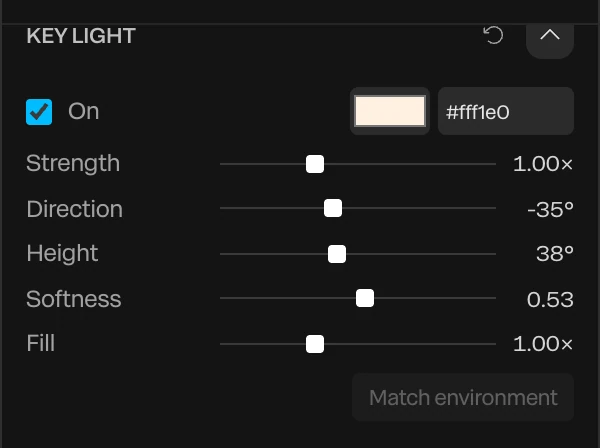
| Setting | What it does |
|---|---|
| On and the color | Turns the key light on or off and sets its color |
| Strength | How bright it is |
| Direction | Where it comes from, round the scene, in degrees |
| Height | How high it is: low for long shadows, high for short ones |
| Softness | How soft its shadows are |
| Fill | How much the shadow side is lifted |
Your changes stay when you switch environments. Match environment puts the key light back to the one that suits the current environment.
Add lights
Lights are in the dock's Scene group. Press and hold Spot light to open its family:
- Spot light, Point light and Ambient light add one light.
- 3-point setup adds a key, a fill and a back light at once.
- Dramatic light adds one strong, hard light from above and to the side, casting a shadow, and dims the environment so the shadow stands out.
Each light is a layer. Select it to set it in the Light section.
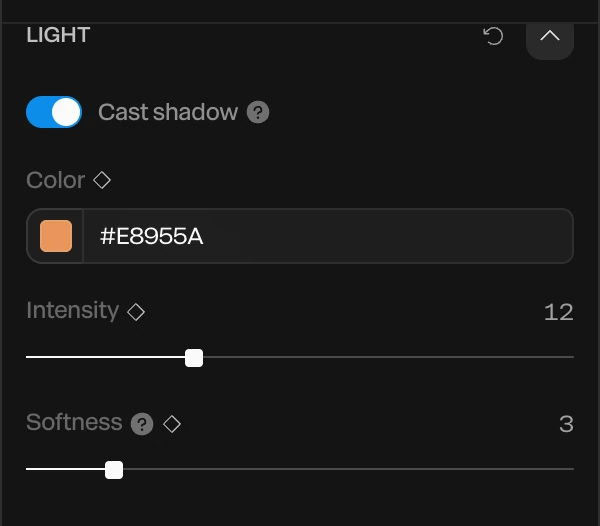
| Setting | What it does |
|---|---|
| Cast shadow | Makes the light throw shadows. It starts off, because shadows cost more to draw. |
| Color | The light's color |
| Intensity | How bright it is |
| Softness | How soft its edge and shadows are |
Color, Intensity and Softness have a ◆, so a light can flicker, fade up or change color.
The Light Shape section under it sets what kind of light it is:
| Setting | What it does |
|---|---|
| Type | Spot shines a cone, Point shines every way like a bulb, Directional shines in parallel like the sun, Area is a glowing rectangle like a softbox or a window, and Ambient lights everything evenly |
| Aim X, Aim Y, Aim Z | The point a spot, directional or area light shines at |
| Cone angle and Penumbra | How wide a spot's cone is, and how soft its edge |
| Range and Decay | How far a spot or point light reaches, and how fast it fades |
| Size | An area light's width and height. A bigger one gives more, softer light. |
| Source width | How big the light's source is. A tiny source throws hard-edged shadows. |
An area light throws no shadows.
Lighting rigs
Save the lights you've set up, to switch back to them later in the project:
- Choose Menu › Lighting rigs › Save current lights…. The rig is named after its lights, such as 3 light rig. You need at least one light layer.
- To use it, choose it from Menu › Lighting rigs. It replaces the scene's lights.
Rigs are saved with the project, so a new project starts without them.
Things to know
- Metal reflects the environment. In a dark one, such as Night, it looks nearly black. Raise Env intensity, or pick a brighter environment.
- Flat shapes and text with a plain fill are unlit, so the environment and lights don't change them. Lighting shows on materials. See Materials and appearances.
- Shadows need something to fall on. See Ground shadow and caustics.