
Render quality
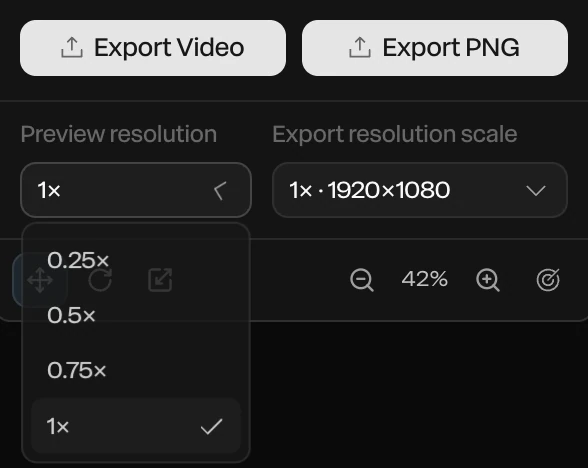
Two settings at the foot of the properties panel look alike but do different jobs. Preview resolution is for you, while you work. Export resolution scale is for the files you export.
| Setting | What it changes | Default |
|---|---|---|
| Preview resolution | How sharp the canvas draws while you edit, as a share of its sharpest: 0.25×, 0.5×, 0.75× or 1× | 1× |
| Export resolution scale | The size of every export, as a multiple of the canvas: 0.5× to 4× | 1× |
Preview resolution: for a smoother canvas
A heavy scene (glass, many particles, a path-traced light) can play slowly while you edit. Lower Preview resolution to 0.5× and the canvas draws fewer pixels, so it plays more smoothly, a little softer. Raise it again to check fine detail.
Note
Exports never use Preview resolution. A file comes out at full quality whatever the canvas shows.
Export resolution scale: for bigger files
Export resolution scale multiplies the canvas's width and height for every picture and video. Each choice shows the size it makes: at 2×, a 1920 × 1080 canvas exports at 3840 × 2160 (4K). Use it when you need a bigger file without changing the canvas size the piece was laid out at. See Exporting images.
To change the canvas itself, set Canvas width and Canvas height at the top of the Scene's settings. See Canvas size and setup.
Clean edges
Every frame is drawn with anti-aliasing, so edges are smooth on the canvas and in exports. In a video, the camera's shutter (Motion blur in the Scene's Lens section) blends a few moments into each frame, which smooths fast motion too. See Camera and lens.
For the cleanest still of a 3D scene, with soft shadows and real reflections, turn on Studio render.