
3D models and splats
A 3D model is an object made outside Paraplex, in Blender, Cinema 4D, Spline or a generator, saved as a GLB file. Bring it into a scene and it turns, catches the light and casts shadows like everything else. A splat is a 3D capture of a real place or thing, made of millions of soft dots.
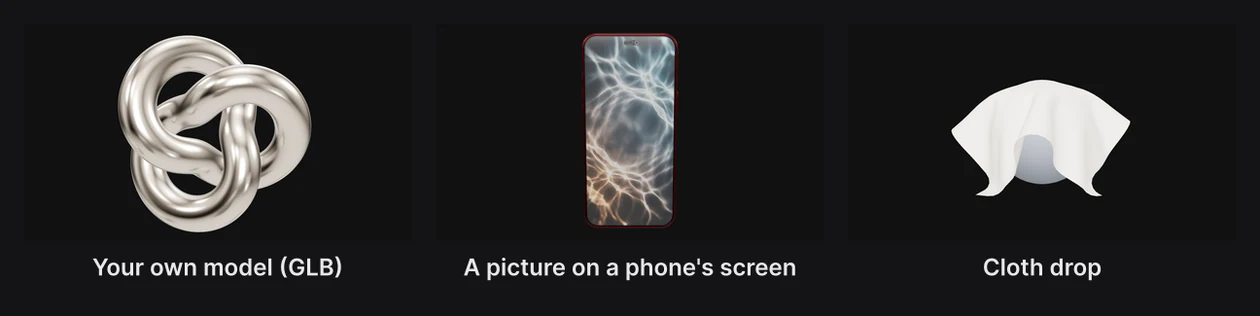
Add a model
- In the dock, click 3D model.
- Choose a file: GLB or glTF, or a splat (PLY, SPZ, SPLAT, KSPLAT or SOG).
Or drag files from your desktop onto the canvas; several at once each become a layer of their own.
The model arrives in the middle of the scene, sized so its longest side is about half the frame's width, and named after the file. Make it bigger or smaller with Scale in the Transform section.
Press and hold 3D model for its family:
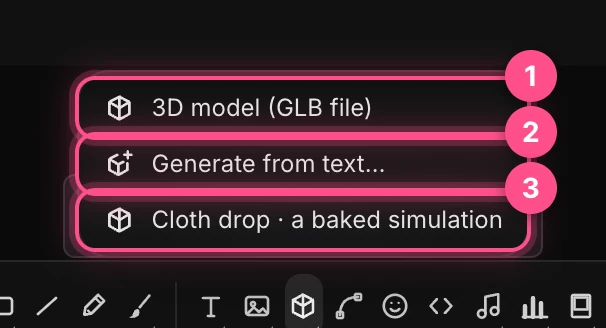
- 3D model (GLB file) opens the file picker, like a click on the button.
- Generate from text… makes a model from a description with AI. It uses credits and takes from 30 seconds to a few minutes. See Generate 3D models.
- Cloth drop adds a cloth falling over a ball. See Cloth drop.
Note
A model's file is stored inside your project. Very large models make a large project, which may be kept on this device instead of syncing to the cloud. See Cloud sync and revisions.
The Model panel
Select a model and the Model panel opens above the dock.

- Screen › Add media puts a picture or video on a device's screen. See Device screens.
- Cast shadow: whether the model casts and receives shadows. On at first.
- Override material replaces the file's materials with your own Metalness and Roughness. Turn it off to bring the file's back.
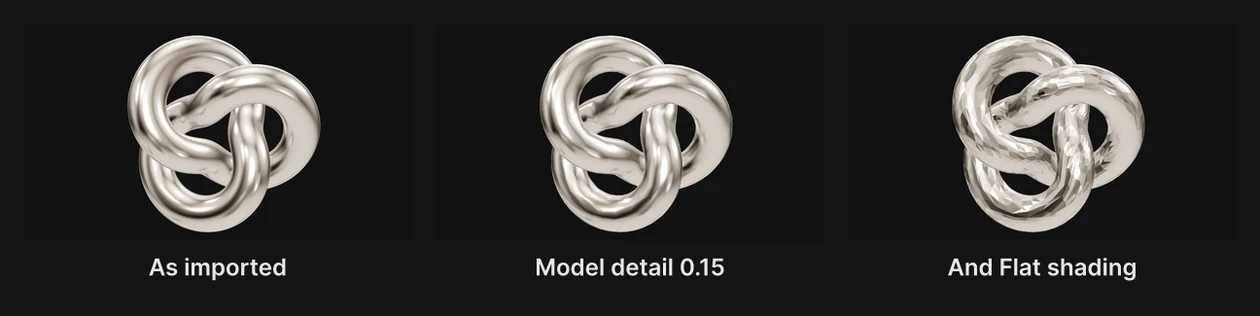
- Model detail simplifies the model for a low-poly look, from 1 (as imported) down toward a tenth of its points.
- Flat shading shows every facet. Pixel textures keeps textures blocky instead of smooth, for a retro game look.
- Animation plays one of the file's own animations. It only appears when the file has some.
- Baked motion › Add a bake… adds a pre-recorded simulation to the model. See Baked motion.
Note
Model detail leaves alone any part with more than 40,000 points, and any part that bends with a skeleton. It's a look, not a way to lighten a heavy model.
The rest of a model's settings are in the properties panel: Transform, Appearance for a material look, Texture, Layer Filters and the others. An appearance keeps the model's own colors; a glass appearance doesn't make it see-through. See Materials and appearances.
Play a model's animation
Many GLB files carry animations: a character walking, a product opening, a logo spinning. Pick one from Animation in the Model panel, and it plays on the timeline.
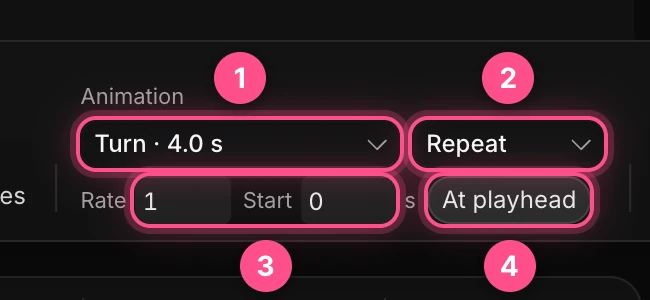
- The animation, with its length.
- Repeat plays it over and over; Once plays it through and stops.
- Rate sets its speed: 2 is twice as fast, 0.5 half. Start is when it begins, in seconds of the timeline.
- At playhead starts it where the playhead is.
If an animation set to Once runs past the end of your piece, a Fit timeline button lengthens the timeline to match.
A file that includes cameras adds a View › Look through list: choose one of its cameras, and the view and every export are framed by it.
Device screens
Put a picture, a screen recording or a video on a phone, tablet or laptop model, and it shows on the screen like a real display.
- Select the device model.
- In the Model panel, click Screen › Add media, and choose a file. Or drag the file onto the model on the canvas.
The picture fills the screen, trimmed to fit, under a glossy cover. Videos and animated GIFs play along with the timeline. Replace swaps the file; Clear takes it off.
The screen's picture gets its own row in the Layers panel, drawn by the device.
Note
This works when the model's screen part is named "screen" or "display" in the file. On other models, the picture has nowhere to go and nothing shows. For a flat phone or browser around a card instead, use UI overlays.
Gaussian splats
A splat is a captured scene or object: a room, a statue, a street, made from photos or video by an app like Polycam, Luma or Postshot. Add it with 3D model, like a GLB.
- Splats carry their own light, so the scene's lights don't change them.
- A splat is turned upright and fitted to the frame when it arrives. If one arrives upside down, turn it with Rotation X.
- The first splat in a session takes a moment longer, while the splat viewer loads.
- The Model panel's settings are for meshes and do nothing on a splat.
To walk or orbit through a splat as a viewer, see Viewer camera and Generate rooms.
Cloth drop
Cloth drop, in the 3D model family, adds a square of cloth that falls over a ball and settles, worked out by a real cloth simulation.

It adds two layers, "Cloth drop" and "Under the cloth", and the fall starts at the playhead and plays once, in about three seconds. The two are separate layers, so to move them together, put them in a group.
Baked motion
Baked motion is a simulation, such as cloth, a crumble or a fluid, recorded in another app and played back frame by frame. Nothing is simulated in Paraplex, so it plays exactly the same in every export.
- Paraplex makes its own bakes for Cloth drop and for Break into cubes.
- To add a bake from another app (a vertex animation texture), click Baked motion › Add a bake… and choose its EXR files, and the JSON file that describes them if it has one. The model must be a GLB with a second UV set.
Once a model has a bake, its controls appear: Play, fps, Start with At playhead, Once or Loop, and Flip rows.