
Text animation
Text layers have their own animations. They move the letters, words or lines one after another, which a whole-layer animation can't do. There are 38 of them, from a soft blur to a typewriter. Text can also swap between phrases, or count up like a scoreboard.

Where to find it: select a text layer, then click Animate in the Text settings panel.
Animate text in
- Select the text layer. The Text settings panel opens over the canvas.
- Click Animate. The animation rows open below the type settings.
- In the Animate in row, open Effect and pick an animation.
- Press Space to play.
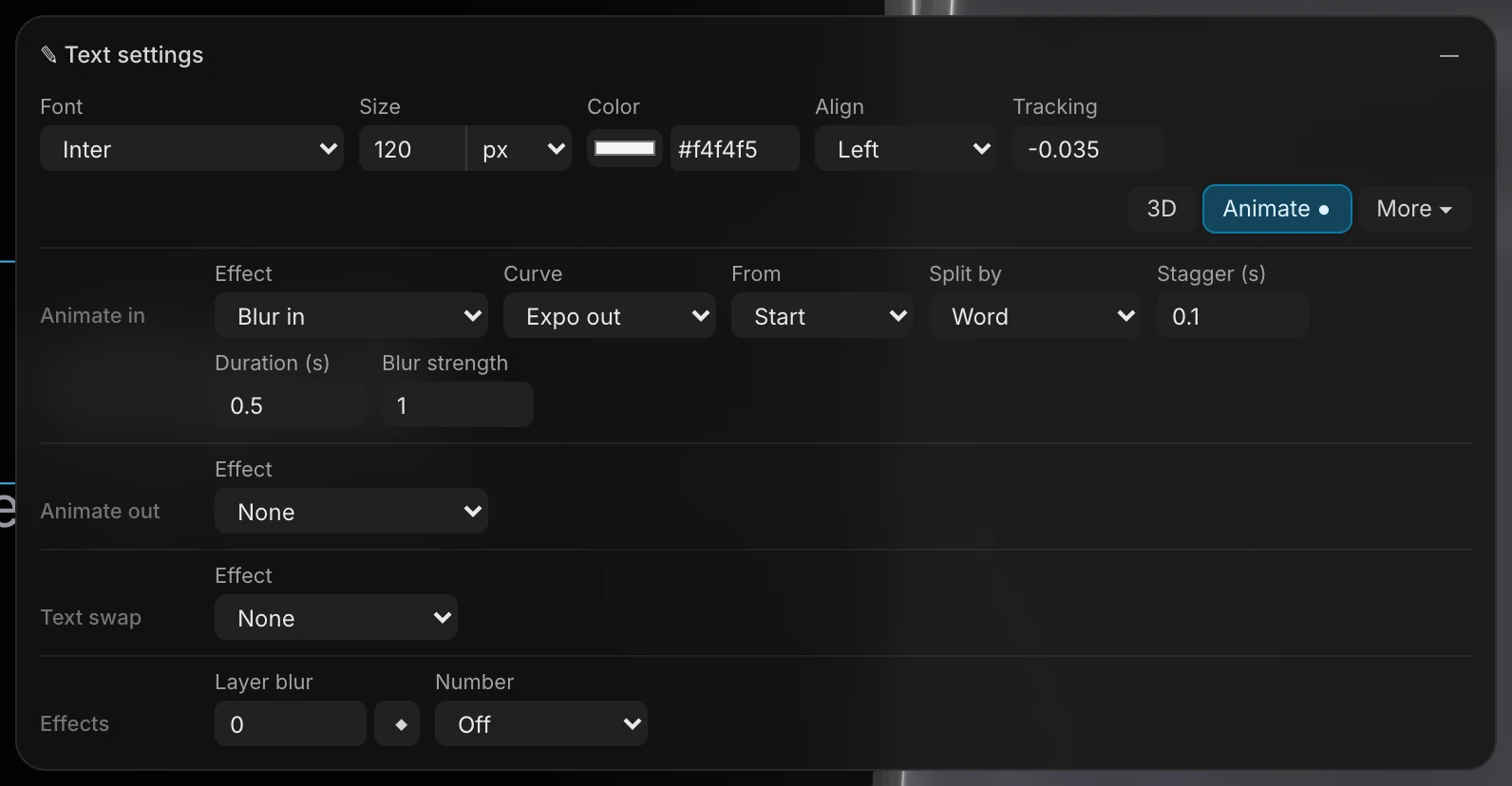
Each effect comes tuned: picking one also sets its Split by, Duration and Stagger. Change them afterwards if you like. A dot on the Animate button means the text has an animation.
Important
Text animations always start at the beginning of the piece (0 seconds), even if the text layer appears later. A layer whose clip starts at 3 seconds has already finished its animation by the time it appears. For text that arrives later, either:
- use Transform › Entrance instead, which starts when the layer's clip starts. See Animate in and out.
- ask the assistant to start the text animation later, for example "Start the Title's text animation at 3 seconds".
The settings
| Setting | What it does |
|---|---|
| Effect | The animation. See The effects below. |
| Curve | How each piece eases into place. The first option is the effect's own curve. The others are Cubic out, Expo out, Quart out, Smooth, Back out, Elastic, Bounce, Spring and Linear. |
| From | The order the pieces start in: Start (first to last), End (last to first), Center (the middle outwards), Edges (the outside in) or Shuffled (a random order). |
| Split by | What moves as one piece: each Character, each Word or each Line. |
| Stagger (s) | The wait between one piece starting and the next. Set it to 0 to move everything at once. |
| Duration (s) | How long each piece takes to arrive. |
Some effects add a setting or two:
- Blur in adds Blur strength, from 0 to 4.
- Tint in, Tint rise and Step in add Accent, the color the pieces arrive in before turning to the text's own color.
- Typewriter has its own settings. See below.
The typewriter
Typewriter shows the letters one at a time, as if typed. It has no curve or duration: Stagger is the time between letters.
| Setting | What it does |
|---|---|
| Accent and Head | Head is how many of the newest letters wear the Accent color, fading to the text's color as more arrive. 0 turns it off. |
| Cursor | Show adds a cursor after the last letter. It stays solid while typing and blinks once the line is done. |
| Character | The cursor's shape: Bar |, Underscore _ or Dot . |
| Cursor color and Blink (s) | The cursor's color, and how long one blink takes. |
Tip
The Typography motion kit template has both of the typewriters above, ready to copy. See Starting a project.
Animate text out
Once Animate in has an effect, an Animate out row appears. Its effect plays backwards, so the text leaves the way it would have arrived.
| Setting | What it does |
|---|---|
| Effect | Any of the same effects |
| At (s) | When the exit starts, in seconds from the beginning of the piece. Default 4. |
| Over (s) | How long each piece takes to leave |
| Stagger (s) | The wait between one piece leaving and the next |
The exit uses the effect's own curve, and it splits and orders the text the same way as Animate in. A typewriter exit removes the letters in the order they were typed, starting with the first.
Note
At is a time in the whole piece, not a time after the text appears. If you make the piece longer or shorter, check that the exit still lands where you want it.
The effects
The Effect list groups the 38 effects by feel.
Type
| Effect | What it does |
|---|---|
| Typewriter | Letters appear one at a time, with an optional cursor |
Soft
| Effect | What it does |
|---|---|
| Blur in | Words go from soft and dim to sharp |
| Blur in by line | The same, a line at a time |
| Soft rise | Words drift up into place, soft to sharp |
| Soft lift | Words settle down from just above, soft to sharp |
| Stagger fade | Letters fade in one after another |
| Tracking in | Letters close in from wide spacing, soft to sharp |
| Tracking out | Letters spread out from tight spacing |
| Open out | A quicker spread from tight spacing, out of a blur |
Reveal
| Effect | What it does |
|---|---|
| Mask rise | Each line rises into view from behind an edge below it |
| Mask wipe | Each line is wiped on from the left |
| Mask drop | Each line drops into view from behind an edge above it |
| Slide up and Slide down | Letters slide into place, fading in |
| Slide left | Letters slide in from the right |
| Slide right | Letters slide in from the left |
Kinetic
| Effect | What it does |
|---|---|
| Stomp | Words slam down from larger, with a small bounce |
| Stomp lines | The same, a line at a time |
| Punch | Words punch in from nothing on an elastic |
| Pop | Letters pop up from nothing with a slight overshoot |
| Scale in | Letters grow from nothing |
| Zoom in | Words fly out of the middle of the line, growing into place |
| Drop | Words drop in from above and bounce |
| Bounce | Letters grow from nothing and bounce |
| Scatter | Letters fly in from all over and gather. Set From to Shuffled for the full effect. |
Turn
| Effect | What it does |
|---|---|
| Flip in | Letters flip up over their baseline |
| Flip over | Letters turn down into place from beyond the top |
| Tumble | Letters tumble into place, turning as they land |
| Spin in | Letters spin and grow into place |
| Slant flip | Words turn up over their baseline while leaning, then straighten |
| Lean in | Letters land large and leaning, then straighten one by one |
Signal
| Effect | What it does |
|---|---|
| Decode | Letters flicker through random characters, then settle |
| Code | Every letter turns to code at once, then each locks onto its own, left to right |
| Glitch in | Words flicker and jitter into place |
| Dust | Words gather out of dust. As an exit, they blow away as specks. |
Color
| Effect | What it does |
|---|---|
| Tint in | Letters fade in wearing the Accent color, then turn to their own |
| Tint rise | Words rise in the Accent color, then settle to their own |
| Step in | Words step in one at a time from the right, dim to bright. A gray Accent suits it. |
Swap between phrases
Text swap changes the text from one phrase to the next. The words the phrases start with stay put, and only the rest changes.
- Put the playhead where the first phrase should start.
- In the Text swap row, open Effect and pick how the words change.
- Type the phrases into Phrases, separated by commas, and press Enter.

| Setting | What it does |
|---|---|
| Effect | Blur, Fade, Flip, Lift, Roll, Slant, Retype (deletes, then types), Roll down, Scramble or Code |
| Phrases | The phrases in order, separated by commas |
| Hold (s) | How long each phrase stays before the next change |
| Change (s) | How long each change takes |
| Align on | A character every phrase lines up on, so it stays in place as the words change |
| Repeat | Cycles the phrases to the end of the piece. The label shows one cycle's length. Make the piece that long, or a multiple of it, for a seamless loop. |
Each phrase is a keyframe on the layer's Text lane in the timeline. Drag them to change when each phrase arrives.
Make a number count
Number, in the Effects row, turns the text into a number that counts. While it's on, the number replaces the text's words.


| Setting | What it does |
|---|---|
| Number | Counter counts smoothly. Odometer rolls each digit like a wheel. Clock shows the time. Off shows the text again. |
| From and To | The first and last numbers |
| Count (s) | How long the count takes |
| Start at (s) | When the count starts, in seconds from the beginning of the piece |
| Decimals | How many digits after the decimal point |
| Separator | How thousands are marked: none, 1,234.5, 1 234.5 or 1.234,5 |
| Prefix and Suffix | Text before and after the number, such as $ or % |
Clock has its own settings instead:
- Face: the format, such as Timecode HH:MM:SS:FF or MM:SS.
- Reads at start: the time the clock shows when it starts.
- Start at (s): when it starts running.
- Frames: frames per second, for the timecode face.
Tip
When the scene has a unit chart, a counter can follow it: choose the chart under Follows, and the number reads the chart as it grows. See Charts and data.
Blur the whole layer
The Effects row also has Layer blur, which blurs the whole text layer. Click the ◆ beside it to keyframe the blur at the playhead.