
Transparent video
A transparent video has no background: the parts with nothing on them are see-through. Lay it over other footage in an editing app, or over a web page, and only your layers show.

Export one
- Click Scene in the Layers panel.
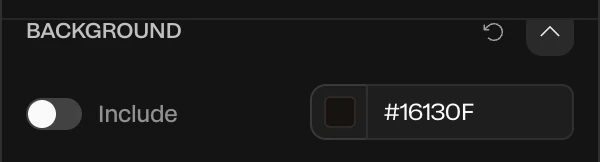
In the Background section, turn off Include.
In the Video Export section, set Format to WebM (or PNG sequence).

- Click Export Video at the foot of the panel.
The file downloads as paraplex-1920x1080-alpha.webm.
Important
Use the Export Video button. Menu › Export video always keeps the background, whatever Include says.
Which formats can be see-through
| Format | See-through? |
|---|---|
| WebM | Yes: VP9 video with a transparency channel |
| PNG sequence | Yes, at full quality: one PNG per frame, in a .zip |
| MP4 | No. MP4 can't carry transparency; Paraplex exports it on the background and says so. |
| GIF | No. It's exported on the background. |
Where to use it
- Websites: Chrome and Edge play a transparent WebM in a
<video>tag with its see-through parts. Safari doesn't, so check the browsers your visitors use, or embed the live scene instead. See Publish and embed. - Editing apps: most import a PNG sequence with its transparency. Use it for After Effects, Premiere Pro, DaVinci Resolve and Final Cut Pro.
Things to know
- A ground shadow stays in, partly see-through, so a piece sits naturally on what's behind it. See Ground shadow and caustics.
- Transparent video takes longer to export than an ordinary one. In a browser without the newest video encoder, it records in real time instead.
- Transparent video is part of Pro. See Plans and credits.