
Keyboard shortcuts
Press ? in the editor to see this list inside the app.
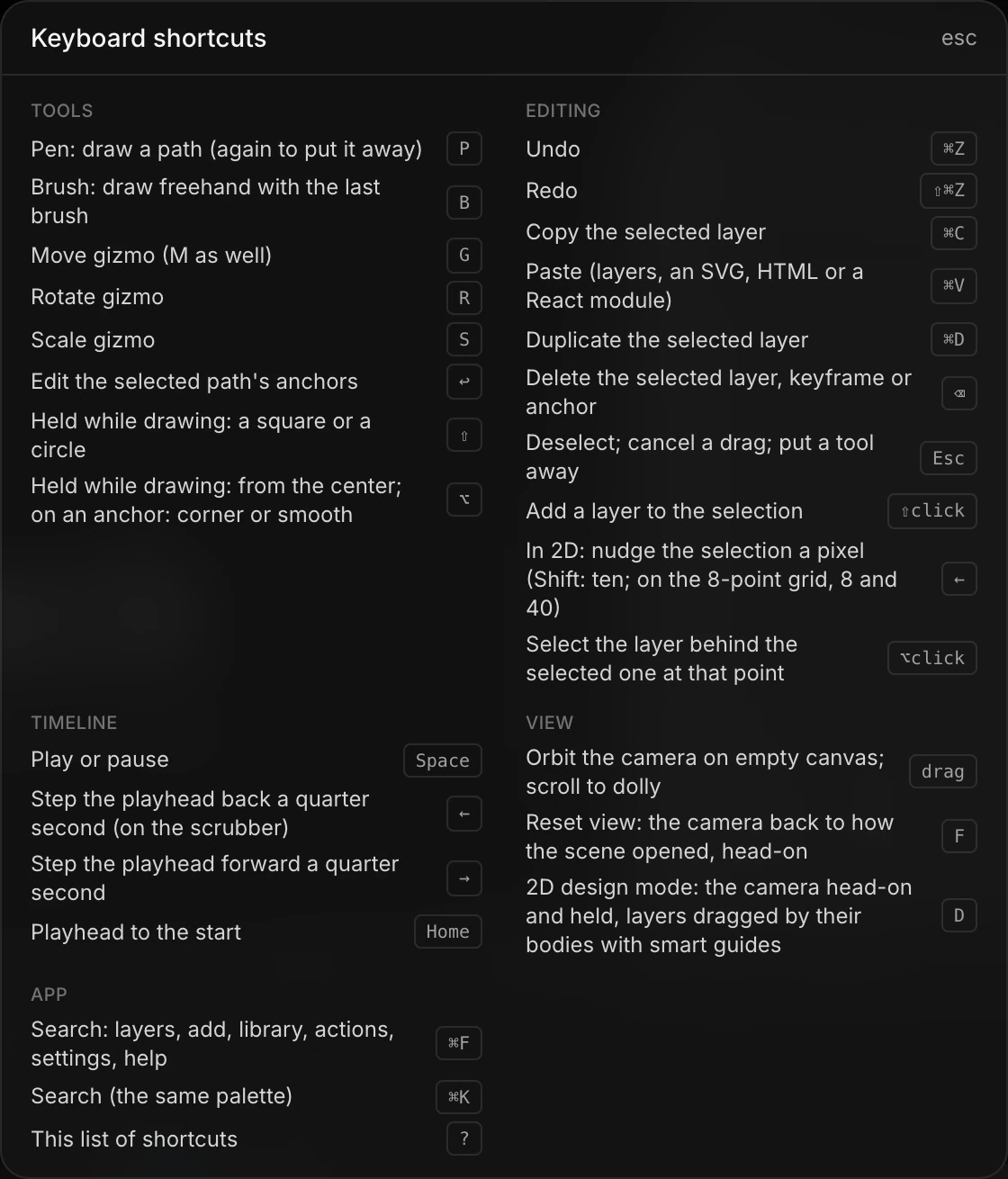
On Windows and Linux, use Ctrl wherever a Mac uses ⌘, and Alt for ⌥.
Tools
| Action | Mac | Windows |
|---|---|---|
| Pen: draw a path (press again to put it away) | P | P |
| Brush: draw freehand with the last brush you used | B | B |
| Text tool: then click to start typing, or drag to draw a text box. With a text layer selected, T edits its words instead. | T | T |
| Move gizmo | G or M | G or M |
| Rotate gizmo | R | R |
| Scale gizmo | S | S |
| Edit the selected path's anchors | ↩ | Enter |
| While drawing a shape: make it a square or a circle | Hold ⇧ | Hold Shift |
| While drawing a shape: draw from the center | Hold ⌥ | Hold Alt |
| On a path anchor: switch between corner and smooth | ⌥-click | Alt-click |
Editing
| Action | Mac | Windows |
|---|---|---|
| Undo | ⌘ Z | Ctrl Z |
| Redo | ⇧ ⌘ Z | Ctrl Shift Z or Ctrl Y |
| Copy the selected layer | ⌘ C | Ctrl C |
| Paste layers, an SVG, HTML or a React module | ⌘ V | Ctrl V |
| Duplicate the selected layer | ⌘ D | Ctrl D |
| Delete the selected keyframe, or a path anchor while editing a path | ⌫ | Backspace |
| Deselect, cancel a drag, or put a tool away | Esc | Esc |
| Add a layer to the selection, or take it out (in the Layers panel) | ⇧-click or ⌘-click | Shift-click or Ctrl-click |
| Select the layer behind the selected one | ⌥-click | Alt-click |
| In 2D mode: nudge the selection 1 pixel (10 with Shift) | Arrow keys | Arrow keys |
Note
In 2D mode with the 8-point grid on, the arrow keys nudge by 8 pixels, or 40 with Shift.
To delete a layer, hover its row in the Layers panel and click the trash button, or right-click it and choose Delete layer. The ⌫ key doesn't delete layers.
Timeline
| Action | Mac | Windows |
|---|---|---|
| Play or pause | Space | Space |
| Step the playhead back or forward a quarter second | ← → | ← → |
| Playhead to the start or the end | Home End | Home End |
| Move the selected keyframe a quarter second | ← → | ← → |
| Delete the selected keyframe | ⌫ | Backspace or Delete |
| Add a marker at the playhead (timeline expanded) | M | M |
The arrow keys, Home and End work once you've clicked in the timeline's rows, or on the thin strip along the bottom of the collapsed timeline.
Note
M also switches to the Move gizmo, so one press does both.
View
| Action | Mac | Windows |
|---|---|---|
| Orbit the camera around the scene | Drag on the frame | Drag on the frame |
| Dolly the camera in and out | Middle-drag | Middle-drag |
| Reset view: the camera back to the scene's home view | F | F |
| Move your view of the canvas | Scroll | Scroll |
| Zoom your view of the canvas | Pinch, or Ctrl-scroll | Ctrl-scroll |
| 2D design mode | D | D |
Important
Orbiting and dollying move the scene's camera, so they change what you export. Scrolling and zooming only change your view of the canvas.
App
| Action | Mac | Windows |
|---|---|---|
| Search: layers, things to add, your library, actions, settings and help | ⌘ F or ⌘ K | Ctrl F or Ctrl K |
| Show this list of shortcuts | ? | ? |
Important
While you're typing in a field, the field keeps ⌘ Z and other keys for itself. Click an empty part of the canvas first if a shortcut doesn't seem to work.