
The dock
The dock is the toolbar at the bottom center of the editor. Everything you add to a scene starts here.

- Assistant: opens the AI assistant.
- Shapes and drawing: shapes, lines, the pen and the brush.
- Content: text, images, 3D models, vectors, icons, code, audio, charts, media frames, HUDs and bentos.
- Scene: lights, a backdrop, particles, formations, generators and physics objects.
- Organize: build a scene from a folder, group, adjust, instance, or clear the scene.

Hover any button to see its name.
Open a button's family
Many buttons hold a family of related tools. A small triangle in the button's corner tells you which ones.
To open a family, do one of these:
- Press and hold the button.
- Right-click it.
- Click the small triangle in its corner.
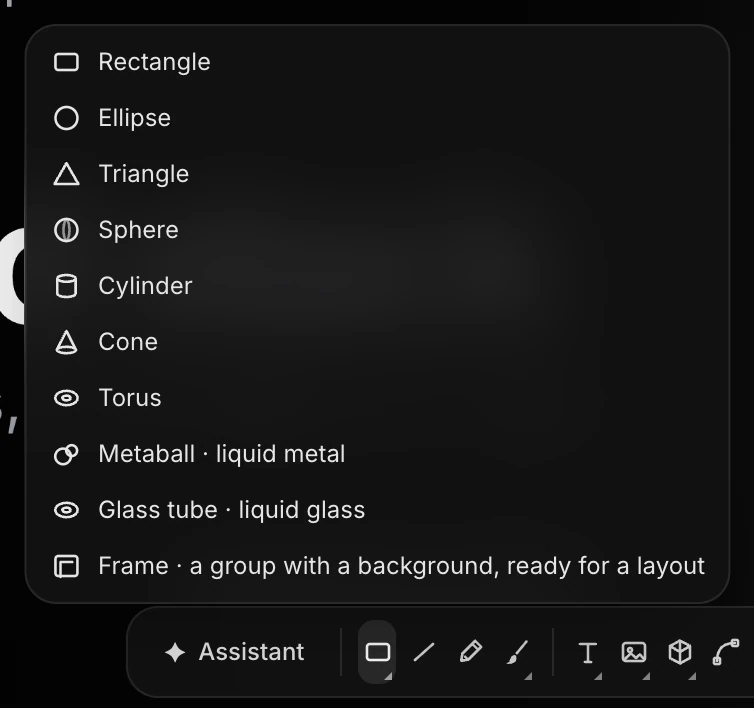
The family opens above the dock. Choose a tool, or press Esc to close it.
Draw a shape to size
Shapes, lines, text, particles and frames are drawn right on the canvas.
- Click the tool in the dock. The pointer is now ready to draw.
Drag on the canvas to draw the shape at the size you want.
- Hold Shift to make a perfect square or circle.
- Hold ⌥ (Alt) to draw out from the center.
- Or just click once to drop the shape at its default size.
The tool puts itself away after each shape, as in Figma. To draw another, click the tool again. To cancel, press Esc or click the tool's button again.
The tools that draw are Rectangle, Ellipse, Triangle, Sphere, Cylinder, Cone, Torus, Metaball, Line, Text, Particles and Frame. With Text, a click starts a line that grows as you type, and a drag draws a text box of a fixed size, whose words wrap. See Text.
Other buttons add their layer straight away, or open a file picker or a panel first.
Everything in the dock
Shapes and drawing
| Button | Family | Learn more |
|---|---|---|
| Rectangle | Rectangle, Ellipse, Triangle, Sphere, Cylinder, Cone, Torus, Metaball (liquid metal), Glass tube (liquid glass), Frame (a group with a background, ready for a layout) | Shapes and frames |
| Line | Pen and paths | |
| Pen (P) | Pen and paths | |
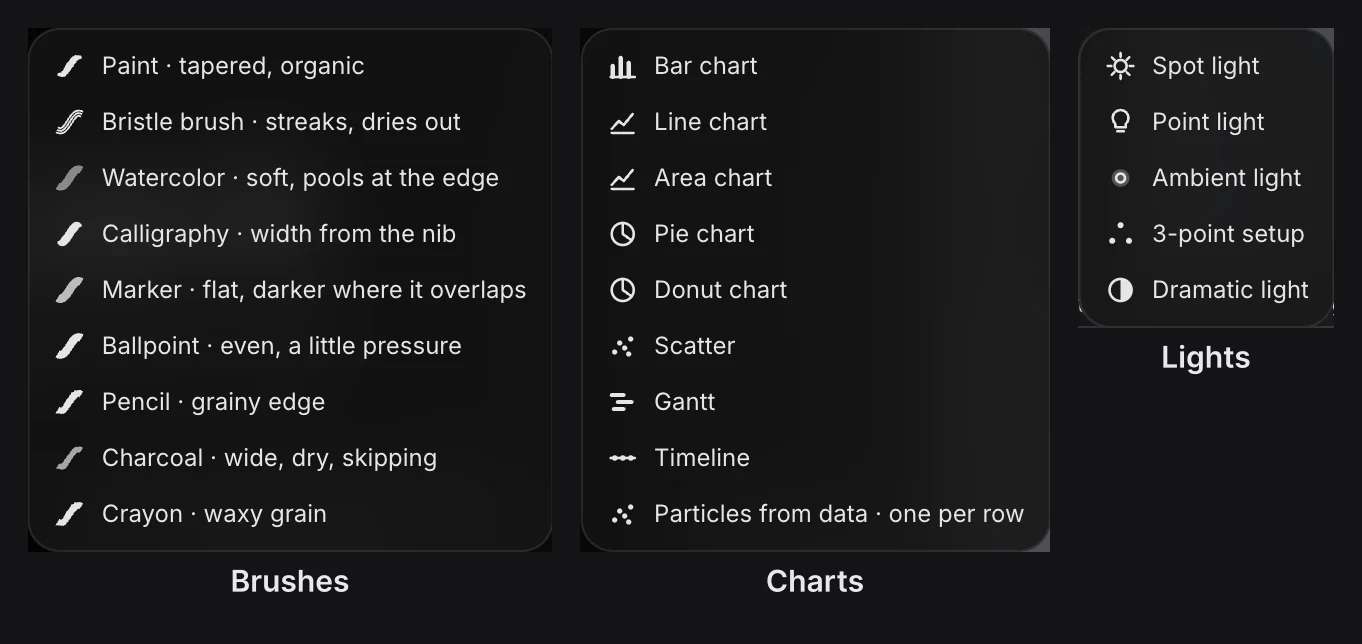
| Brush (B) | Paint, Bristle brush, Watercolor, Calligraphy, Marker, Ballpoint, Pencil, Charcoal, Crayon | Brushes and drawing |
Content
| Button | Family | Learn more |
|---|---|---|
| Text (T) | Text, Rotating phrases (a line whose last word keeps changing) | Text |
| Image | Image (file), Generate from text… | Images and video |
| 3D model | 3D model (GLB file), Generate from text…, Cloth drop (a baked simulation) | 3D models and splats |
| Vector (SVG) | Opens a file picker for an SVG | Pen and paths |
| Icon | Opens the icon picker (the Lucide set) | Pen and paths |
| Code | A live HTML or React layer | Code layers |
| Audio track | Audio track (file), Voiceover…, Sound effect from words…, Music from words… | Audio |
| Chart | Bar, Line, Area, Pie, Donut, Scatter, Gantt, Timeline, Particles from data | Charts and data |
| Media frame | 13 frames, including a Polaroid, torn paper, a Post-it, a notebook page and old desktop windows | Media frames and HUDs |
| HUD | Camcorder REC, Viewfinder, 16 mm film frame, Date stamp | Media frames and HUDs |
| Bento | Hero 2×2, Mosaic 3×3, Magazine | Layouts and bentos |
Scene
| Button | Family | Learn more |
|---|---|---|
| Spot light | Spot light, Point light, Ambient light, 3-point setup, Dramatic light | Lighting and environments |
| Backdrop | Backgrounds | |
| Particles | Particles, Dot grid (a flat, still field), Matrix (a still cube of dots) | Particles |
| Formation | Cards, Dots, Cubes | Formations |
| Generator | Galaxy, City blocks, Terrain, Grass, Orbits | Generators |
| Flag | Flag, Smoke, Splash, Stack | Physics |
Organize
| Button | What it does |
|---|---|
| Build scene from folder | Pick a folder of pictures (up to 50). They arrive as a grid of picture cards in a new group. See Build a scene from a folder. |
| Group | Adds a new, empty group. |
| Adjustment layer | Adds a layer that grades every layer below it. See Adjustment layers. |
| Instance | With a group selected, adds a linked copy beside it. Edit the original and every instance follows. See Components. |
| Clear scene | Removes every layer, after asking you first. |
Warning
Clear scene can be undone, but one layer at a time. On a big scene that's a lot of presses of ⌘ Z.