
State machines
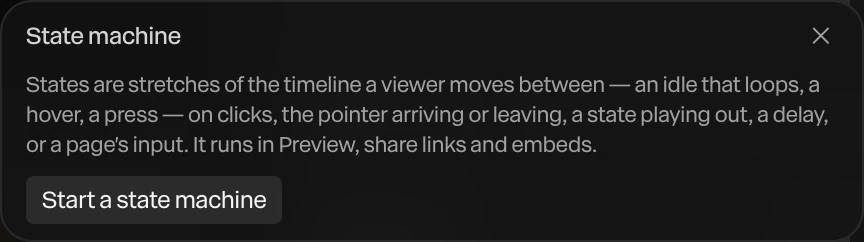
A state machine lets the viewer steer your animation. You lay out each state as a stretch of the timeline (a gentle idle, an opening, a closing) and say what moves the piece from one to the next: a click on a layer, the pointer arriving or leaving, a state playing out, a delay, or a message from the page it's embedded on.
Where to find it: Menu › State machine…, or search for "state machine" (⌘ K). In Simple mode, the menu item shows only once the piece has a state machine.
Lay out the timeline first

Each state plays its own stretch of the timeline, so animate them one after another before you write the machine. For the cards above:
| Seconds | What happens |
|---|---|
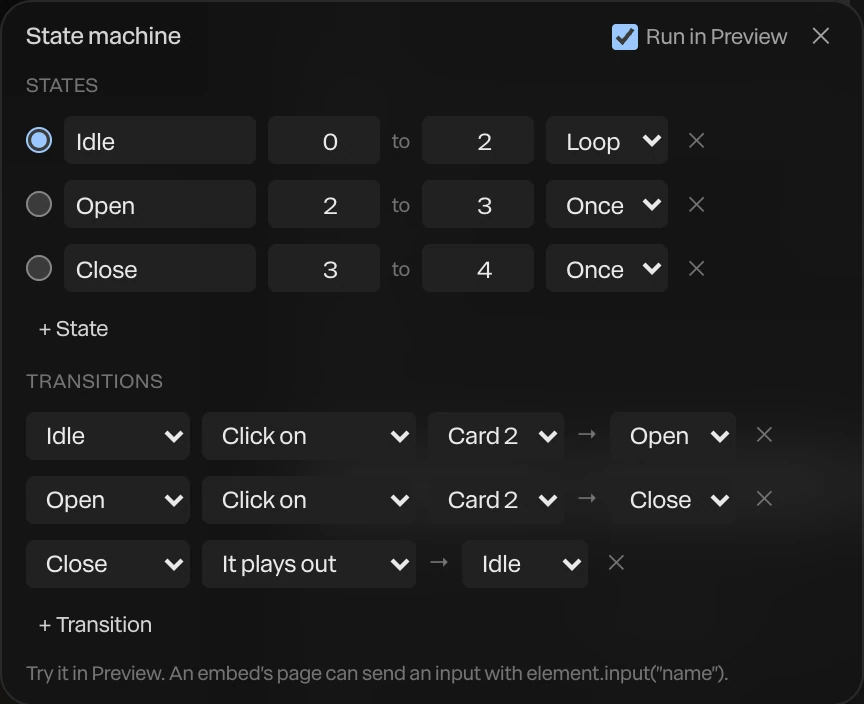
| 0 to 2 | The stack breathes: the top card rises a little and settles |
| 2 to 3 | The cards fan out |
| 3 to 4 | The cards gather back into a stack |
Build the machine
- Choose Menu › State machine….
Click Start a state machine. It adds a looping Idle state from 0 to 2 seconds.
- Click + State for each other stretch. A new state starts at the playhead and lasts a second. Name it, and type its start and end in seconds.
Set how each state plays:
Plays What it does Loop Plays its stretch round and round: an idle Once Plays its stretch once and holds the last frame: a press Hold Holds its first frame: a pose - Choose where a viewer starts with the round button beside a state.
- Click + Transition for each way from one state to another. Pick the state it leaves (or Any state), when it happens, and the state it goes to.
| When | Moves on when |
|---|---|
| Click on | The viewer clicks the layer you pick |
| Pointer enters | The pointer arrives over the layer |
| Pointer leaves | The pointer leaves the layer |
| It plays out | A Once state reaches its end |
| After | A number of seconds have passed in the state |
| Page input | The page the piece is embedded on sends this name. See Embed API. |
A click or a hover counts for the layer under the pointer and for the groups it's in, so a transition on a group answers anywhere on it.
Try it
Click Preview in the top bar and click your way through the states. Run in Preview, at the top of the panel, turns the machine on and off.
While a state machine runs, it moves the playhead itself, so the Preview bar's Scroll no longer drives the timeline.
How it decides
- Transitions from the current state are checked before ones from Any state, and the first that matches wins.
- A transition back into the state it's leaving starts that state again.
Important
The editor and every export show the plain timeline: all the states one after another. The machine runs only in Preview, share links and embeds.
Not the same as component states
Components have states too, such as Hover, Pressed and Loading in the UI kit's buttons. Those are looks you key on the timeline, and they show in exports. They don't answer the viewer's pointer. A state machine does.