
Formats and artboards
Posting the same piece to YouTube, Instagram and TikTok? Don't build it three times. Turn on the export formats you need, and each one becomes an artboard beside the frame: the same scene, reframed for that shape. Change one for its shape alone, or change the scene and they all follow.
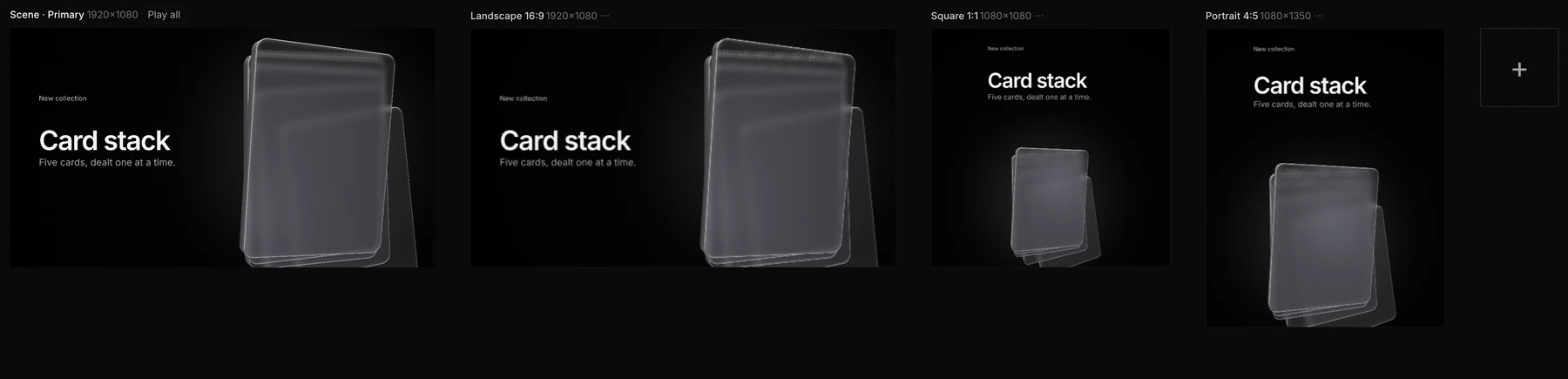
Add formats
Choose Menu › Export formats and click each format you need. A ✓ marks the ones that are on.
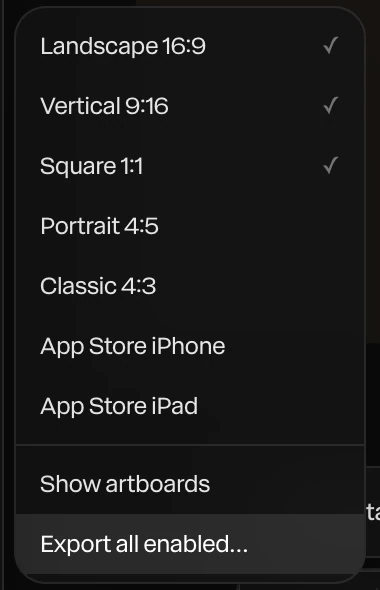
- Choose Menu › Export formats › Show artboards to lay them out beside the frame.
You can also click the + tile at the end of the artboards, and pick a format or Custom size….
| Format | Size |
|---|---|
| Landscape 16:9 | 1920 × 1080 |
| Vertical 9:16 | 1080 × 1920 |
| Square 1:1 | 1080 × 1080 |
| Portrait 4:5 | 1080 × 1350 |
| Classic 4:3 | 1440 × 1080 |
| App Store iPhone | 886 × 1920 |
| App Store iPad | 1200 × 1600 |
How each one is framed
New artboards use Responsive framing: Paraplex re-lays out the piece for the shape, side by side on a wide one and stacked on a tall one, like a web page, and reshapes backgrounds to fill. To frame one differently, open the ⋯ beside its name and pick another framing:
| Framing | What it does |
|---|---|
| Responsive | Rearranges the layers for the shape |
| Scale to fill | Scales the whole piece to fill the shape |
| Fit contents | Moves the camera so everything fits |
| Fit height / Fit width | Keeps the height, or the width, of the main frame in view |
| Fill frame (crop) | Fills the shape and crops what spills over |
Change one artboard
Click an artboard to open it. A bar over the frame says you're editing that artboard: anything you change now applies to it alone.

- The bar counts the differences from the main scene. Apply to all sends this artboard's changes to every one; Reset all takes them back.
- To animate a layer differently on this artboard, click the base chip on its row in the timeline. The row becomes this artboard's own.
- Click Back to scene when you're done.
The tile's menu also has Rename…, Resize…, Make primary, Duplicate and Remove, and Breakpoint… for embeds. See Responsive embeds.
Export every format
Menu › Export formats › Export all enabled… exports the frame at the playhead in every format that's on, one picture each (PNG or JPG, as Image Export says), named after its size and format. Each file downloads on its own. A panel in the corner shows the progress, with Cancel.
With an artboard open, Export Video and Export PNG export that artboard. Exporting all formats at once is part of Pro.
Export for the App Store or slides
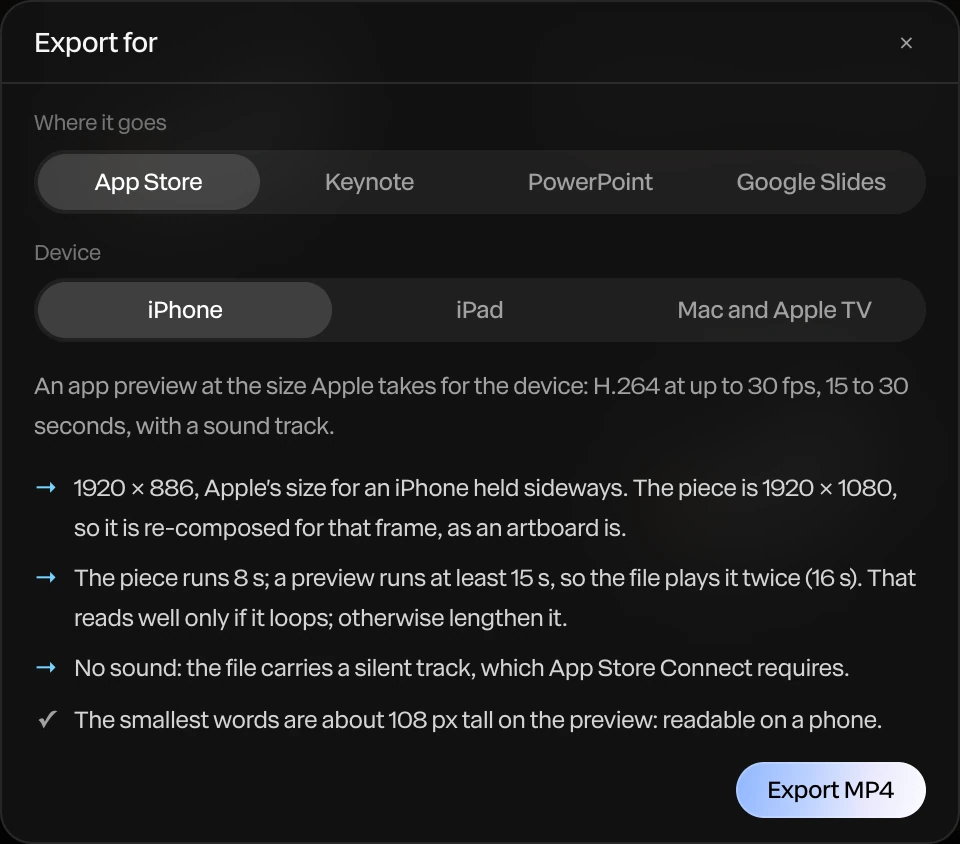
Menu › Export for App Store or slides… makes an MP4 that meets a destination's rules, and checks your piece against them first.
| Where it goes | What you get |
|---|---|
| App Store | An app preview at Apple's size for iPhone, iPad, or Mac and Apple TV: H.264, at most 30 fps, 15 to 30 seconds, with a sound track (a silent one if the piece has none) |
| Keynote / PowerPoint | A 1920 × 1080 MP4 to place on a slide |
| Google Slides | The same, with the loop repeated to a minute, since Slides plays a video once |
Under Before it goes, each check is marked: ✓ fine, → changed for it, ! worth a look. Click Export MP4.