Fills and gradients

A shape's fill is the color of its face: one solid color, a gradient, or a live shader. Gradients can be linear, radial or angular, and everything about them can move, so a card can shimmer from amber to daylight blue and back.
Where to find it: Fill in the Panel Fill section, with a shape or text selected.
Choose a fill
Open the Fill menu and pick one:
| Fill | What it does |
|---|---|
| Solid fill | One color. Pick it from the swatch, or type a hex code in the box beside it. |
| Gradient fill | Two to eight colors that blend across the face. |
| Shader fill | A live, moving pattern, such as liquid metal or a mesh gradient. Shapes only. See Shader fills. |
Text takes Solid fill and Gradient fill. Its color is also in the Text settings panel under the frame.
Under the color are your project's color tokens, the named colors of your palette. Click one to use it: the shape then follows the token, so changing the token later changes the shape too. The dashed + saves the current color as a new token and asks you to name it.
Make a gradient
- Select a shape.
- In the Panel Fill section, open Fill and choose Gradient fill. The face turns blue at the bottom to pink at the top.
- Click a stop on the bar to select it, then pick its color.
- To add a stop, click the bar between two stops. The new stop takes the color already at that point. A gradient holds up to eight stops.
- Drag a stop along the bar to move it, or type its position, from
0at the left end to1at the right. - To remove the selected stop, click Delete stop. A gradient keeps at least two.
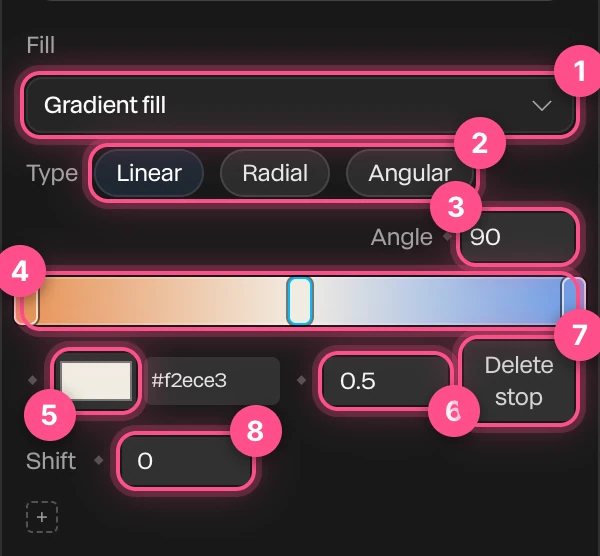
- Fill: solid, gradient or shader.
- Type: Linear, Radial or Angular.
- Angle: which way a linear gradient runs, or where an angular one starts.
- The bar: the gradient itself. The handles are its stops. Click between them to add one.
- The selected stop's color.
- The selected stop's position, from 0 to 1.
- Delete stop.
- Shift: slides the colors along the gradient. See Animate a gradient.
Linear, radial and angular

| Type | What it does |
|---|---|
| Linear | The colors run in a straight line across the face. Angle sets the direction: 0 runs left to right, 90 bottom to top. |
| Radial | The colors spread out from the center in rings, the first stop in the middle. It has no angle. |
| Angular | The colors sweep around the center, like a clock hand. Angle sets where the sweep starts and ends. |
The gradient spans the whole shape. On text, it spans the whole word rather than each letter.
Animate a gradient
Every part of a gradient can be keyframed: each stop's color and position, the Angle and the Shift. Each has its own ◆. Click it to set a keyframe at the playhead, then change the value at another time. See Animation basics.
Shift slides the colors along the gradient. At the ends they fold back, so the colors run there and back again: at 1 the gradient is reversed, and at 2 it's back where it started.

A gradient that flows from Shift 0 at the start to 2 at the end loops without a seam. The assistant can key it for you: select the shape and ask, "Make this gradient flow in a seamless loop, with a linear curve." The Linear curve keeps the flow even. See Easing and springs.
Note
For now, typing a new Shift at another time changes the value without adding a keyframe, and clicking its ◆ again removes its keyframes. Stops and Angle key as you'd expect.
Keyframing Angle turns the gradient. On an angular gradient it makes the colors circle the shape. On a stroke, that's a light traveling round the border.
Important
Adding or removing a stop clears the keyframes on every stop's color and position, because stops are numbered by their order and the numbers change. A message says how many were cleared. Add all your stops first, then animate them.
Things to know
- A gradient covers the picture on a shape. To see the picture again, switch back to Solid fill.
- A shape's outline can have a gradient too, in the Stroke section. See Strokes.
- The scene's background can be a gradient. See Backgrounds.