
Skills
A skill is a set of instructions the assistant reads when a task calls for it: how to time motion, how to frame a camera move, how your brand looks and moves. Paraplex comes with eighteen. You can add your own, have the assistant write one, or add one from the community.
Skills use the SKILL.md format that Claude Code uses: a folder with a SKILL.md file, plus any references it needs.
Where to find it: the Skills tab in the assistant's header. Its number counts the skills that are on.
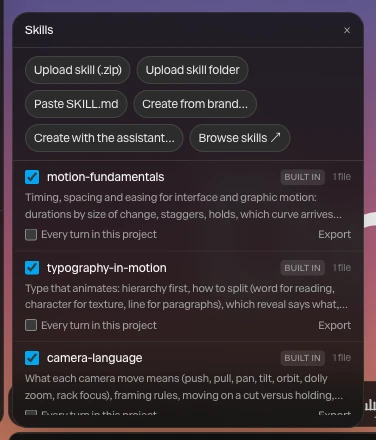
How the assistant uses them
You don't have to do anything. Before a task, the assistant reads the skills whose descriptions match it, and the reply shows each one it read as a chip, such as /motion-fundamentals.
To make sure it uses one:
- For one message: with the Skills window open, click the skill's chip over the message box to pin it. Pins last for the next message.
- For every message in this project: check Every turn in this project under the skill.
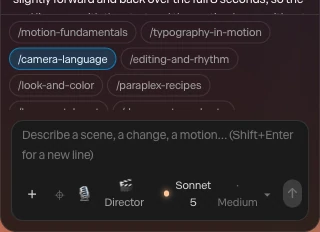
To stop the assistant using a skill, uncheck the box beside its name.
The built-in skills
| Skills | What they cover |
|---|---|
| motion-fundamentals, typography-in-motion, camera-language, editing-and-rhythm, look-and-color | The craft: timing and easing, type that animates, camera moves, pacing a piece, grading and light |
| paraplex-recipes | Ready sequences: a kinetic title, a card carousel, a chart reveal, a UI tour, a product hero |
| logo-match-cut, documentary-shorts | Whole pieces: a logo match cut, and a 3D documentary Short from a script |
| motion-craft-in-paraplex, and nine skills for interface motion | Interface animation and polish, by the designer and engineer Emil Kowalski |
Built-in skills can be turned off but not edited or deleted. Two of them, prototype and improve-animations, start off. Export saves any skill as a .zip.
Add your own
| Button | What it does |
|---|---|
| Upload skill (.zip) | Adds a skill from a .zip with its SKILL.md inside |
| Upload skill folder | Adds a skill's folder, with its SKILL.md and references |
| Paste SKILL.md | Opens a box to paste the text, then Add skill |
| Create from brand… | Writes a skill from a design system and from projects that move the way the brand does |
| Create with the assistant… | Starts a message, "Write a skill that…". Describe what it should know or do. |
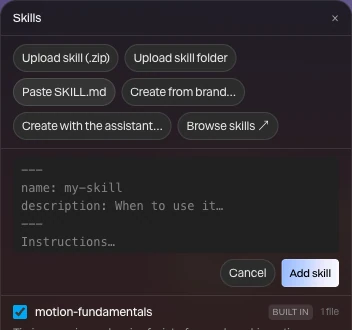
A SKILL.md starts with a name and a description between --- lines, then the instructions. The description matters most: it's what the assistant reads to decide when the skill applies. Scripts inside a skill don't run in Paraplex.
When the assistant writes a skill, its reply shows the SKILL.md and asks Save the skill "…"?. Click Apply to save it to your library.
Your own skills have Edit and Delete too. With cloud sync on in your account, they follow you to any browser you sign in on.
A skill for your brand
Create from brand… opens Create a brand skill:
- Pick the Design system the brand uses. Save one first in Menu › Library… if you have none.
- Pick up to three projects that move the way the brand does. The assistant can imitate them.
- Leave Extract the motion profile from those projects checked to capture their timing and curves.
- Check Have the assistant write the SKILL.md to have it write the instructions, which takes one assistant turn.
- Click Create skill.
Share and find skills
Browse skills opens the Skills pages on the site, which show every built-in and community skill in full. On a community skill, click Add to your assistant. Paraplex shows you its whole text before you add it.
To share one of yours, click Publish under it, then Send for review. Paraplex reads every skill before it's listed, and your name goes with it, so set a handle in your profile first. Take down removes it from the community; copies people already added keep working.
Important
A skill is instructions to the assistant, which edits your scene. Read a community skill before you add it. Every change it leads to still waits for your Apply.