
Groups and pre-composition
A group holds layers, so they move, turn, fade and animate together. A group can also arrange its layers for you, in a row, an arc, a ring or a grid, and spread them out or gather them up over time.

Make a group
- Click Group in the dock, or + at the top of the Layers panel and then Group.
- Drag layers onto the group's row in the Layers panel to put them inside.
There's no shortcut for grouping, and no Ungroup: to take a layer out, drag it out of the group. All the ways to group, including pre-composing several layers at once, are on Layers panel.
The dock's Group always adds a group at the top of the list. To put a group inside another, select a layer in that group first, then use + › Group in the Layers panel.
Important
A new group lines up the layers you put in it in a row, so they can jump sideways as they go in. To keep every layer where you placed it, set Group Rig › Arrangement to Stack.
Move, turn or scale the group, and everything inside follows. A group's clip on the timeline also limits everything in it: outside the group's clip, nothing inside shows.
Arrange the layers
The Group Rig section places a group's layers for you.
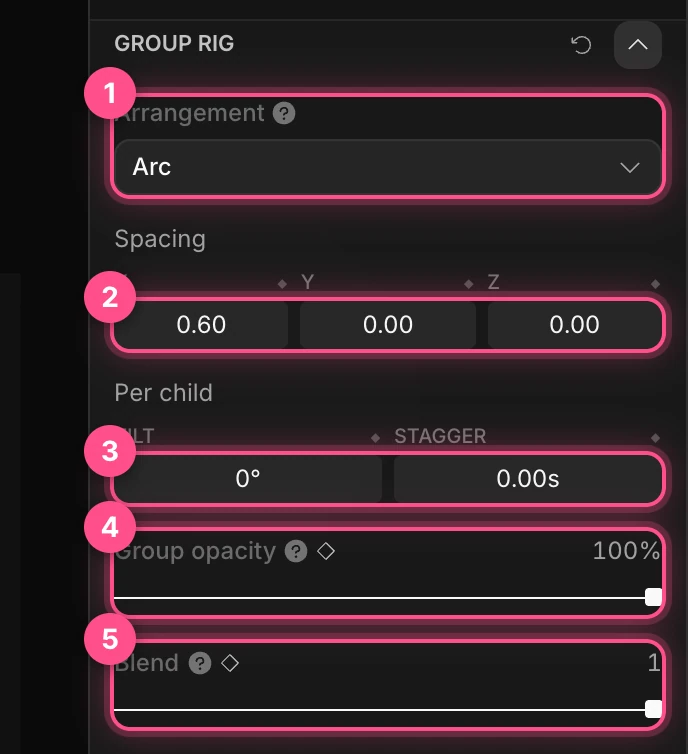
Arrangement:
- Linear: a row, one step of Spacing apart.
- Arc: along part of a ring. Radius and Angle set its size and how far round it goes.
- Radial: a full ring.
- Carousel: a ring round the group's middle, every layer facing out. Animate the group's Rotation Y to spin it.
- Grid: rows and columns.
- Stack: no arranging. Each layer stays where you put it.
- Spacing: the step from one layer to the next, across (X), up (Y) and toward you (Z).
- Per child: Tilt turns each layer a little more than the one before. Stagger delays each layer's animation: the second plays that many seconds after the first, the third after the second, and so on.
- Group opacity fades the whole group as one picture. See Fade a group as one.
- Blend goes from 0, every layer where you placed it, to 1, fully arranged.
The rings lie flat, like a carousel seen from the side. Tip the group toward the camera (Rotation X) to see their shape.
Note
A carousel's ring uses the same radius as Arc, but the field is hidden while Carousel is chosen. To change it, switch to Arc, set Radius, then switch back.
Fan out and gather up
Animate Blend for moves where things gather and spread: a hand of cards fanning out, a menu opening, a logo assembling. Key it at 0, then at 1 a moment later.

To lay layers out in a box instead, with rows, columns and gaps like a web page, use the group's Layout section. A layout takes over from the rig. See Layouts and bentos.
Fade a group as one
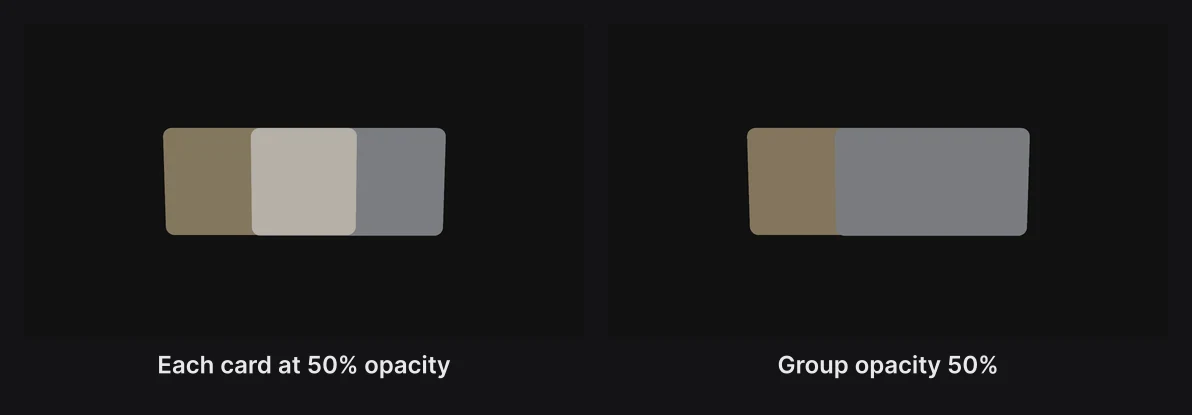
Group opacity fades the group as if it were one flat picture: where its layers overlap, you don't see one through the other. Fading each layer on its own lets the overlaps show through.
Pre-composition
A pre-composed group is drawn on its own first, as one flat picture, and that picture is then placed in the scene. So the group fades, blends and takes effects as a whole, and glass inside it only bends what's inside the group.
To pre-compose layers: select them, right-click one, and choose Pre-compose (it reads Pre-compose 2 layers for two, or Create pre-composition for one).
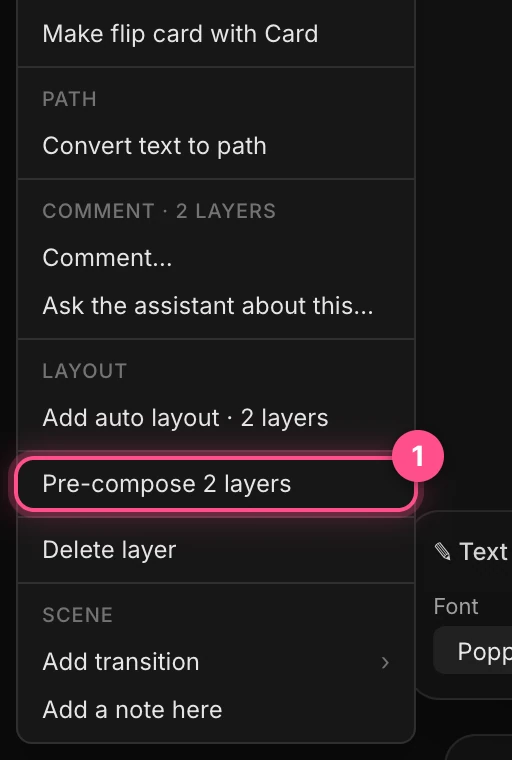
They go into a new group, "Pre-comp 1", without moving. To pre-compose a group you already have, right-click it and choose Make this a pre-composition; Release pre-composition turns it back.
A group is also drawn this way on its own whenever it needs to be: when its Group opacity is under 100%, its blend mode isn't Normal, or it has layer filters or effects. See Masks and blend modes and Layer effects.
Note
Up to 24 groups can be drawn as pictures at once. Beyond that, the rest are drawn layer by layer.
Combine shapes into one solid
The Combine section joins a group's shapes into a single 3D solid:
- Union merges them.
- Subtract cuts the other shapes out of the first one.
- Intersect keeps only where they overlap.
- Smoothing melts the seams together, for soft, poured-looking joins.

The shapes stay layers inside the group, so you can still move and animate each one, and the solid follows. Animate a sphere through another with Smoothing up for a liquid, metaball-like merge.
Linked copies
Instance in the dock makes a linked copy of the selected group: change the original, and every instance follows. See Components.