
Particles
A particle cloud is thousands of small points moving together: drifting dust, sparks, snow, confetti, a field of stars, a grid of dots. One cloud can hold up to 10,000 particles and still play smoothly.

Add a cloud
- In the dock, click Particles. The button lights up.
- Click on the canvas for a cloud of the default size, or drag to size it: the drag sets how far the cloud spreads.
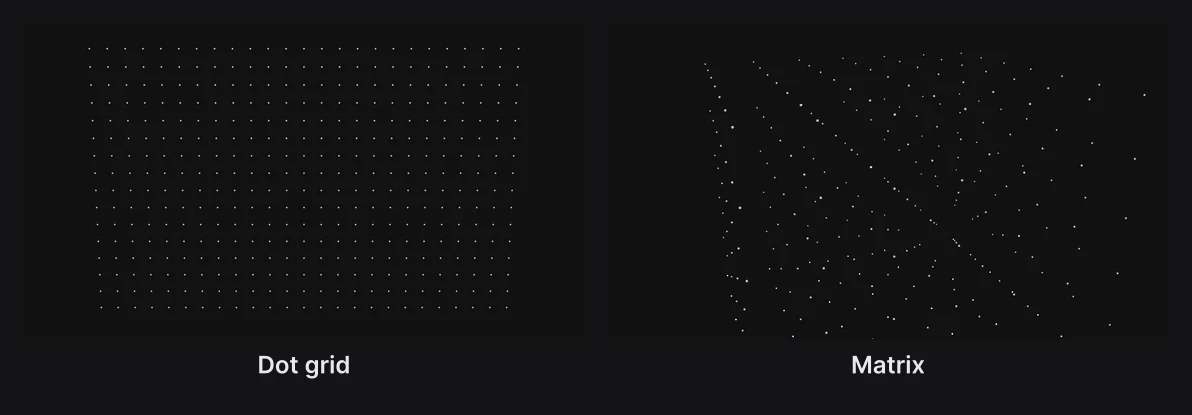
Press and hold Particles for two still fields of dots, ready for backgrounds and data looks:
- Dot grid: a flat, even grid of dots in the frame's proportions.
- Matrix: a cube of dots, 7 on each side.
How they move

Behavior, in the Particle Field section, sets the motion:
| Behavior | What the particles do |
|---|---|
| Drift | Float slowly upward, wrapping round to the bottom (or downward with a negative Drift) |
| Flutter | Sway in every direction, like dust in a sunbeam |
| Sparks | Fly out from the middle, fade, and start again |
| Orbit | Turn slowly round the cloud's middle, about once every ten seconds |
| Twinkle | Blink on and off |
| Smoke | Rise, curl, grow and thin out |
| Splash | Burst out in arcs at the Impact time, then fall |
Drift, Gravity and Viscosity add to every behavior except Smoke and Splash.
Where they sit
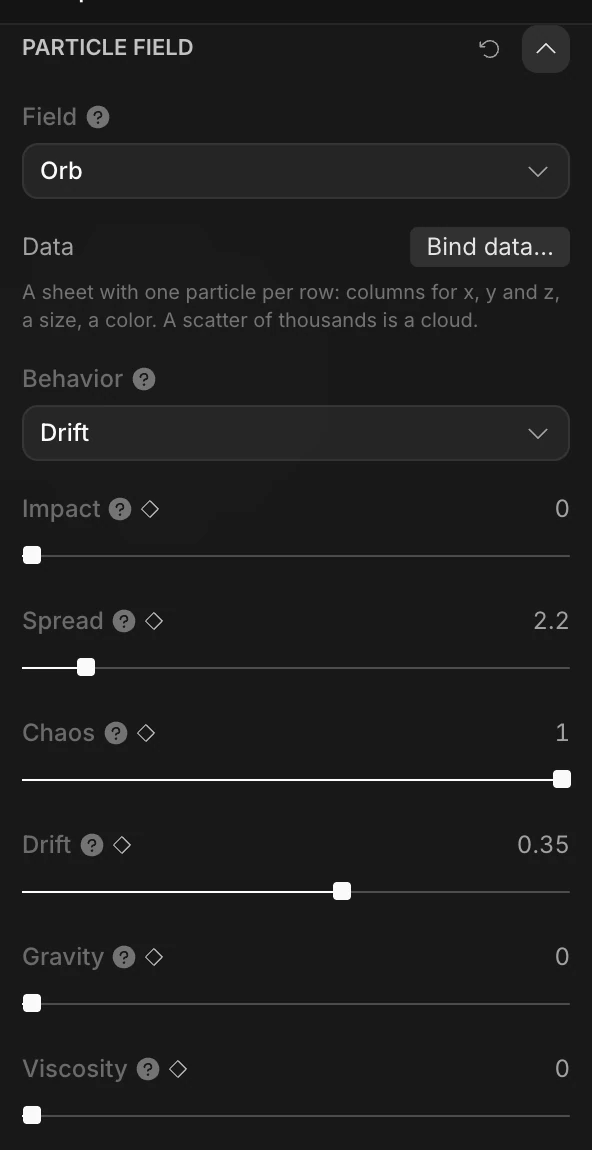
Field sets the cloud's shape: Orb (a ball), Ring (like a planet's), Lattice (a cube) or Sheet (a flat grid). Chaos decides how neat it is: at 1 the particles scatter freely through the shape; at 0 they sit on an exact grid.
| Setting | What it does |
|---|---|
| Spread | How far the cloud reaches, in scene units |
| Chaos | From an exact grid (0) to fully scattered (1) |
| Drift | Upward speed; negative falls |
| Gravity | A pull downward |
| Viscosity | Thickens the air, slowing the motion |
| Data | Places one particle per row of a spreadsheet. See Charts and data. |
Tip
Animate Chaos from 1 to 0 and a scattered cloud gathers into its neat grid. To gather particles into a logo or drawing instead, see Particles that form shapes.
How they look
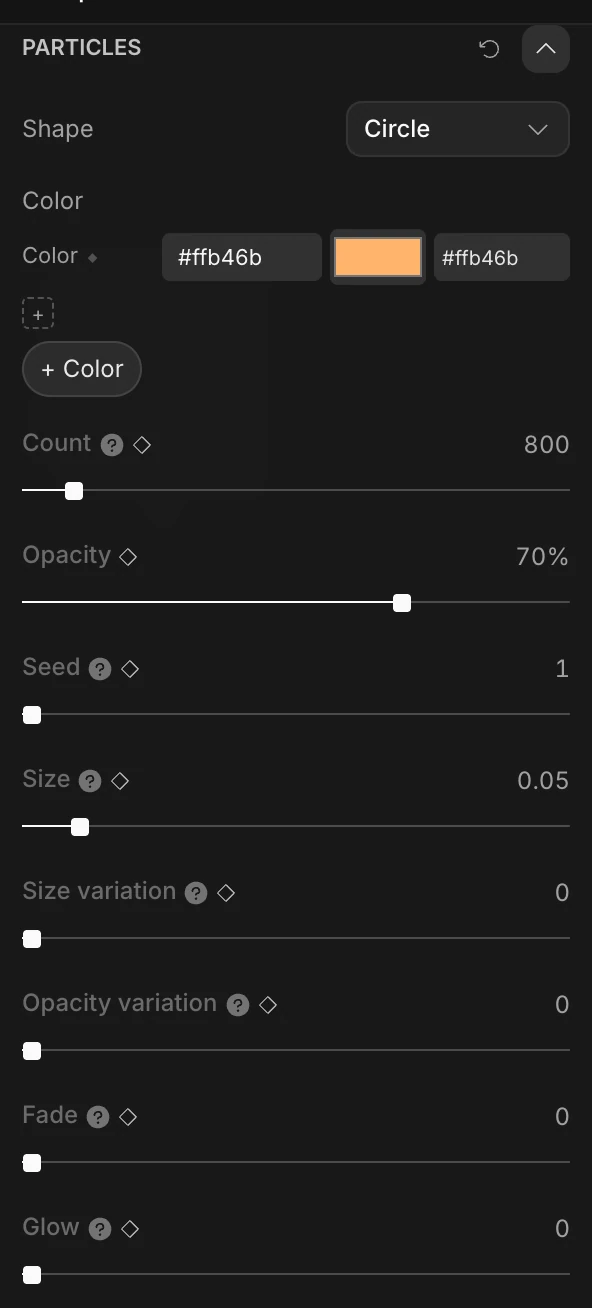
The Particles section sets each particle's look.
| Setting | What it does |
|---|---|
| Shape | Circle, Square, Soft (blurred), Spark (a four-point star), Stamp (a picture) or Mesh (a 3D shape) |
| Color | The particles' color. + Color adds up to four, and Spread mixes them: Scatter, Blocks or Ramp |
| Count | How many, up to 10,000 |
| Opacity | How see-through |
| Seed | A different random arrangement of the same cloud |
| Size | Each particle's width; Size variation mixes big and small |
| Opacity variation | Mixes bright and faint |
| Fade | Each particle fades in and out on its own rhythm, so the cloud shimmers |
| Glow | A soft halo round each particle |

Most of these have a diamond, so you can animate them: a cloud that grows, brightens, or thins out over time.
Note
Particles add light to what's behind them, so dark colors look dim. For dark dots on a light background, turn on Ink in the Form panel that opens with the cloud. Any blend mode other than Normal also makes them cover what's behind.
Stamps and 3D shapes
A particle can be a picture or a real 3D object.
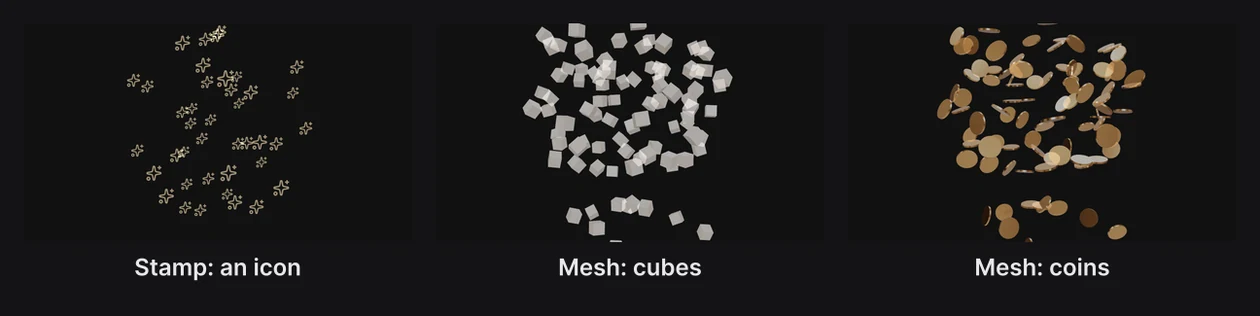
Stamp makes every particle a picture:
- Choose stamp… uses an image file: PNG, SVG, WebP or JPEG, up to 400 KB.
- From layer uses a layer in your scene: a shape, text, group, model or icon. It's pictured once, as it looks at the playhead, so later changes to the layer don't carry over.
- Stamp colors keeps the picture's own colors; off, the particles wear the cloud's colors.
Mesh makes every particle a 3D shape that catches the light: cubes, cards, spheres, cylinders, cones, rings, sheets of paper, coins, pills, people, or From layer. Material, Spin (each one tumbling) and Shadows set how they look.
The pointer field
In the Behaviors section, Pointer field pushes the particles away from the viewer's pointer in Preview mode and in embeds. Radius sets how far it reaches; a negative Strength pulls them in instead. Exports don't show it.
Formulas
Formulas, at the bottom of Particle Field, set each particle's Size, Opacity, Color or offset from a little math expression, using names like index, time, x and y, and functions like sin and noise. For example, 0.5 + 0.5 * sin(time + index) in Opacity makes the particles pulse one after another. The fields show what each one expects as you hover them.