
Rulers, guides and grids
Rulers, guides and grids help you place things precisely. They're all in the View menu in the top bar. None of them ever shows in an export, a share or an embed.

Show the rulers
Choose View › Rulers, or press ⇧ R. A thin ruler appears along the top and the left of the artboard, measured in its pixels from its top-left corner. Zoom out and the numbers spread out so they stay readable.
A mark on each ruler follows your pointer, so you can read where it is.
To make the rulers stronger or fainter, choose View › Ruler opacity: 40, 60, 80 or 100%. They start at 60%.
The rulers are your setting, not the project's. They stay on or off for every project you open in this browser.
Make a guide
- Turn on the rulers.
- Drag from the top ruler down into the artboard for a horizontal guide, or from the left ruler across for a vertical one.
- Let go where you want it. A label shows its position in pixels as you drag.
Hold Shift while you drag to keep the guide on the ruler's ticks.

Guides are cyan, so you can tell them from 2D design mode's pink smart guides.
Move, type and remove guides
- Move one: drag it.
- Type its position: double-click it, type the pixels and press Enter.
- Remove one: drag it back onto its ruler, or double-click it and click Remove.
- Remove them all: choose View › Clear guides.
Each of these is one step in undo.
Show, lock and snap
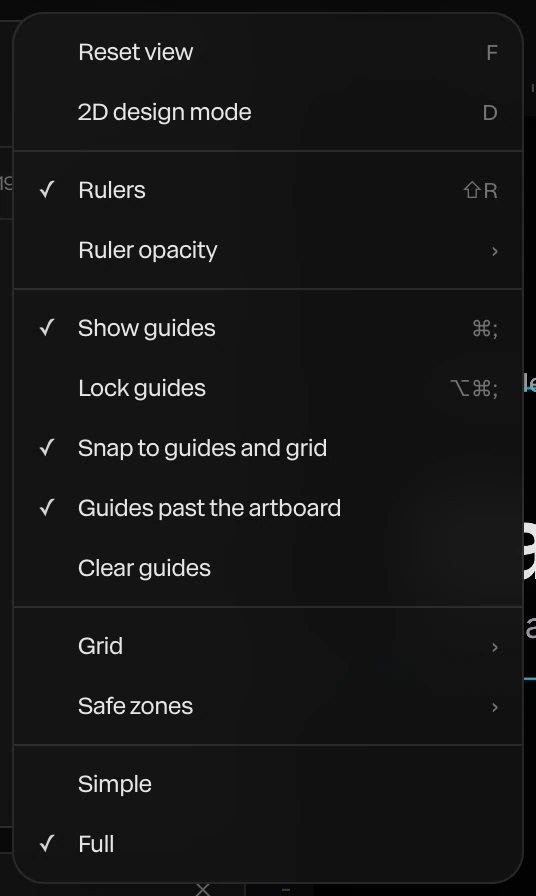
| In the View menu | What it does |
|---|---|
| Show guides (⌘ ;, or Ctrl ; on Windows) | Hides or shows the guides. Hidden guides are kept. |
| Lock guides (⌥ ⌘ ;) | Stops the guides moving when you click near one. |
| Snap to guides and grid | In 2D design mode, a layer you drag snaps its edges and center to the guides and to the grid's columns. |
| Guides past the artboard | Draws the guides across the whole workspace, fainter outside the artboard. Turn it off to stop them at the artboard's edges. |
Guides belong to the artboard. They move with it when you pan and zoom, but not when you orbit the 3D camera, so you can turn the scene against a fixed line.
Each artboard keeps its own guides, and they're saved with the project.
Lay a grid over the artboard
Choose a grid from View › Grid. One grid shows at a time.
| Grid | What it draws |
|---|---|
| Pixel grid | Square cells, 8 pixels by default, every fifth line stronger, like graph paper |
| 12 columns (web) | 12 columns, 24 px gutters, 64 px margins |
| 8 columns (tablet) | 8 columns, 24 px gutters, 48 px margins |
| 4 columns (mobile) | 4 columns, 16 px gutters, 24 px margins |
| Editorial | 6 columns over an 8-pixel baseline |
| Modular | 6 × 4 fields with 16 px gutters |
| Baseline | A line every 8 pixels, for type to sit on |
| Thirds | The rule of thirds |
| Center and diagonals | The middle across and down, and both diagonals |
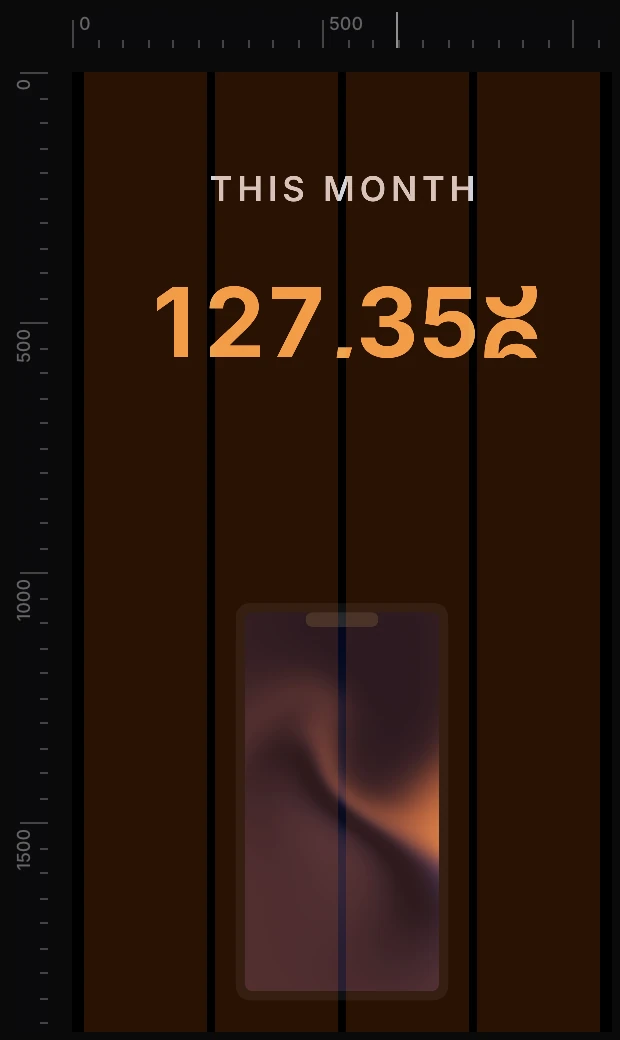
To turn the grid off, choose View › Grid › None.
Note
The pixel grid hides itself when you zoom out so far that its lines would be less than 4 screen pixels apart.
Change a grid's numbers
Choose View › Grid › Grid settings…. You can change:
- Kind: which grid it is.
- Columns and Rows.
- Gutter: the space between columns.
- Margin: the space at the artboard's sides.
- Cell or Baseline: the pixel grid's square, or the baseline's step.
- Color and Opacity.
The numbers are in the artboard's pixels, and each artboard keeps its own grid.
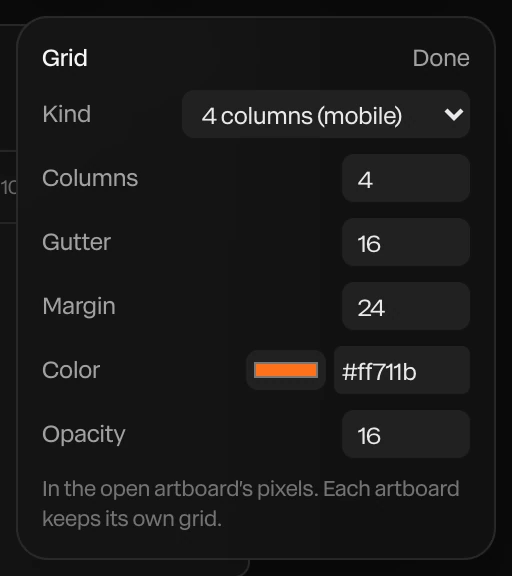
Snap to a grid
In 2D design mode, with Snap to guides and grid on, a layer you drag snaps to the edges of the columns and fields, the thirds and the middle.
A pixel grid is too dense to snap to. To keep layers on an 8-pixel grid, turn on View › Snap to 8 in 2D design mode.