
Notes
A note is a post-it for people: a reminder to yourself, instructions for a teammate, or context for someone who copies your template. Put one anywhere on the canvas, inside the frame or beside it.
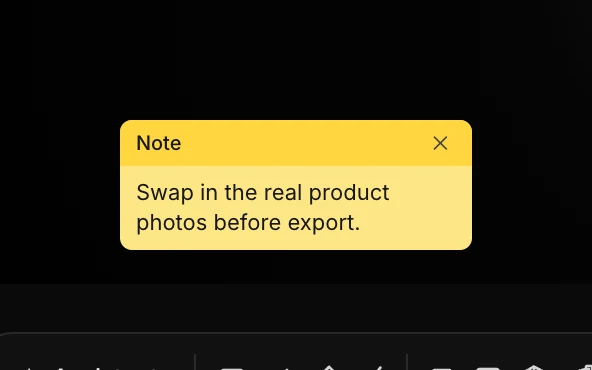
Add a note
Right-click an empty part of the canvas and choose Add a note here. The note appears where you clicked.
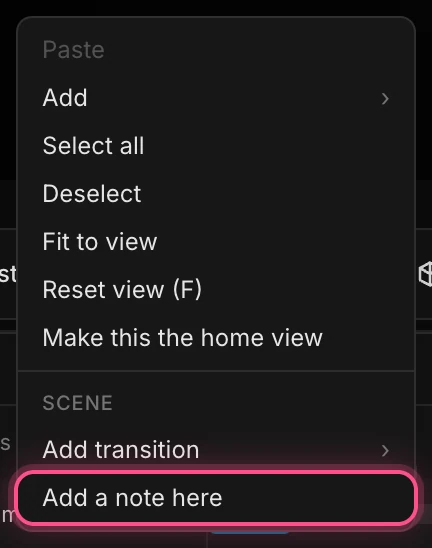
You can also:
- Right-click the Scene row in the Layers panel and choose Add a note. It lands in the middle of the frame.
- Search for Add a note with ⌘ K.
- Click Note in the Save as template dialog.
A new note opens ready for typing. Write up to 600 characters, then press Esc or click away.
Edit, move and delete notes
- Edit: click the note's text.
- Move: drag the note by its top strip.
- Delete: click the ✕ in its top strip. Undo brings it back.
If you're signed in and have a handle, the strip shows your @handle instead of Note.
Show or hide notes
While a scene has notes, a Notes button with the count appears in the top bar. Click it to hide or show every note. This setting is just for you, in this browser.
Where notes go
| Where | Notes? |
|---|---|
| Your saved project | Yes |
| Templates you publish, and copies people make of them | Yes |
| Share files (Menu › Export share file…) | Yes, read-only |
| Exported video, PNG, GIF, Lottie and USDZ | Never |
| Embeds on a website | Never |
Important
Notes are for people. The assistant never reads them. To give the assistant feedback on a layer, use Feedback instead. See Feedback and Point at it.