
Textures
A texture adds a surface's grain: the rings of wood, the pits of concrete, the fibers of paper. It colors the surface, raises it into relief the light picks out, and roughens it in places. Use one of ten built in, or a picture of your own.
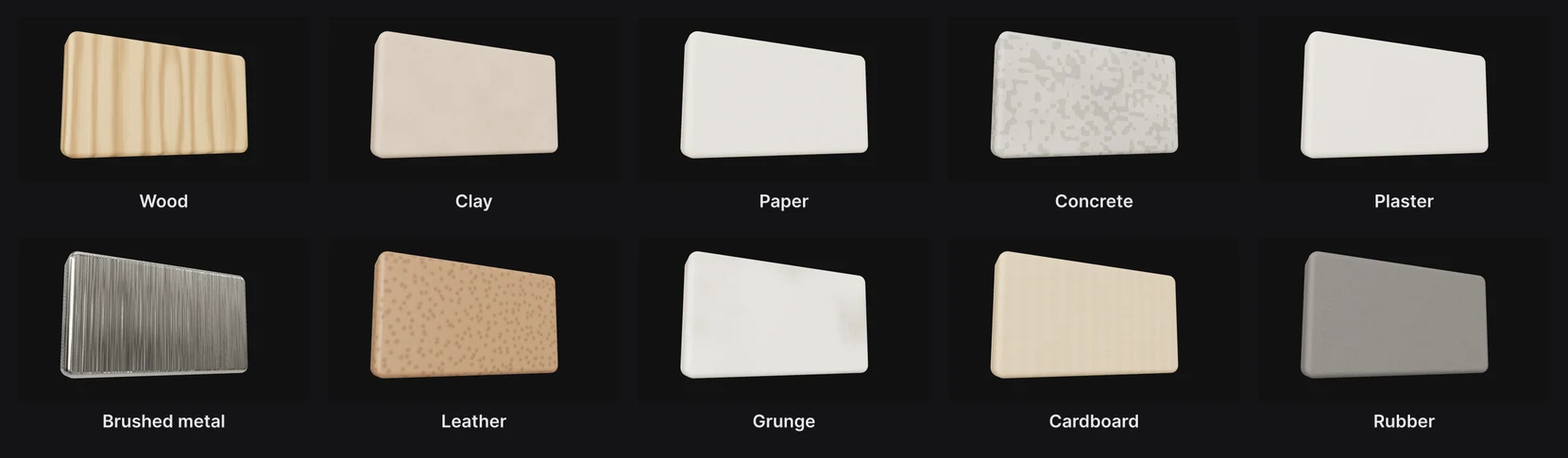
Where to find it: the Texture section, with a shape, text, 3D model or blob selected.
Add a texture
- Select a shape, text layer, 3D model or blob.
- In the Texture section, open Texture and pick one. A line under it says what it looks like.
- Adjust it with the dials.
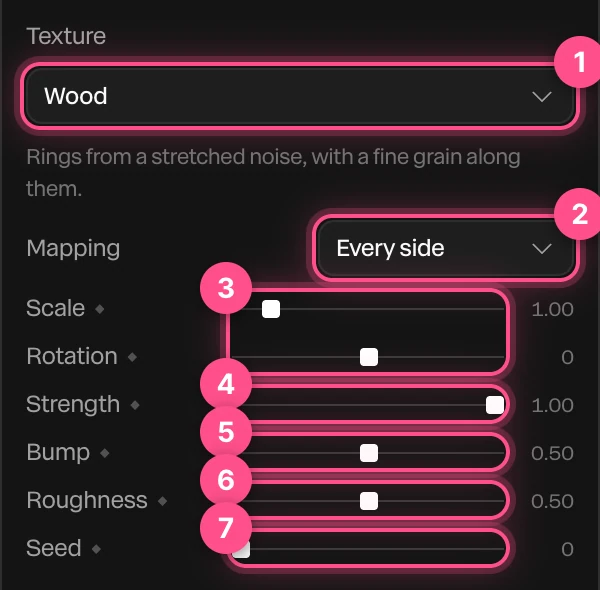
- Texture: None, one of the ten, or Your picture.
- Mapping: where it goes. See Every side or the face.
- Scale and Rotation: how fine the pattern is, and which way it runs.
- Strength: how much it colors the surface.
- Bump: how much relief it has.
- Roughness: how much the texture varies the surface's shine, so its grain catches the light.
- Seed: another take on the same texture, with the pattern in different places.
Every dial has a ◆, so a texture can change over time. See Animation basics.
An appearance sets a texture, a material and a color together. Choose Oak and you get the wood texture with the right color and finish.
The fill colors the texture
A texture works with the fill color under it, multiplying the two. Wood on a white fill is pale wood. On amber it's warm wood, and on blue it's blue-stained wood.
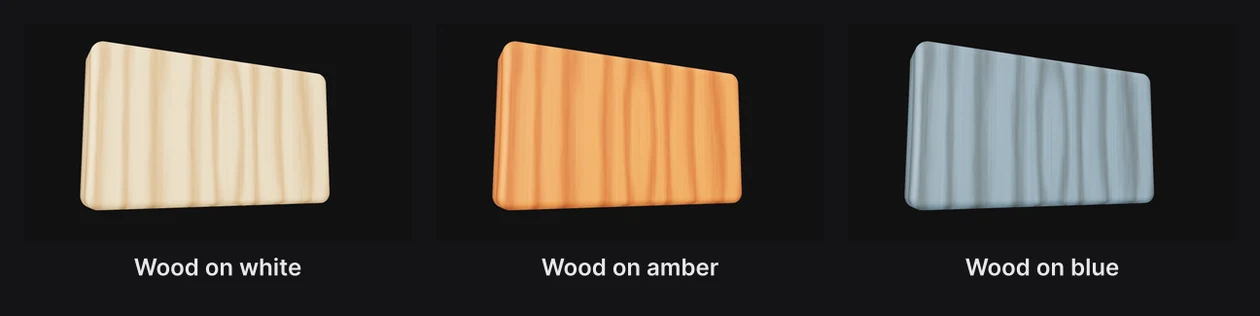
To change the texture's color, change the fill. See Fills and gradients.
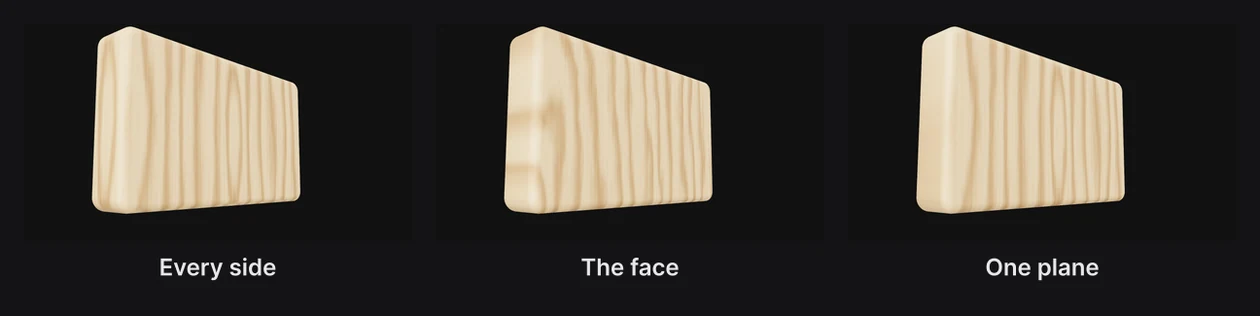
Every side or the face
| Mapping | What it does |
|---|---|
| Every side | The texture wraps the whole shape, edges and back included, without stretching. |
| The face | The texture lies on the front, following the face's own layout. The sides take a stretched version. |
| One plane | The texture is projected straight through the shape from one direction. |
Use your own picture
- Open Texture and choose Your picture, then pick an image file.
- To give it relief, click Add a normal map and pick the normal map that goes with it. A normal map is an image that stores which way each point of a surface faces. Texture sites often provide one beside the color image.
Replace picture swaps the picture, and the dials work as for the built-in textures.
Textures on strokes
A brush stroke has a texture of its own: Grain, under the brush in the Stroke section. It offers the same ten textures. See Brushes and drawing.
Important
Brushed metal only looks like metal on a metal material. Pick the Metal preset in the Panel Material section, or use the Brushed steel appearance, which sets both.