
Core concepts
Every Paraplex project is built from the same few ideas. Learn these and the rest of the app falls into place.
Scenes are 3D
A scene is everything in your project: the layers, the camera that looks at them, the lights, the background and the timeline.
Every scene is a real 3D space, even when it looks flat. Text and shapes can sit at different depths, the camera can move between them, and lights and materials behave the way they do in the real world.

Dragging across the frame orbits the scene's camera, the same camera your export uses. Press F (Reset view) to put it back where the scene started.
You don't have to think in 3D to use Paraplex. Most templates face the camera head-on, like a slide. When you want depth, it's already there. If you prefer to lay things out flat, turn on 2D design mode.
Note
The frame is the camera's view: the part of the canvas that ends up in your export. Anything outside it isn't exported.
Layers are the things in your scene
A layer is anything you add to a scene. Each one shows up as a row in the Layers panel. There are many kinds:
| Layer | What it is |
|---|---|
| Panel (shape) | The basic building block: a card, a rounded rectangle, an ellipse, or a solid like a sphere. It can hold a color, a gradient, a picture or a video. |
| Text | Words, flat or extruded into 3D |
| Image and video | Pictures and clips, placed on a panel |
| Path | Vector shapes drawn with the pen or brush, or pasted as SVG |
| 3D model | A GLB file you bring in, or one generated from a description |
| Particles | Thousands of dots or small objects moving together |
| Light | Spot, point and ambient lights |
| Group | A container that moves, fades and arranges the layers inside it |
| Audio | A sound or music track that plays with your piece |
See Layer types at a glance for the full list.
Properties are a layer's settings
Select a layer and its properties appear in the properties panel on the right: position, size, color, material, effects and more. They're grouped into sections such as Transform and Panel Fill.
Select Scene at the top of the Layers panel for the settings that apply to the whole piece, such as canvas size, background, lighting, camera and filters.
Keyframes make things move
To animate a property, you save its value at two or more moments in time. Each saved value is a keyframe. Paraplex fills in the motion between them.
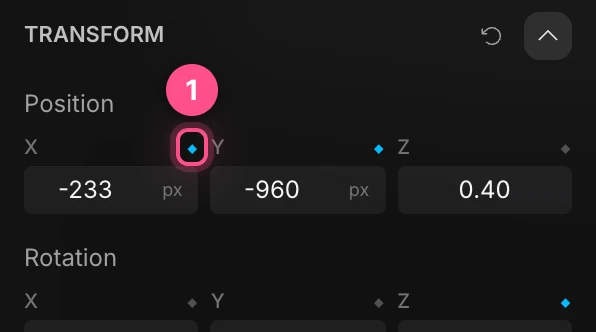
The small diamond (1) beside a property sets a keyframe at the current moment. Move to another moment, change the value, and you have motion. A filled diamond means the property is animated.
Keyframes appear as diamonds on the timeline, one row (a lane) per animated property. As the playhead passes over them, the layer moves.

How the motion speeds up and slows down between keyframes is called easing. Easing is what makes motion feel natural instead of robotic. See Easing and springs.
Tip
You don't have to set every keyframe by hand. Presets such as Animate in, text animations and camera moves write the keyframes for you, and you can still edit them afterwards.
Clips decide when a layer is on screen
Each layer has a clip: the stretch of time it appears for, from its in point to its out point. Select a layer and its clip appears as a bar on the timeline. Drag its ends to change when the layer shows up and when it leaves.

Clips can have transitions at their edges, such as a fade, a slide or a blur. See Clips and transitions.
The camera is part of the scene
The camera decides what the frame shows. It has a lens, with focal length and depth of field, and it can be animated like any layer. A push-in, an orbit or a whip pan is a camera move. See Camera and lens.
Export turns your scene into a file
When your piece is ready, export it:
- Video: MP4 or WebM, with sound, or a GIF.
- Image: a PNG of the current moment.
- Embed: a live, interactive version for a website.
Exporting draws every frame at full quality, one at a time, so the file matches what you saw while editing. See Exporting video.
Projects and templates
A project is a saved scene. A template is a finished scene you start from. Applying one gives you its layers, animation and look to edit. See Starting a project and Saving your work.