
Data variants
One design, many versions: a card for each product, a slide for each city, a post for each speaker. Put the words and numbers that change in a spreadsheet, a row for each version, and Paraplex exports one picture per row.

How a sheet fills your layers
Each column fills the layer with the same name. Name the layers in the Layers panel to match your column headings. Capitals, spaces and punctuation don't matter, so a column Head line fills a layer named headline.
| Layer | What its column fills |
|---|---|
| A text layer | Its words |
| A number counter | The number it counts to |
An empty cell leaves that layer as it is in the scene. The first column names each file.
Important
Two layers with the same name are both left alone, so give the one you mean a name of its own.
Make the variants
- Name the layers that change, such as
HeadlineandPrice. Make a sheet with a column for each of them and a row for each version, and save it as a CSV from Excel, Numbers or Google Sheets.
Headline,Price
Built to last,$24
Made by hand,$32
In the quick-actions strip, click Data variants, then Import sheet (CSV)…, and pick the file. Or use Menu › Data variants › Import sheet (CSV)….
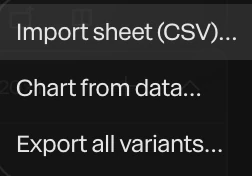
A message says how many rows came in and how many columns matched a layer, such as "3 rows, 1 columns matched to layers."
- Click Data variants, then Export all variants….
Each row exports as a picture of the frame at the playhead, named after the first column, such as paraplex-1920x1080-built-to-last.png. A panel in the corner counts them off, with Cancel, and Resume if you stop partway.

Variants in every format
With export formats turned on, each row exports in each format: 20 rows in three formats make 60 pictures, all in one go.
Things to know
- Exports are pictures, PNG or JPG as Image Export says, not videos.
- Numbers like
$1,299are read as numbers, so a counter can count to them. - Exporting all variants is part of Pro.