
Save as template
Built something you'll make again: a launch film your team reuses, a title card you'd share? Save it as a template. It's kept under your account, ready to open as a copy whenever you start the next one, and you can show it in the community for others to use too.
Save a template
- Open the piece you want to save.
- Click Share in the top bar, then Save as template…. Or choose Menu › Templates › Save as template….
Fill it in:
- Template name
- Description: what it is, and what to change to make it yours
- Tags: up to five, with commas between them
- Category, for the community's pages
Choose who sees it:
- Publish template to Showcase: shown in the community for anyone to find and open. Leave it unchecked to keep the template to yourself.
- Allow template cloning: lets people open a copy of their own. Unchecked, they can watch it but not copy it.
- Click Save template.
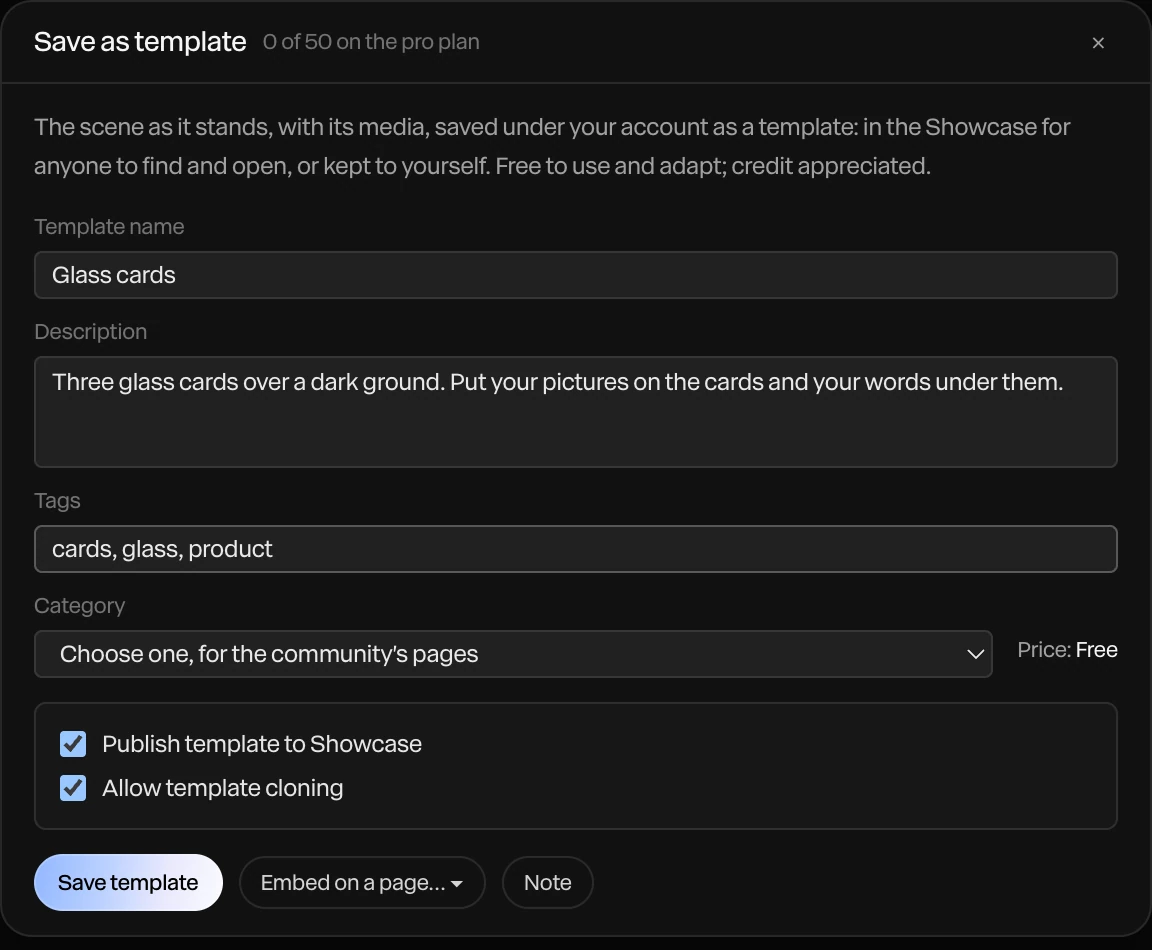
The header counts your published pieces against your plan: templates and embeds share the count, 3 on Free and 50 on Pro. You need to be signed in.
Note
To show a template in the community, set a handle first: the dialog asks for one, and a template in the community shows who made it.
When you show it in the community, Paraplex records a short preview loop of the piece for its card, so saving takes a moment longer.
Your templates
Your templates are listed under My templates, in the Save as template dialog and in Menu › Library…. Each shows whether it's In the Showcase, Hidden from the Showcase or Private, and how many times it's been used.
| To | Do this |
|---|---|
| Work on a template | In Menu › Library…, hover over it and click Open. It opens as a copy. |
| Update it | With your changed copy open, open Save as template… and click Update beside it. The template's page shows the new version. |
| See its page | View page ↗ |
| Take it down | Unpublish. Pages that embed it show nothing. |
Put it on a page too
A saved template can also go on a website: click Embed on a page… in the dialog for its snippet. See Publish and embed.