
Projects
Every piece you make is a project. Paraplex keeps it as you go: there's no Save to remember. Name it, come back to it from the home page or My projects, and, signed in, open it on any computer.
Your work is kept as you go
- A new file or a template becomes a project of yours from your first change, named Untitled, or after its template, such as Card stack (Copy). It gets its own address,
…/file/…, that you can bookmark. - Changes are saved moments after you make them, in this browser.
- Going home, opening another project, or starting a new one saves the one you leave. A message says where, such as "Saved as "Untitled 2" in Recent projects."
- A template you only looked at isn't kept.
Name a project
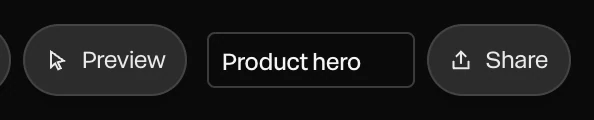
Click the name in the top bar, type, and press Enter. Esc puts the old name back.
Find your projects
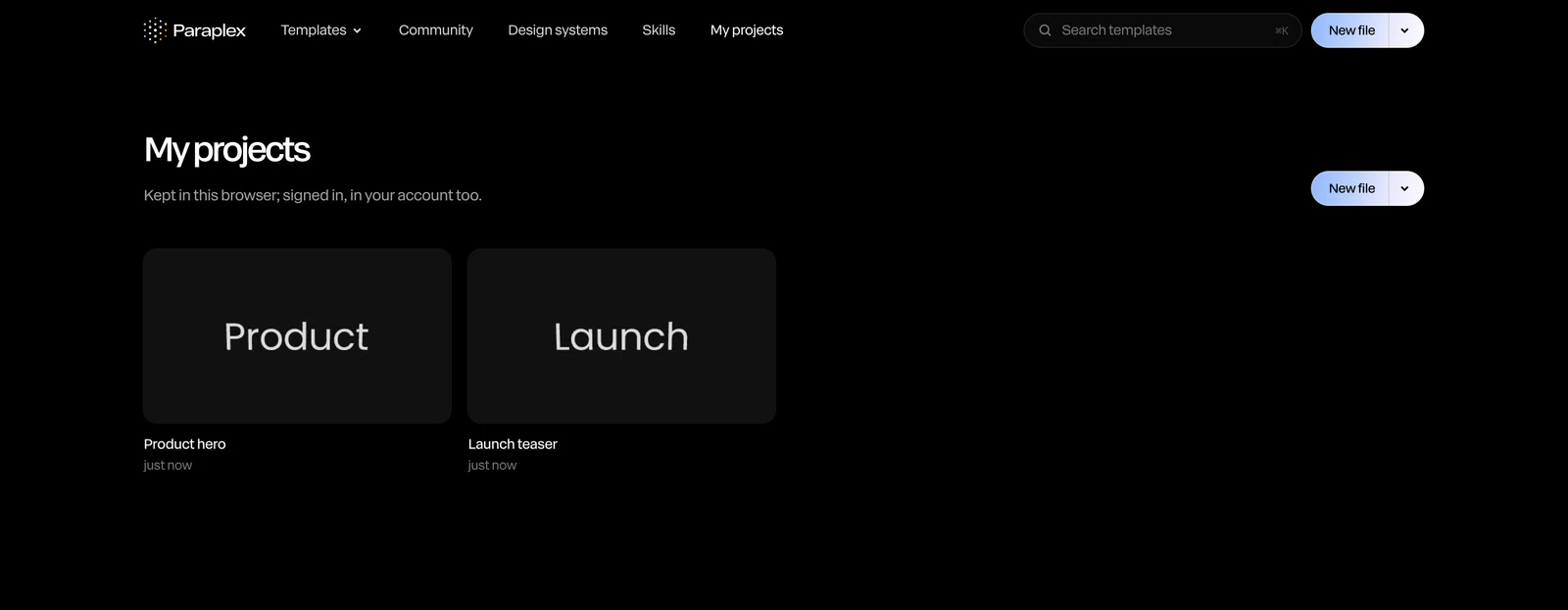
- Recent on the home page shows the last four, with View all.
- My projects at the top of the site lists them all, newest first.
The Projects panel
In the editor, choose Menu › Open project… for the Projects panel.
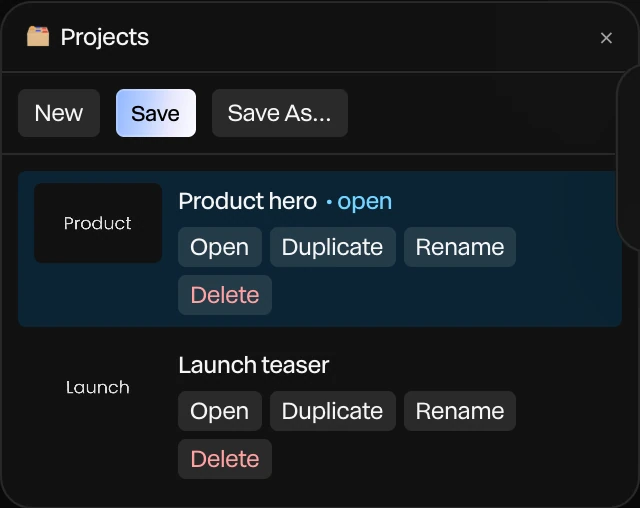
| Button | What it does |
|---|---|
| New | Starts a new, empty project |
| Save | Saves the open project now |
| Save As… | Saves a copy under a new name, and opens the copy |
| Open | Opens that project |
| Duplicate | Makes a copy, named "name copy" |
| Rename | Renames it in place: Enter to keep, Esc to cancel |
| Delete | Deletes it, after asking |
Signed in, each project also has History (its saved versions), Review (comments from a client, without an account), and Send a copy, and the panel has a Bin. See Cloud sync and revisions and Share links and copies.
The same commands are in the Menu: New project, Open project…, Save and Save As….
Important
Without an account, projects live only in this browser. Clearing the browser's site data deletes them. Sign in to keep them in your account too, or back them up. See Backing up your library.