
Layer effects

Layer effects change one layer and leave the rest of the frame alone: a glow round a card, a shine that sweeps across it, a shadow behind it, bloom or blur on it alone, a ripple or a glitch through its picture, a wave that turns it into a flag.
Where to find it: the Effects, Layer Filters and Wave sections, with a layer selected.
Glow, sweep, light and shadows
The Effects section has four effects for shapes and text.
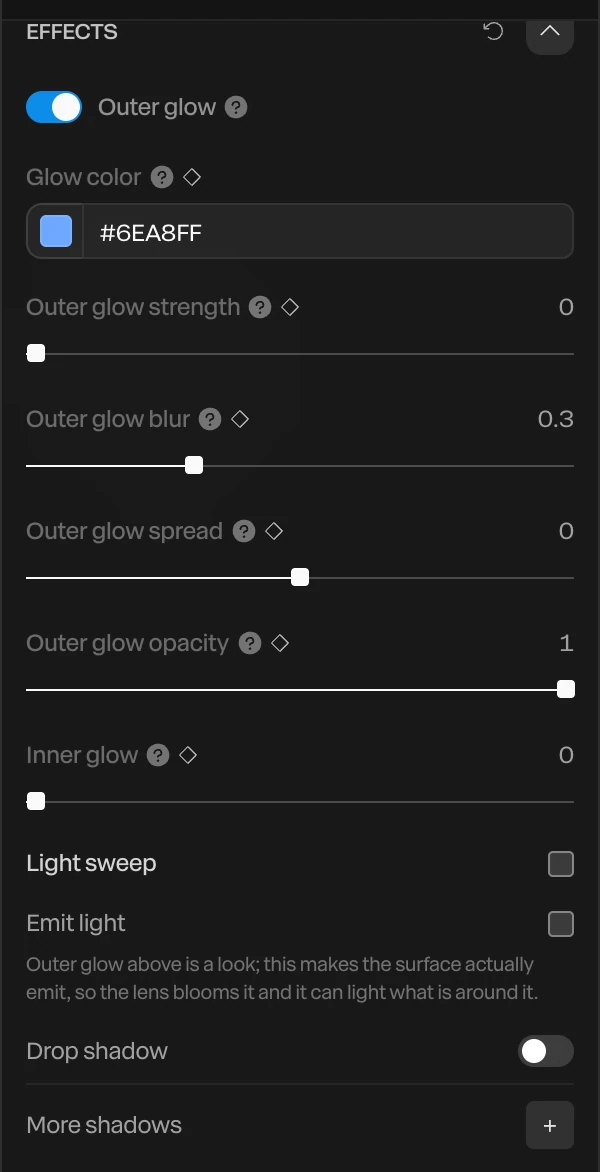
| Effect | What it does |
|---|---|
| Outer glow | A soft halo round the edge, in Glow color. Outer glow strength sets how bright it is (it starts at 0, so raise it), Outer glow blur how far it reaches, Outer glow spread how solid its core is, and Outer glow opacity how see-through. Inner glow lights a rim inside the edge. |
| Light sweep | A bright band that crosses the surface: its Color, Duration (s) for one pass, Width, Angle (°), Intensity, when it Start (s), and whether it Loops. |
| Emit light | Makes the surface give off real light: its Color and Strength. It's bright enough to bloom through the camera's lens. Raise Lights others and it lights what's near it too, as far as its Reach. |
| Drop shadow | A soft shadow behind the layer: Shadow color, Shadow opacity, Shadow offset X and Y, and Shadow blur. |
| More shadows | + adds another shadow, each with its own X, Y, Blur, Spread, Opacity and color. Inset puts it inside the edge instead. |
Outer glow is a look, drawn on top. Emit light is the physical one: the lens blooms it, and it can light the layers round it. It costs more to draw.
The glow, emitted light and drop shadow settings each have a ◆, so they can pulse, fade and flicker. See Animation basics.
Grade and blur one layer
The top of the Layer Filters section grades the selected layer alone. It works on shapes, text, groups, 3D models, blobs, particles, formations and generators.
| Setting | What it does |
|---|---|
| Layer bloom | A soft halo bleeding from the layer's bright parts. 0 is off. |
| Layer bloom threshold | How bright a part must be to bloom. At 0.7 only near-white parts glow. Lower it and paler parts glow too. |
| Layer contrast | 1 is unchanged. |
| Layer saturation | 1 is unchanged, 0 is gray. Keyframe it to drain the color from one layer. |
| Layer blur | 0 is sharp. Keyframe it from high to 0 for a layer coming into focus. |
Add an effect from the library
Under the grading dials, Add… puts an effect from the effect library on this layer alone:
- Select the layer.
- In the Layer Filters section, open Add… and pick an effect.
- Set its dials. Effects run in order, top to bottom. Move one with the arrows, turn it off with its checkbox, or remove it with ×.
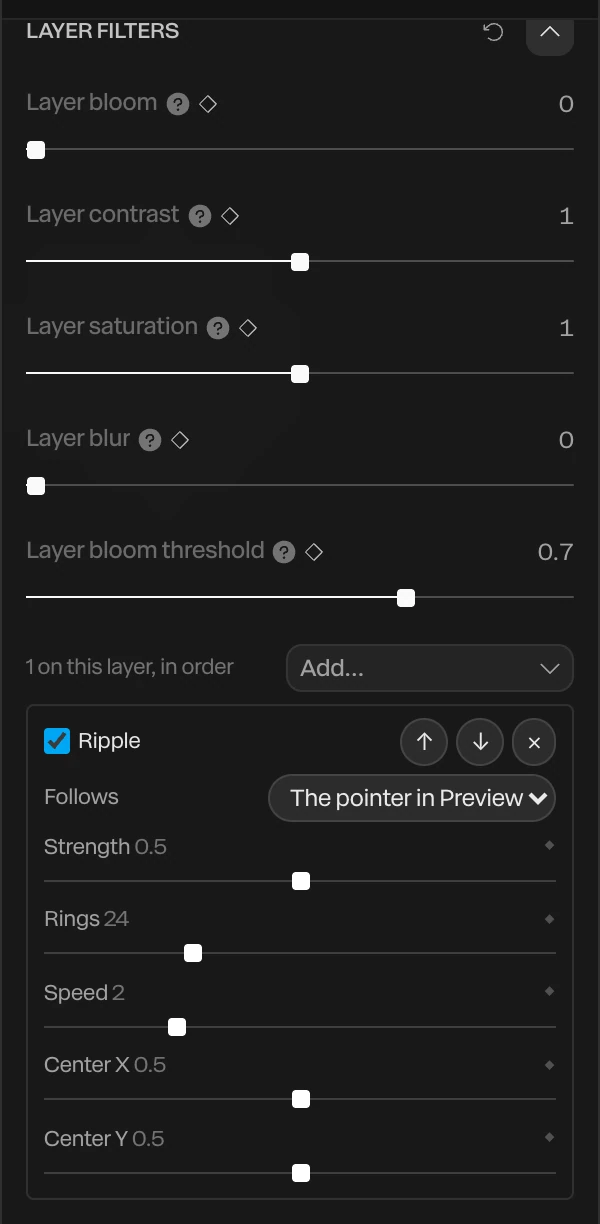
The library's effects are Chromatic aberration, Glitch, VHS, Pixelate, Edge / X-ray, Posterize, Duotone, Vignette, Ripple, Dissolve, RGB shift, Bad TV, Halftone dots, ASCII, Directional blur, Datamosh, Retro look and Fluid reveal.
Five more bend the layer's picture: Wave, Bulge, Twirl, Skew and Jelly, which wobbles when the layer moves. The Effect library explains each one.
On shapes and text, each number dial has a ◆. Follows sets what an effect that has a center tracks: the pointer while you try the piece in Preview, or a layer such as a cursor, in every frame.
Reveal a layer along a cursor's trail
Fluid reveal shows a layer only along the path a cursor took in the last moments, like a soft brush stroke that closes behind it. Put a second picture over a first, and the cursor uncovers it as it moves, such as an X-ray over a photo.

- Put the picture to reveal over another one, the same size. See Images and video.
- Add a cursor with a route. See UI overlays and cursors.
- Select the top picture. In Layer Filters, open Add… and choose Fluid reveal.
- Set Follows to the cursor.
Its dials:
| Dial | What it does |
|---|---|
| Size | How wide the trail is at the cursor |
| Life | How many seconds the trail stays open behind it |
| Softness | How soft its edge is |
| Wobble | How much the edge moves, like liquid |
| Cut out | Turns it round: the trail opens a hole through the layer onto what's under it |
Important
The trail follows where the cursor itself is, not the movement of a group it's in or of the camera.
Make a layer wave
The Wave section ripples a shape, text or particle cloud. Set Wave to Wave:
| Setting | What it does |
|---|---|
| Amplitude, Frequency, Speed | How tall the waves are, how many there are, and how fast they move |
| Randomness | Breaks up the regular rhythm |
| Shape | Linear waves in one direction (at Angle), Radial rings like a pond, or Splash |
| Held edge | Free, or held at the Left, Right, Top or Bottom edge. Hold an edge to make a flag. |
| Detail | How finely the surface is divided, for a smoother wave |
Amplitude, Frequency, Speed, Randomness and Angle each have a ◆. The waves move with the timeline, so they export frame for frame.